How to Use ChatGPT for Work: 15 Practical Examples That Save Time
ChatGPT can save time at work, but the biggest gains usually come from using it on real tasks you already do every week—not from collecting hundreds of clever prompts.
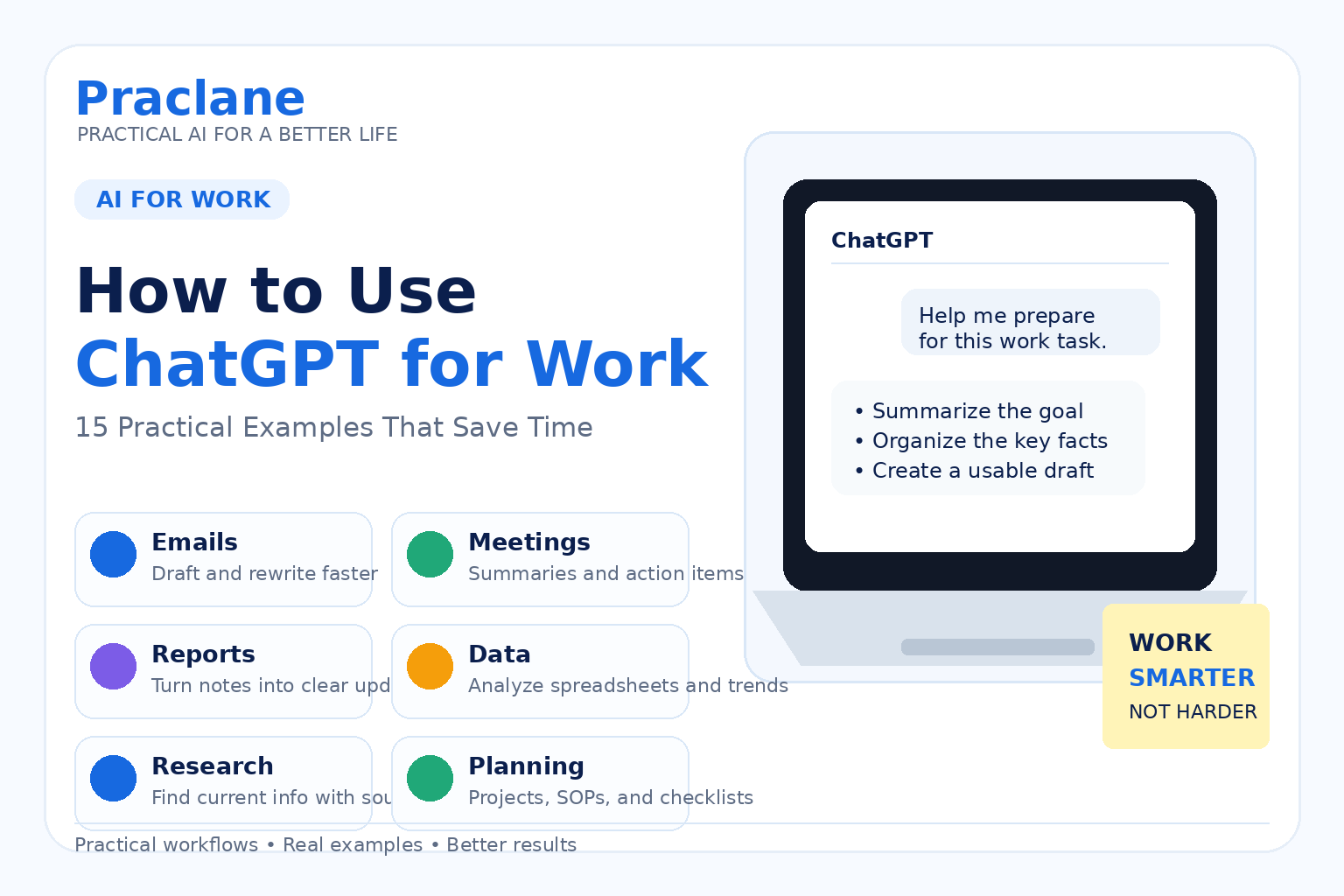
This guide shows how to use ChatGPT for work with 15 practical examples for writing, meetings, research, documents, spreadsheets, planning, presentations, and routine communication. Each example includes a prompt you can copy and adapt.
If you are still learning the basics, start with our ChatGPT beginner guide. If your results feel too generic, see our guide to writing better ChatGPT prompts.
How ChatGPT Can Help at Work
At work, ChatGPT is most useful for speeding up drafting, organizing, analysis, and repeatable tasks.
Use ChatGPT for speed and structure; keep human review for accuracy, privacy, and final decisions.
15 Practical Ways to Use ChatGPT for Work
1. Draft Professional Emails Faster
Give ChatGPT the recipient, purpose, tone, and key facts. This is much more reliable than simply asking it to “write an email.”
Write a concise professional email to a client confirming that the delivery date has moved from Tuesday to Thursday. Apologize briefly, explain that the delay is due to a supplier issue, and end by offering to answer any questions. Keep it under 140 words.
You can also paste your own draft and ask ChatGPT to improve clarity without changing the facts.
2. Turn Meeting Notes Into Action Items
After a meeting, paste your notes and ask ChatGPT to separate decisions, tasks, owners, and deadlines.
Turn these meeting notes into a clean summary. Create four sections: Decisions, Action Items, Owner, and Deadline. Flag anything that is unclear or missing: [paste notes]
This is especially useful when your notes are messy, abbreviated, or written in chronological order rather than by topic.
3. Prepare for Meetings
ChatGPT can help you build an agenda, prepare questions, anticipate objections, or identify information you should collect before a meeting.
I have a 30-minute meeting with my manager about a project that is two weeks behind schedule. Create a practical agenda, five questions I should be ready to answer, and three solutions I can propose.
4. Summarize Long Reports and PDFs
Upload a supported document and ask for a summary tailored to your role instead of a generic overview.
Summarize this report for a project manager. Give me the five most important findings, major risks, deadlines, budget implications, and any decisions that need attention this week.
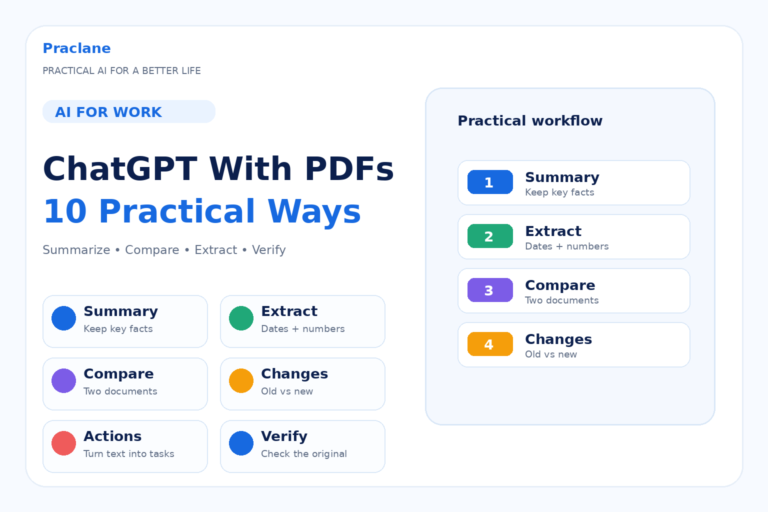
For important contracts, policies, financial documents, or technical specifications, always check critical details in the original file. Our guide on verifying ChatGPT answers explains a simple fact-checking workflow.
5. Write Reports From Rough Notes
Instead of starting from a blank page, give ChatGPT the raw facts and ask it to organize them into a professional structure.
Turn these notes into a one-page weekly project update. Use the headings Progress, Completed This Week, Current Risks, Next Steps, and Decisions Needed. Keep the language factual and concise: [paste notes]
6. Research Current Information With Sources
For current competitors, regulations, vendors, prices, market developments, or product changes, ask ChatGPT to search the web and prioritize primary sources.
Search the web for the current pricing and core features of these three tools. Use official company pages where possible. Compare them in a table and cite the source for every price and major feature.
Open the most important source links yourself before using the information in a decision or client-facing document.
7. Analyze Spreadsheets and CSV Files
For formulas, cleanup, reconciliation, charts, and workbook analysis, see our complete ChatGPT for Excel guide.
ChatGPT can analyze supported spreadsheet and data files, identify patterns, create calculations, and produce tables or charts. OpenAI’s current guidance recommends structured data with clear column names for the best results.
Analyze this sales spreadsheet. Show monthly revenue, the five largest customers, the products with the fastest growth and decline, and any unusual values. Create a short executive summary and a table of the key findings.
For financial or operational decisions, independently verify formulas, assumptions, and important numbers.
8. Create and Fix Excel Formulas
You can describe what you want a spreadsheet formula to do, or paste a formula that is producing an error.
Write an Excel formula that returns “Overdue” when the due date in D2 is earlier than today and the status in E2 is not “Complete.” Otherwise return a blank cell. Explain the formula briefly.
If the formula is part of an important financial model, test it on sample rows before applying it to the full workbook.
9. Compare Options Before Making a Decision
ChatGPT is useful for organizing trade-offs when you have several choices and many criteria.
Compare these three software options for a 10-person team. Evaluate price, learning curve, collaboration, integrations, reporting, and implementation time. Put the comparison in a table, then recommend the best option for a small team that values simplicity over advanced customization.
The recommendation becomes much more useful when you tell ChatGPT which criteria matter most.
10. Build Project Plans and Checklists
If your team keeps project plans, notes, and knowledge-base pages in Notion, see our ChatGPT + Notion workflows.
Give ChatGPT a goal, deadline, team size, and constraints, then ask it to break the work into milestones and tasks.
Create a four-week launch plan for a new internal training program. We have one project manager and two subject-matter experts. Include milestones, dependencies, risks, owners, and a weekly checklist.
11. Draft SOPs and Process Documentation
For longer document workflows, including drafting, restructuring, summarizing, and final review, see our ChatGPT for Word guide.
When a process exists mostly in someone’s head, ChatGPT can turn a rough description into a first draft of a standard operating procedure.
Turn this process into a simple SOP for a new employee. Include Purpose, When to Use It, Required Inputs, Step-by-Step Procedure, Quality Checks, Common Mistakes, and Escalation Rules: [describe process]
Have the person who actually performs the process review the final SOP before it becomes official.
12. Create Presentation Outlines
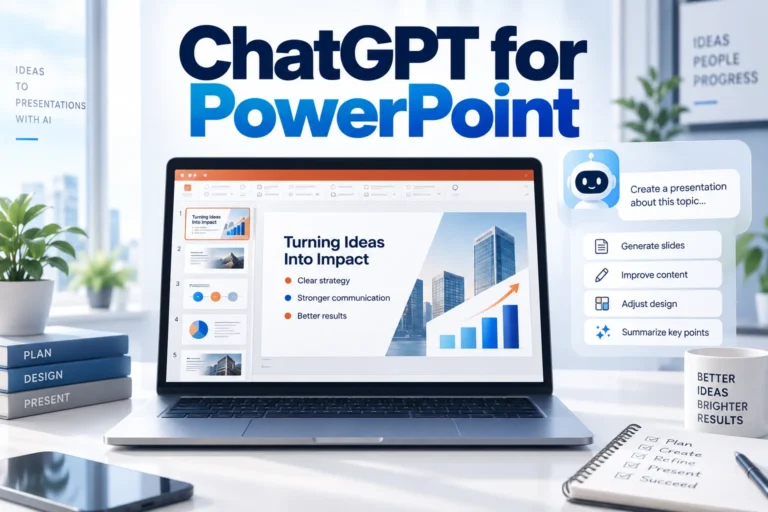
For slide outlines, deck revisions, speaker notes, and presentation review, continue with our ChatGPT for PowerPoint guide.
ChatGPT can help turn a topic or report into a logical slide structure before you start designing slides.
Create a 10-slide presentation outline for senior management about this project. For each slide, give me a title, the main message, 3–5 supporting points, and the best visual to use. The presentation should take less than 12 minutes: [project information]
13. Rewrite Content for Different Audiences
The same information often needs different wording for executives, customers, technical teams, and new employees.
Rewrite this technical explanation for a non-technical client. Keep the important facts, remove unnecessary jargon, and use a calm professional tone. Limit it to 200 words: [paste text]
14. Brainstorm Solutions to a Work Problem
Do not stop at “give me ideas.” Ask ChatGPT to evaluate each option against your actual constraints.
We receive too many customer support requests about the same five issues. Give me 10 realistic ways to reduce repeated requests. Score each idea for cost, implementation effort, expected impact, and time to launch. Then recommend the three best options for a small team.
15. Turn Repetitive Work Into a Reusable Workflow
Once you find a task that works well with ChatGPT, turn it into a repeatable template instead of writing a new prompt every time.
Create a reusable prompt template for my weekly status report. Ask me for the minimum information you need, then produce the report with the same headings, tone, and length every week.
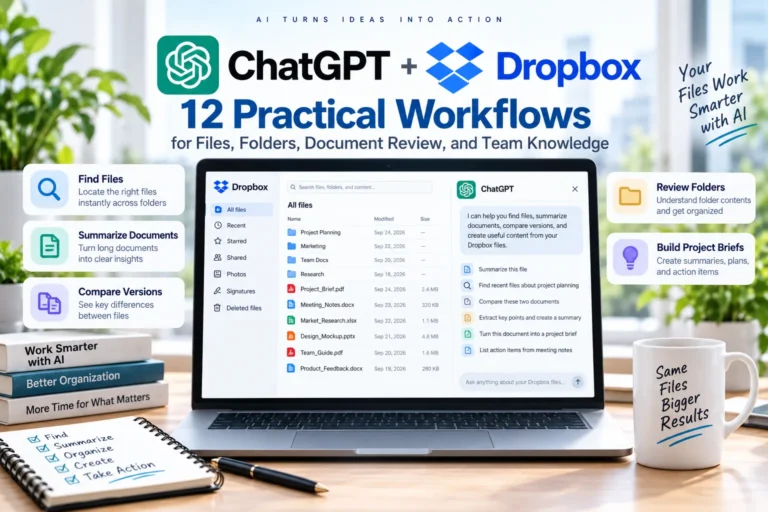
For longer or multi-step tasks, paid users may also have access to ChatGPT Work, which OpenAI describes as an agent that can work across files, tools, and longer workflows to create finished outputs. Availability can vary by plan and device. If your work lives in Drive, our ChatGPT + Google Drive guide shows practical workflows for Docs, Sheets, Slides, files, and folders.
A Simple Prompt Formula for Work
For most workplace tasks, a clear prompt only needs the task, relevant context, key requirements, and the desired output format. For a full explanation and reusable template, see our guide to writing better ChatGPT prompts.
What You Should Not Paste Into ChatGPT at Work
Follow your employer’s AI and privacy policies, and do not paste passwords, authentication codes, private keys, payment-card details, or unnecessary confidential data.
Common Mistakes When Using ChatGPT for Work
- Give enough context for the task.
- Verify important facts, numbers, and sources.
- Keep final judgment and responsibility human.
- Protect confidential workplace information.
- Improve a weak process before automating it.
Frequently Asked Questions
What is the best way to use ChatGPT at work?
Start with one repetitive task you already do every week, such as email, meeting notes, reports, spreadsheets, or planning.
Can I use ChatGPT for confidential work?
Only if doing so is consistent with your organization’s policies, account configuration, contracts, and applicable privacy or security requirements. When in doubt, remove sensitive information or use an approved company workflow.
Will ChatGPT replace my judgment at work?
No. The strongest use case is usually augmentation: ChatGPT speeds up drafting, analysis, organization, and exploration while you provide context, expertise, review, and final judgment.
If reporting is one of your recurring tasks, continue with our guide to using ChatGPT for recurring reports. If you are applying for a new role, see our practical guide to resumes and cover letters with ChatGPT.
For longer tasks that involve research, files, connected apps, browsing, or finished deliverables, see our ChatGPT Work in 2026 guide.
Final Thoughts
The most valuable way to use ChatGPT for work is to connect it to a real task and measure whether it actually saves time or improves the result.
Choose one task from this list that you already do every week. Use ChatGPT for the first draft or analysis, review the output carefully, and refine the process until it becomes repeatable.
For more ideas, see 10 practical things you can do with ChatGPT, our ChatGPT Free vs Plus comparison, and our guide on checking AI answers before you rely on them.