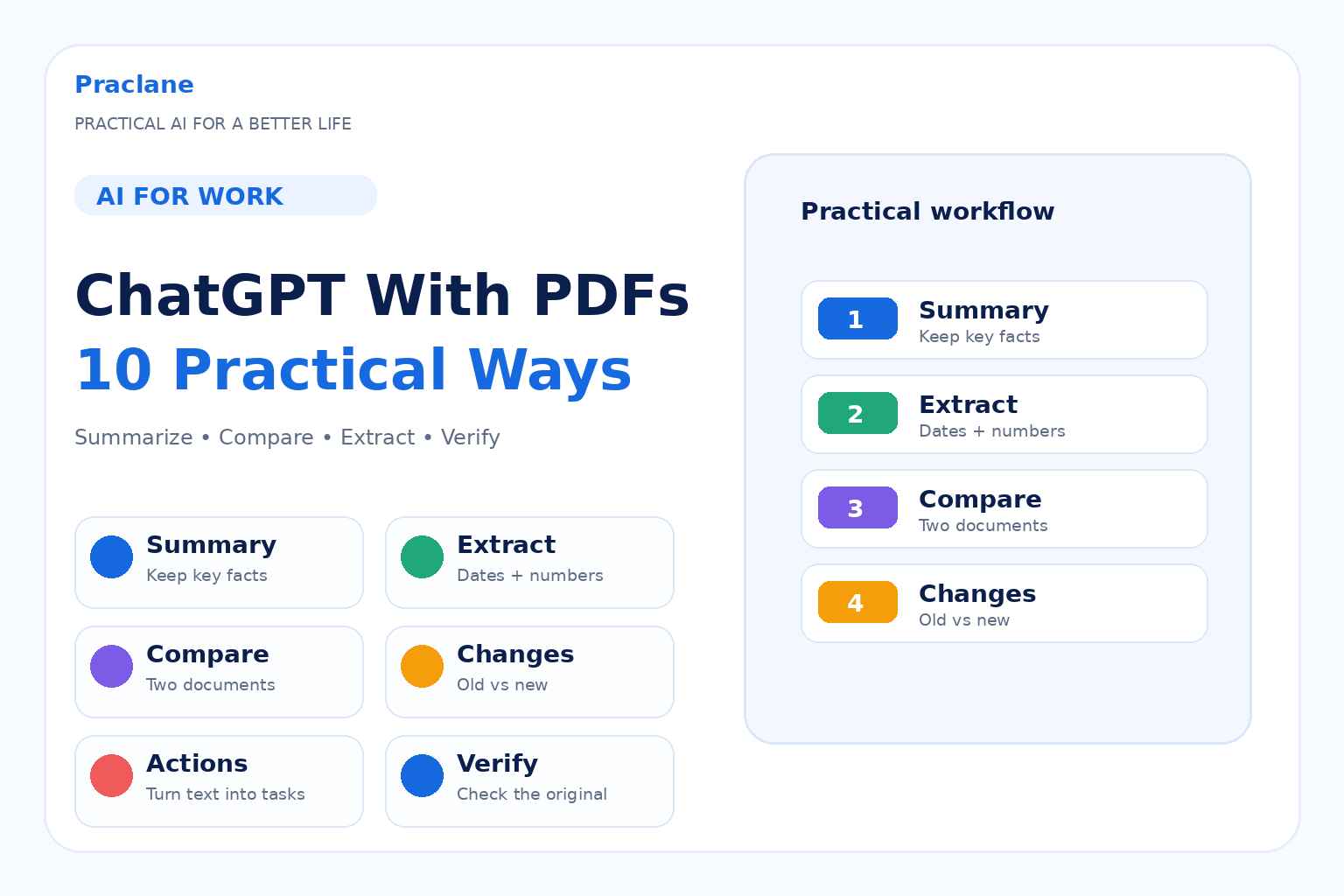
How to Use ChatGPT With PDFs: 10 Practical Ways to Summarize, Compare, and Extract Information
PDFs often contain exactly the information you need—and exactly the amount of detail you do not want to read twice.
ChatGPT can help summarize, compare, transform, and extract information from uploaded documents. The useful part is not simply asking for “a summary.” It is giving the model a specific job.
This guide shows how to use ChatGPT with PDFs through 10 practical workflows for work, research, and document review.
OpenAI’s current file upload documentation describes PDF and document workflows for synthesis, transformation, and extraction. File uploads are available on supported Free and paid ChatGPT plans, subject to account and usage limits.
For broader workplace use, see our ChatGPT for work guide. For source checking, see how to verify ChatGPT answers.
Before You Upload a PDF
Do not upload confidential, personal, legal, customer, or internal company documents unless your organization’s policies and your account or workspace settings allow it.
Also remember that text inside a PDF and visuals embedded inside a PDF are not always handled the same way. OpenAI’s current PDF visual retrieval documentation says full visual understanding of embedded images, charts, and diagrams in PDFs is currently an Enterprise capability. When a visual matters, verify it directly and consider uploading the relevant page as an image if your workflow supports image analysis.
1. Get a Structured Summary
Summarize this PDF for a busy reader. Give me: 1) purpose, 2) five key points, 3) major conclusions, 4) important numbers or dates, 5) unresolved questions, and 6) sections I should read in full. Do not add facts that are not in the document.
A structured summary is usually more useful than a generic paragraph because it tells ChatGPT what information to preserve.
2. Ask Questions About a Specific Section
Using only this PDF, explain what the section about [topic] says. Quote or point me to the relevant passage, then explain it in simpler language. If the document does not answer the question, say that clearly.
This is useful when a long report contains one policy, definition, requirement, or technical explanation you actually need.
3. Extract Names, Dates, Requirements, or Numbers
Extract every explicit deadline, date, amount, percentage, requirement, and named owner from this PDF. Put the result in a table with Item, Value, Source Section, and Notes. Do not infer missing values.
Extraction is especially useful for contracts, project documents, policies, technical manuals, research reports, and meeting material—but important values should still be checked against the original PDF.
4. Compare Two PDFs
Compare these two PDFs. Show the differences in scope, requirements, dates, definitions, risks, and recommendations. Create a table with Topic, Document A, Document B, and Practical Difference. Flag anything ambiguous instead of guessing.
OpenAI explicitly lists comparing and contrasting documents as a supported file-upload workflow.
5. Compare a New Version With an Old Version
Document A is the old version and Document B is the new version. Identify material changes only. Separate added, removed, and changed requirements. For every change, explain why it might matter operationally. Do not treat formatting changes as substantive unless they alter meaning.
This can save time when reviewing policy updates, specifications, procedures, proposals, or revised reports.
6. Turn a PDF Into Action Items
Turn this document into an action list. Separate Required Actions, Optional Actions, Decisions Needed, Information Missing, and Deadlines. If no owner is stated, write Not specified instead of assigning one.
For recurring workplace follow-up, this pairs well with our meeting workflow guide.
7. Apply a Checklist or Rubric to the PDF
Use this checklist as the evaluation framework: [checklist]. Review the uploaded PDF against every item. For each criterion, mark Met, Partially Met, Not Met, or Not Enough Information, and cite the supporting section.
OpenAI also lists applying a framework or rubric from one document to another as a file-analysis use case.
8. Rewrite the PDF for a Different Audience
Rewrite the core information in this PDF for [audience]. Keep the facts, numbers, limitations, and uncertainty unchanged, but reduce jargon and explain necessary technical terms. Do not introduce new claims.
This can turn a technical report into an executive brief, a policy document into an employee guide, or a dense paper into a beginner-friendly explanation.
9. Build Questions Before a Meeting or Review
Read this PDF and give me 10 questions I should ask before approving or discussing it. Prioritize unclear assumptions, missing evidence, dependencies, contradictions, risks, and decisions that are not yet explicit.
The goal is not merely to understand what the document says, but to identify what still needs clarification.
10. Create a Verification Checklist
List the claims in this PDF that I should verify independently before using them in a final report or decision. Prioritize statistics, dates, external claims, legal or policy statements, and conclusions that depend on outside evidence.
This is especially useful when the PDF itself is secondary material rather than the original source.
A Reusable PDF Analysis Prompt
Analyze this PDF for [goal]. Use only information available in the document unless I ask for outside research. Give me: 1) concise summary, 2) important facts and numbers, 3) requirements or action items, 4) assumptions, 5) unclear or missing information, and 6) sections I should verify manually. Do not invent missing details. When possible, point me to the relevant section.
Common PDF Mistakes
- Asking for a generic summary when you actually need specific information.
- Assuming charts or diagrams embedded in a PDF were understood correctly.
- Using extracted numbers without checking the original page.
- Comparing two documents without defining which differences matter.
- Letting ChatGPT invent missing owners, dates, or requirements.
- Uploading sensitive documents without checking privacy or workplace rules.
- Treating an AI-generated interpretation as a replacement for the source document.
Frequently Asked Questions
Can ChatGPT summarize a PDF?
Yes. PDF summarization is one of the documented file-upload use cases. You can improve the result by specifying the audience, desired structure, important details to preserve, and what not to infer.
Can ChatGPT compare two PDFs?
Yes. You can upload multiple documents and ask for similarities, differences, changed requirements, conflicting claims, or a criterion-by-criterion comparison.
Can ChatGPT read charts inside a PDF?
Do not assume that embedded PDF visuals are fully interpreted on every plan. OpenAI currently documents visual retrieval for embedded PDF images, charts, and diagrams as an Enterprise capability. If a chart matters, verify it directly.
Can Free ChatGPT upload PDFs?
OpenAI’s current file-upload FAQ lists file uploads as available on supported Free and paid ChatGPT plans, with plan-specific usage limits and account settings.
To see how the same document behaves under different instructions, compare our same-PDF test of summary, extraction, and verification workflows.
If ChatGPT freezes, fails to upload a document, or returns a network or download error, use our 2026 ChatGPT troubleshooting guide.
Final Thoughts
A PDF becomes much easier to work with when you stop treating summarization as the only AI task.
Ask ChatGPT to extract, compare, transform, question, or verify the document—and keep the original PDF as the final reference.