Same PDF, 3 ChatGPT Workflows: Summary vs Extraction vs Verification
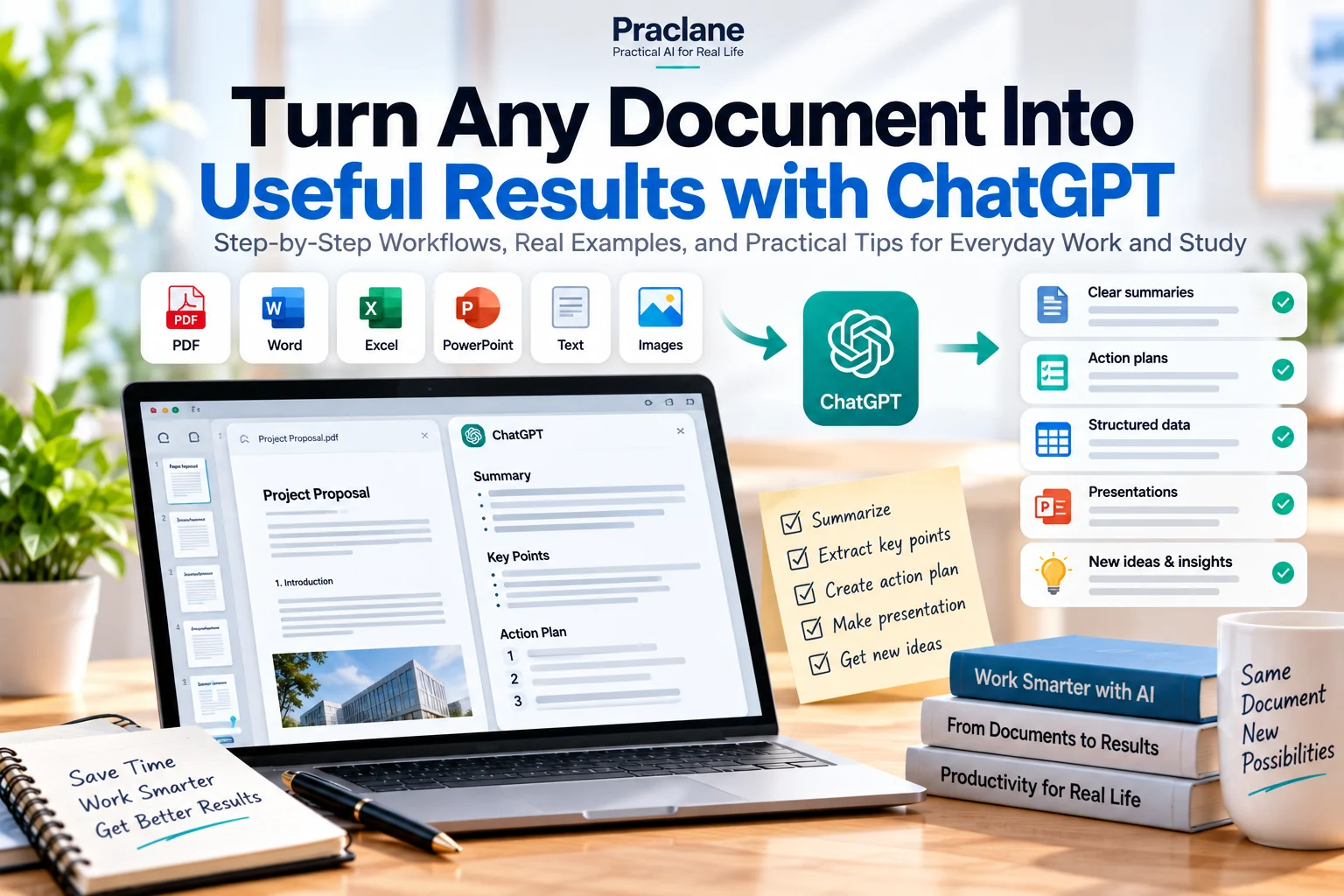
“Summarize this PDF” is convenient, but it is often the weakest way to use ChatGPT with a document. A summary compresses information. Work usually requires something more specific: exact facts, owners, deadlines, conflicts, or a list of claims that still need verification.
To make that difference visible, this article uses one controlled worked example: the same synthetic project-status PDF is processed with three prompt styles—summary, structured extraction, and verification-focused review.
This is not a model benchmark. The sample document was intentionally designed with known facts, action items, missing information, and one internal inconsistency so we could compare what each workflow preserves or misses.
The Test Document
The fictional PDF is a short Project Atlas status report. These are the facts we intentionally placed in the source:
| Source fact | Known answer |
|---|---|
| Target launch date | October 30 |
| Budget | $120,000 |
| Spent to date | $78,000 |
| Primary blocker | Mobile checkout performance |
| Owner of performance test | Mina |
| Performance test deadline | October 8 |
| Landing-page owner | David |
| Landing-page deadline | October 12 |
| Budget review | Required with Finance |
| Appendix inconsistency | Appendix says October 28, while main report says October 30 |
| Unknown item | No final A/B-test budget is stated |
OpenAI’s current file upload documentation supports working with documents such as PDFs, and its data analysis documentation notes that complex or image-heavy PDFs can be harder to process completely. For exact values, a text-based source is safer than a scanned document.
Workflow 1: Basic Summary
Summarize this PDF.
A reasonable high-level output might look like this:
Example output
- Project Atlas is preparing for an October launch.
- The team has spent $78,000 of a $120,000 budget.
- Mobile checkout performance is a major risk.
- The team is working on testing, a landing page, and budget review.
This is readable, but it loses operational detail. It does not reliably preserve every owner, deadline, unresolved item, or the date conflict in the appendix.
Workflow 2: Structured Extraction
Extract the project status from this PDF. Return four sections: Key Facts, Action Items, Risks, and Open Questions. For every action item, include Owner and Deadline. If the source does not state a value, write “Not stated” instead of guessing.
The same source now produces a more operational result:
| Task | Owner | Deadline |
|---|---|---|
| Run mobile checkout performance test | Mina | October 8 |
| Prepare landing page | David | October 12 |
| Review remaining budget | Finance + project team | Not stated |
Structured extraction is better for work because the output format forces the answer to preserve fields that a general summary may compress away.
It also creates a visible “Not stated” instead of quietly inventing a deadline.
Workflow 3: Verification-Focused Review
Review this PDF as if I will use it for a project decision. Separate Confirmed Facts, Action Items, Conflicts, and Missing Information. For each important date, number, owner, and commitment, point to the page or section where it appears. Do not resolve contradictions unless the document itself establishes which value is authoritative.
This workflow changes the goal. Instead of only extracting information, it asks ChatGPT to test the document against itself.
Example verification findings
- Confirmed: Main report lists the target launch date as October 30.
- Conflict: Appendix lists October 28. The document does not explain which date is authoritative.
- Confirmed: Budget is $120,000 and spend to date is $78,000.
- Confirmed: Mina owns the performance test due October 8.
- Missing: Final A/B-test budget is not stated.
This is the strongest workflow when the document will support a decision, report, or external communication because it treats contradictions and missing information as part of the answer.
Side-by-Side Result
| What mattered | Basic summary | Structured extraction | Verification-focused |
|---|---|---|---|
| Overall status | Strong | Strong | Strong |
| Budget numbers | Captured | Captured | Captured + traceable |
| Owners | May be compressed | Explicit | Explicit + traceable |
| Deadlines | May be compressed | Explicit | Explicit + traceable |
| Missing information | Easy to miss | Visible if requested | Explicit section |
| Internal conflict | Easy to miss | May surface | Primary target |
| Best use | Orientation | Execution | Decision support |
The important lesson is not that one prompt is universally “best.” Each prompt optimizes for a different job.
When to Use Each PDF Workflow
Use a basic summary when…
- You are deciding whether the document is worth reading
- You need a quick orientation
- No high-impact decision depends on exact details
Use structured extraction when…
- You need tasks, owners, deadlines, requirements, or numbers
- The output will become a checklist or report
- You want missing fields marked explicitly
Use verification-focused review when…
- The document supports a business decision
- You need to detect contradictions
- You need source locations for important claims
- You are preparing information for another person
- Incorrect numbers or dates would matter
A Reusable 3-Step PDF Workflow
- Orient: “Summarize the document in 8 bullets.”
- Extract: “Now extract the exact fields I need into a table.”
- Verify: “Now check every important date, number, name, and commitment against the source and flag conflicts or missing information.”
This is often better than trying to write one giant prompt at the beginning. Each pass has a clear purpose, and the verification pass has a smaller set of facts to check.
What Changes With Scanned or Image-Heavy PDFs?
OpenAI notes that scanned PDFs, image-based tables, and complex visual layouts may not be extracted reliably enough for exact-value work. If the precise number matters, prefer a text-based PDF, spreadsheet, or original structured source when available.
For broader PDF workflows, see our guide to using ChatGPT with PDFs.
Common Mistakes
- Asking only for a summary. Summaries optimize for compression, not completeness.
- Not defining the fields. If owner and deadline matter, ask for them explicitly.
- Allowing guesses. Tell ChatGPT to write “Not stated” when the source is silent.
- Not asking for conflicts. Two dates can both look plausible until the prompt explicitly checks consistency.
- Skipping source verification. For high-impact information, open the original page or section.
For a deeper verification framework, see our ChatGPT answer verification guide.
FAQ
What is the best prompt for summarizing a PDF?
There is no single best prompt. A summary prompt is best for orientation, a structured extraction prompt is better for operational details, and a verification-focused prompt is better when exact facts must be checked.
Can ChatGPT read scanned PDFs?
It may be able to work with them, but OpenAI warns that exact values from scanned, image-based, or visually complex documents may be less reliable. Use a text-based or structured source when exact extraction matters.
Should I ask for page references?
Yes when the document supports an important decision or you need to verify the output. Page or section references make the result easier to audit.
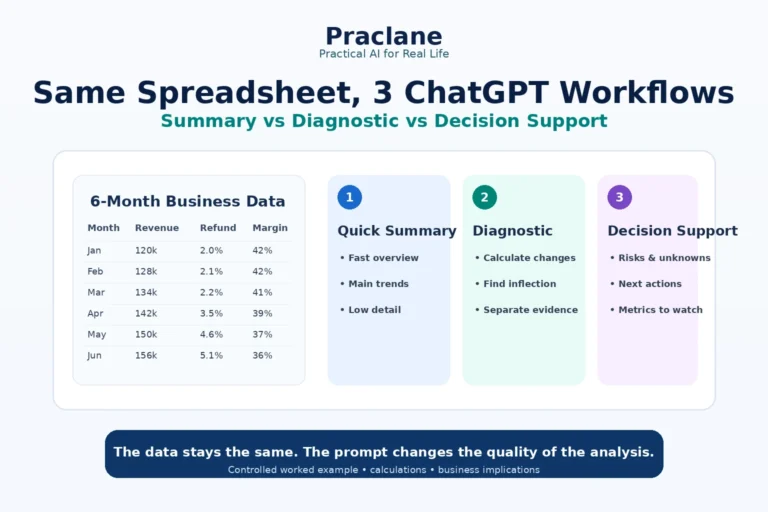
For the same controlled-comparison approach applied to tabular data, see our three ChatGPT spreadsheet analysis workflows.
Final Thoughts
The same PDF can produce three very different levels of usefulness without changing the model or the source document. The difference is the job you give the prompt.
Use summaries to understand, structured extraction to act, and verification-focused review to trust important details.