ChatGPT + Google Drive: 12 Practical Workflows for Docs, Sheets, Slides, and Folders
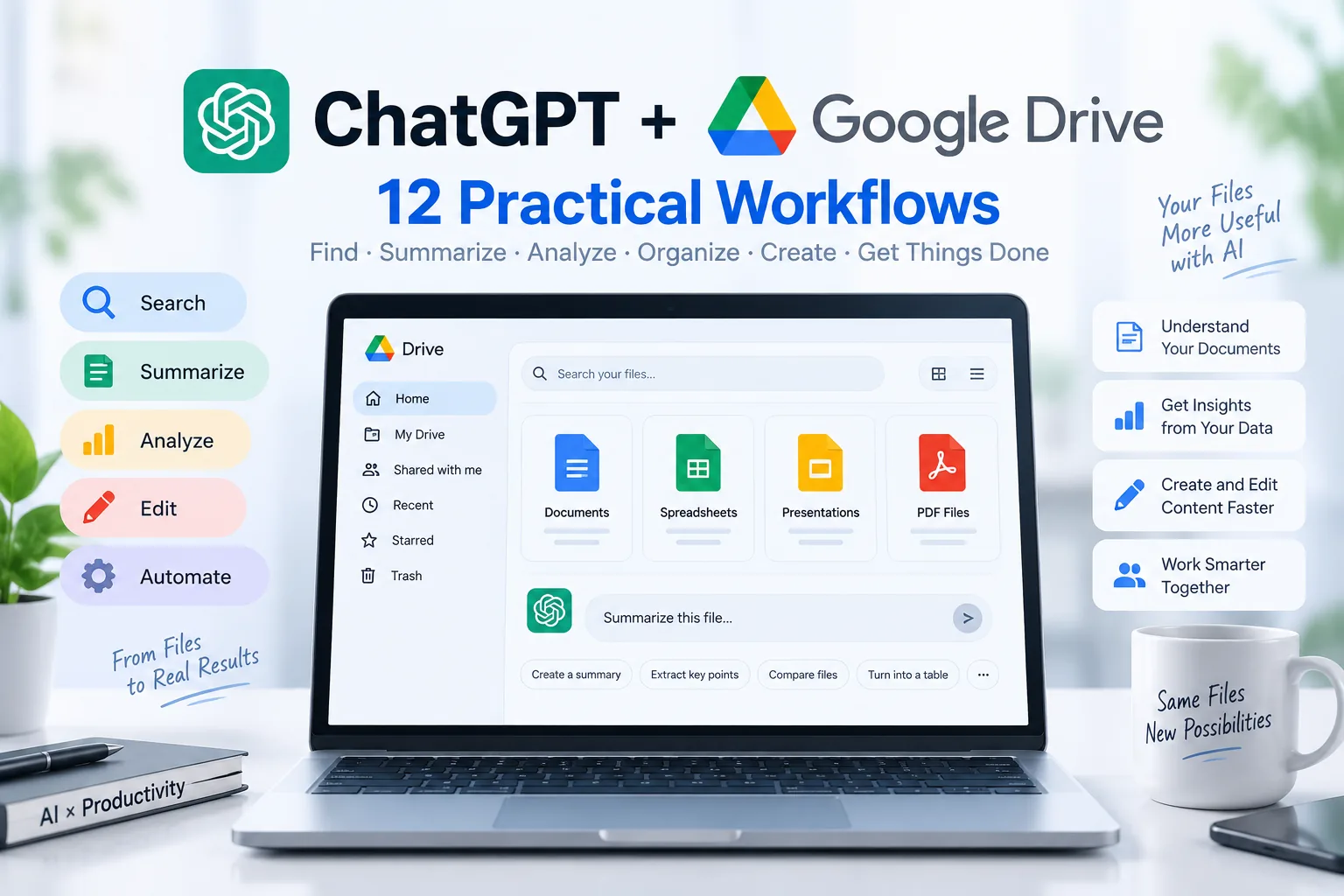
Google Drive is becoming one of the most useful places to connect ChatGPT with real work. Instead of downloading a file, uploading it to ChatGPT, copying the result, and pasting it back, supported accounts can now browse Drive files from ChatGPT, work with Google Docs, Sheets, and Slides, and—when the required action and permission are available—update the source file directly.
This guide shows how to use ChatGPT with Google Drive through practical workflows rather than just setup steps. You will learn how to find files, work across folders, summarize and compare documents, use spreadsheet data as context, improve presentations, and keep important edits verifiable.
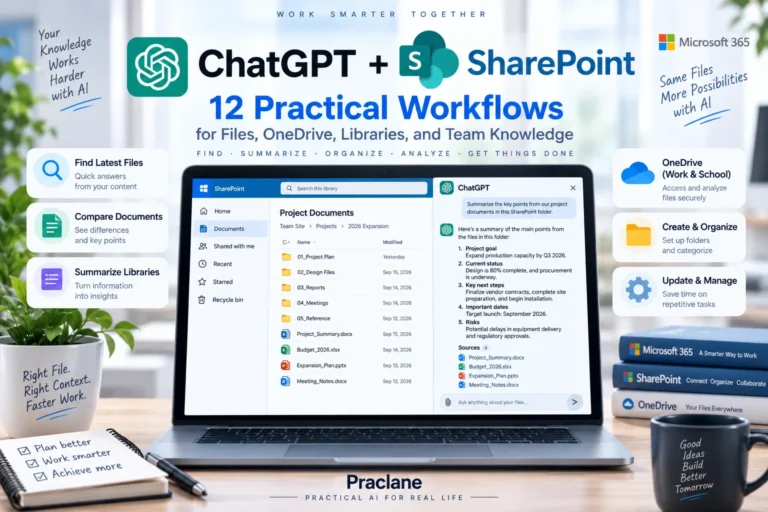
If you want a broader starting point, see our ChatGPT for work guide. For app-specific workflows, you can also continue with our guides to ChatGPT for Excel, ChatGPT for PowerPoint, and ChatGPT for Word. Microsoft 365 teams can compare this with our ChatGPT + SharePoint guide. Organizations using Box can also see our ChatGPT + Box workflows.
What Changed With ChatGPT and Google Drive?
OpenAI unified its Google file integrations under the Google Drive app. Google Docs, Sheets, and Slides actions now sit inside that one connection instead of requiring separate file apps.
OpenAI also added Google Drive to ChatGPT Library. On supported accounts, you can browse available Drive files and folders, add a file to a conversation from the composer or with an @mention, and keep Google Docs, Sheets, or Slides open beside the conversation while you work.
| Capability | What It Means in Practice |
|---|---|
| Browse Drive files | Find files and folders without downloading them first |
| Use Docs, Sheets, and Slides as context | Summarize, compare, analyze, or draft from the source material |
| Work across a folder | Ask ChatGPT to use multiple related files together |
| Update supported source files | Where the action is available and authorized, ChatGPT can write changes back |
| Respect existing permissions | ChatGPT can only work with content the connected Google account can access |
How to Connect Google Drive to ChatGPT
- Open ChatGPT on the web.
- Open Settings and go to Apps or the connected-apps area available in your account.
- Find Google Drive and choose the connection option.
- Sign in to the Google account that has access to the files you want to use.
- Review the Google permissions requested for the available actions.
- Complete authorization and return to ChatGPT.
Availability depends on your plan, region, permissions, workspace settings, and Google Workspace policies. In managed workspaces, an administrator may need to enable the app or approve the Google scopes required for specific actions.
12 Practical ChatGPT + Google Drive Workflows
1. Find the Latest Version of a File
One of the simplest uses is finding the right file before you do anything else. This is especially useful when Drive contains several versions with similar names.
Find the most recently modified project plan for the website redesign. Tell me the file name, modification date, and the three biggest changes compared with the previous version if both are available.
This prevents a common failure mode: asking AI to analyze an outdated document simply because it was the easiest file to find.
2. Summarize a Google Doc for a Specific Role
A generic summary is often less useful than a role-based one. Tell ChatGPT who will use the summary and what decisions they need to make.
Summarize this project proposal for an operations manager. Focus on deadlines, staffing requirements, dependencies, budget risks, and decisions that need approval. Keep the summary under 400 words.
3. Compare Two Documents and Surface Meaningful Differences
When two documents contain similar content, do not ask only “what changed?” Define what matters.
Compare the current policy document with the previous version. Ignore formatting changes. List only changes that affect responsibilities, approval rules, deadlines, costs, or required documentation. Quote the relevant section heading for each change.
4. Turn a Folder Into a Project Brief
Google Drive in Library can work with folders where the feature is available. That makes it useful for projects where the context is spread across notes, spreadsheets, slides, and reference documents.
Use the files in this project folder to create a one-page brief. Include the objective, current status, key deliverables, owners, deadlines, open questions, and the five biggest risks. If two files disagree, flag the conflict instead of choosing one silently.
5. Turn Spreadsheet Data Into an Executive Update
Use a Google Sheet as the factual source and ask ChatGPT to turn the numbers into a concise narrative.
Use the latest sales sheet. Compare this month with last month by region, identify the three largest changes, and draft a short executive update. Separate facts from possible explanations and do not invent causes that are not supported by the data.
For deeper spreadsheet workflows involving formulas, cleanup, calculations, and charts, see our ChatGPT for Excel guide.
6. Build or Improve a Presentation From Drive Sources
Instead of starting a presentation from a blank page, use an existing brief, spreadsheet, or report as the source.
Use the launch brief and the latest performance sheet to create a 10-slide presentation outline for senior leadership. Give each slide a clear takeaway headline, the evidence that supports it, and any visual that would make the point easier to understand.
If you are working specifically on slide structure, speaker notes, and deck review, continue with our ChatGPT for PowerPoint workflows.
7. Cross-Check Dates, Numbers, and Commitments Across Files
AI is especially useful for finding inconsistencies when the same project facts appear in several places.
Check these project files for conflicting dates, budget figures, owners, or deliverables. Create a table with the conflicting value, each source file, and the exact location or section where possible. Do not resolve the conflict unless the source clearly establishes which value is authoritative.
8. Update a Source Document With Meeting Action Items
Where source-file editing is supported and your permissions allow it, ChatGPT can update a Drive file instead of giving you text to copy manually.
Update the project status document with the action items from these meeting notes. Add a new section titled “September 20 Action Items.” Keep existing content unchanged. Use a table with Task, Owner, Deadline, and Status. Show me the proposed changes before applying them.
For important files, asking to preview proposed edits before applying them is a useful safeguard.
9. Create a New Draft From Several Drive Sources
You can use several related files as background instead of pasting all the context into one huge prompt.
Use the product brief, customer feedback summary, and launch timeline to draft a client-ready launch update. Keep all dates and product claims grounded in the source files. Add a short “What happens next” section at the end.
10. Build a Weekly Status Report From a Project Folder
If the same folder is updated every week, use a repeatable structure so the output stays consistent.
Review the files in this project folder that changed this week. Create a weekly status report with: Completed, In Progress, Blocked, Decisions Needed, Risks, and Next Week. Include the source file name after each important fact.
This pairs well with our guide to recurring ChatGPT reports.
11. Review a Draft Against Its Source Material
Do not use ChatGPT only to create. Use it as a second-pass reviewer that compares the finished draft with the evidence behind it.
Compare this final report with the source files in the folder. Flag any number, date, name, claim, or conclusion that is missing support or conflicts with a source. Separate definite errors from items that simply need human confirmation.
For high-stakes work, also use the verification techniques in our guide to checking ChatGPT answers.
12. Create a Reusable Drive Workflow Prompt
Once a workflow works well, save the instruction structure instead of rewriting it every time.
Whenever I give you a project folder, first identify the newest files, then summarize changes, check for conflicts, and create a status report. Never overwrite a source file unless I explicitly approve the proposed edit. Cite the file name after every deadline, budget figure, and decision.
A Better Prompt Formula for Google Drive Work
Drive prompts become much more reliable when they specify five things:
- Source: which file, folder, or file type ChatGPT should use
- Task: summarize, compare, draft, verify, or update
- Audience: who will read or use the result
- Constraints: what must stay unchanged and what should not be invented
- Output: the exact format you want
Use only the files in the Q3 Launch folder. Create a 500-word update for senior leadership. Focus on schedule, budget, risks, and decisions. Do not infer causes that are not documented. Use a table for risks and include the source file name for every number and deadline.
Important Limits to Know
- Availability varies. Google Drive features depend on your ChatGPT plan, region, workspace controls, Google permissions, and rollout status.
- Shared Drives may not appear in the initial Library experience. OpenAI currently describes My Drive and items shared directly with you as the initial scope.
- Not every Google editing feature is available inside ChatGPT. Some collaboration and formatting work may still require opening the original file in Google Drive.
- Write access is permission-dependent. Reading a file does not automatically mean ChatGPT can edit, move, share, or delete it.
- AI still needs verification. File access reduces copy-paste friction, but it does not guarantee that every summary, interpretation, or edit is correct.
Live Connection vs. Workspace Sync
These are different concepts. A normal Google Drive app connection gives ChatGPT live access to supported files and actions you authorize. It does not automatically create a personal synced index of your entire Drive.
OpenAI separately supports administrator-managed Google Drive sync for eligible managed workspaces. That setup is controlled by workspace administrators and is designed for indexed organizational knowledge. Individual users should not assume that simply connecting Google Drive turns their account into a permanently synchronized Drive search index.
When Should You Use Google Drive Instead of Uploading a File?
| Use Google Drive Connection | Upload a File Instead |
|---|---|
| You reuse the same files frequently | You need a one-off analysis |
| You need to find the latest version | The file is not stored in Drive |
| You want to work across several related files | You do not want to connect a Google account |
| You may need supported source-file edits | You want to keep the source completely separate |
| Your project context changes over time | The file is temporary and self-contained |
FAQ
Can ChatGPT access Google Docs, Sheets, and Slides?
Yes, when the Google Drive app and the required actions are available for your account. OpenAI now groups supported Docs, Sheets, and Slides capabilities under Google Drive.
Can ChatGPT edit a Google Doc directly?
Where the relevant action is supported and authorized, ChatGPT can update source files directly. Editing capability depends on your account, workspace settings, Google permissions, and the specific action.
Can ChatGPT use an entire Google Drive folder?
The current Library experience supports selecting a folder and asking ChatGPT to work across the files it contains when that feature is available to your account.
Does ChatGPT support Shared Drives?
OpenAI describes the initial Google Drive Library experience as supporting My Drive plus items shared directly with you. Shared Drives are not included in that initial experience.
Which plans can use Google Drive in Library?
OpenAI currently lists Plus, Pro, Business, Enterprise, Edu, and Healthcare accounts for Google Drive in Library on the web, in both Chat and Work. Availability can still vary by account, region, workspace, and permissions.
If you regularly reuse documents across conversations, see our ChatGPT Library guide for file reuse, connected sources, and storage management.
Final Thoughts
The biggest advantage of connecting ChatGPT to Google Drive is not that it makes AI “smarter.” It removes friction between your source files and the work you want to do with them.
The most reliable workflow is simple: point ChatGPT to the right source, define the task precisely, make important claims traceable to files, preview significant edits before applying them, and verify high-impact numbers, dates, and decisions in the original source.