ChatGPT for Word: 12 Practical Ways to Draft, Edit, and Review Documents
Microsoft Word is one of the most common places where people still spend time turning rough notes into polished documents. The work is rarely just “writing.” You also have to organize ideas, shorten sections, adapt the tone, check terminology, create summaries, and clean up formatting.
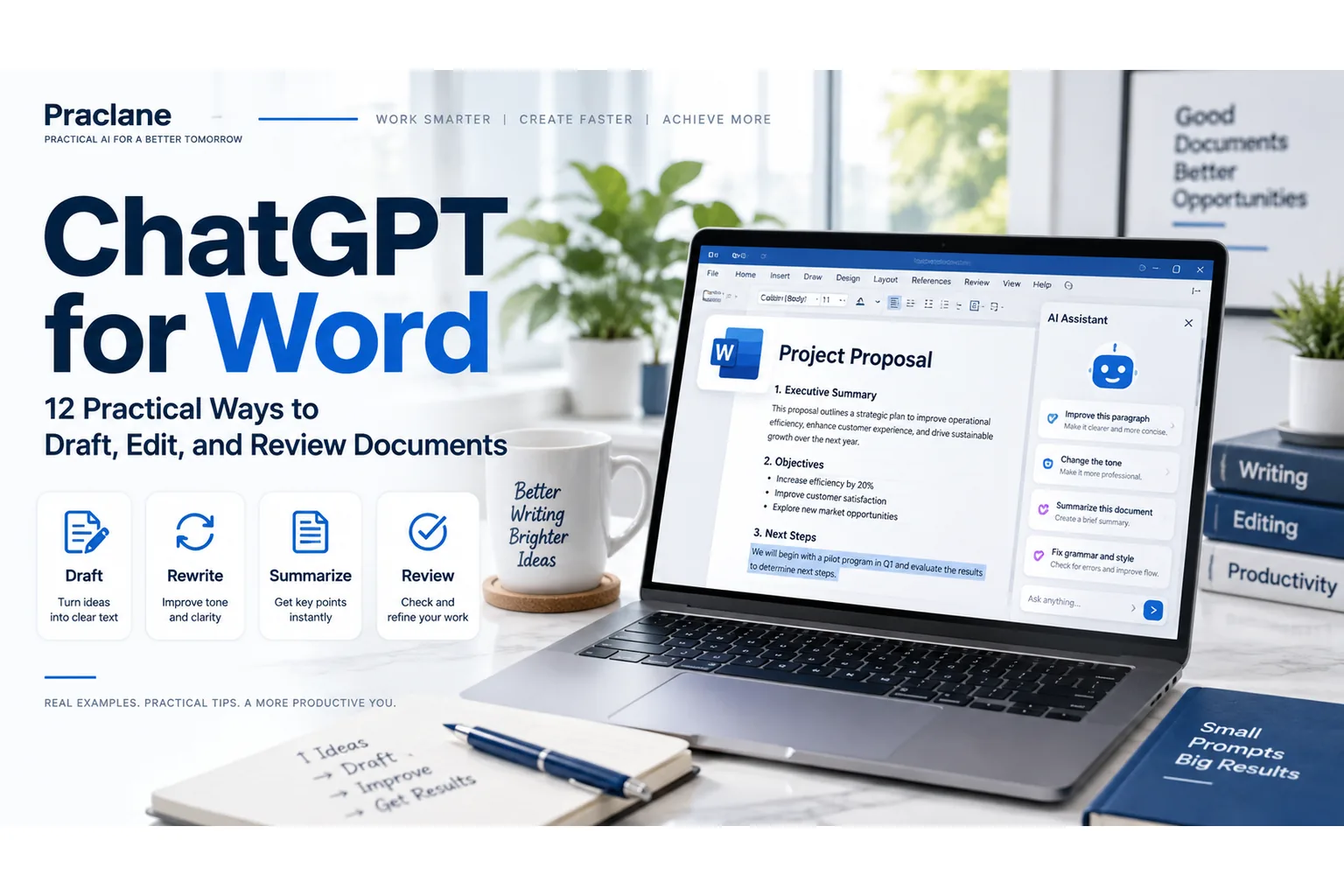
ChatGPT for Word brings that workflow directly into Microsoft Word through a sidebar, so you can draft, revise, summarize, reorganize, and review documents without constantly copying text between apps.
This guide covers 12 practical ways to use ChatGPT for Word in real document work, plus the limits you should know before using it on important files.
If you want broader workplace examples first, start with our ChatGPT for work guide. If your instructions tend to produce generic writing, see how to write better ChatGPT prompts.
What Is ChatGPT for Word?
OpenAI’s current ChatGPT for Word documentation describes a Word-native experience that runs inside Microsoft Word as a sidebar and can work with the document you currently have open.
You can use it to draft from notes, summarize a document, revise selected text, reorganize sections, adjust headings and numbering, and review a draft for unclear language or inconsistent terminology.
OpenAI currently says ChatGPT for Word is available across ChatGPT plans, including Free, although usage limits, workspace controls, and Microsoft 365 administrator settings can affect access.
How to Get Started With ChatGPT for Word
- Install the ChatGPT Microsoft add-in from Microsoft Marketplace.
- Open Microsoft Word.
- Open ChatGPT from the Word ribbon.
- Sign in with your ChatGPT account.
- Open a document and enter your request in the ChatGPT sidebar.
If you use a company-managed Microsoft 365 account, your organization may need to allow the add-in before it appears in Word.
12 Practical Ways to Use ChatGPT for Word
1. Turn Rough Notes Into a First Draft
One of the fastest ways to use ChatGPT for Word is to start with notes instead of a blank page. Give it the facts, audience, purpose, and document type.
Turn these notes into a one-page project update for senior management. Use the headings Progress, Current Risks, Decisions Needed, and Next Steps. Keep the tone factual and concise: [paste notes]
This works well for memos, project updates, proposals, internal reports, and meeting follow-ups.
2. Write an Executive Summary
Long documents often need a shorter version for someone who does not have time to read every detail.
Write a 200-word executive summary of this document. Include the main conclusion, three important findings, the biggest risk, and the action that needs a decision.
Ask ChatGPT to stay within the facts already contained in the document rather than adding background information from memory.
3. Rewrite a Section for a Different Audience
The same information often needs different wording for executives, customers, technical teams, or new employees.
Rewrite the selected section for a non-technical client. Keep the facts, deadlines, and defined terms unchanged. Remove unnecessary jargon and keep the section under 250 words.
For a specific change, OpenAI recommends selecting the relevant text in Word and clearly stating what should change and what should stay the same.
4. Shorten a Document Without Losing the Meaning
Word documents often become too long because the same idea appears in several places or background detail overwhelms the main message.
Reduce this section by about 30%. Remove repetition and unnecessary explanation, but keep every number, commitment, risk, and required action unchanged.
Giving a target reduction is more useful than simply saying “make it shorter.”
5. Reorganize a Document With Better Headings
If a document contains useful information but feels hard to follow, ask ChatGPT to improve the structure before rewriting the prose.
Review the structure of this document. Propose a clearer heading hierarchy and section order. Do not rewrite the content yet. Explain what you would move and why.
For larger edits, this “plan first” approach is safer than asking ChatGPT to reorganize the entire file immediately.
6. Turn Meeting Notes Into a Formal Memo
Messy notes can be turned into a document that separates decisions, actions, owners, and deadlines.
Turn these meeting notes into a formal internal memo. Include Summary, Decisions, Action Items, Owner, Deadline, and Open Questions. Flag anything that is unclear instead of guessing.
If meeting workflows are a large part of your job, see our guide to using ChatGPT for meetings.
7. Check for Inconsistent Terminology
Long reports and proposals often use slightly different names for the same thing. That can make the document look less polished or create confusion.
Review this document for inconsistent terminology. Find cases where the same product, department, process, or metric is referred to by different names. Return a list with the current terms and a recommended standard term.
This is especially useful when several people have edited the same document.
8. Improve Clarity Without Changing the Facts
Instead of asking ChatGPT to “improve” a document, define what improvement means.
Improve the clarity of the selected paragraphs. Shorten long sentences, remove vague language, and make the main point easier to understand. Do not add new facts, change numbers, or alter the meaning.
This creates a much safer editing boundary for important business documents.
9. Draft a Proposal From Requirements
If you know the requirements but not the document structure, give ChatGPT the source information and ask it to organize the proposal.
Create a client proposal using these requirements. Use the sections Problem, Proposed Approach, Scope, Deliverables, Timeline, Assumptions, Risks, and Next Steps. Do not invent pricing or commitments that are not in the source material.
Always review commitments, scope, dates, and commercial language before sharing a proposal externally.
10. Convert a Long Report Into a Brief
A full report and a decision brief serve different purposes. Ask ChatGPT to extract only what is needed for the decision.
Turn this report into a one-page decision brief. Include the problem, evidence, options, recommendation, main risks, and decision required. Keep it under 700 words.
This is useful when senior stakeholders need the conclusion without reading every appendix and background section.
11. Review the Document for Missing Information
Before finalizing a document, ask ChatGPT to look for gaps rather than rewrite the whole file.
Review this project plan for missing information. Check whether the objective, scope, owners, deadlines, dependencies, risks, budget assumptions, and success criteria are clear. Return a checklist of missing or ambiguous items. Do not rewrite the document yet.
This turns ChatGPT into a reviewer instead of an automatic editor.
12. Perform a Final Quality Check
Use a final pass to look for problems that are easy to miss when you have been working on the same document for hours.
Audit this document without changing it. Check for inconsistent dates, repeated points, unclear references, unexplained acronyms, contradictory statements, formatting inconsistencies, and sections that do not support the stated purpose. Return the issues with section names.
For important facts, numbers, quotations, or claims, use our ChatGPT verification workflow before sharing the document.
A Better Prompt Structure for Word Documents
Document prompts become more reliable when you give ChatGPT five things:
- Document type: memo, proposal, report, brief, policy, or other format.
- Audience: who will read it.
- Purpose: what the reader should understand, decide, or do.
- Source material: notes, current document, requirements, or reference text.
- Constraints: length, tone, facts that must remain unchanged, and required sections.
Rewrite the selected project update for a senior executive. The goal is to explain the two-week delay and request approval for the revised schedule. Keep all dates and numbers unchanged. Use a calm professional tone, keep it under 350 words, and end with the exact decision required.
That gives ChatGPT a much clearer editing target than “make this document better.”
Important Limitations of ChatGPT for Word
ChatGPT for Word is useful, but it does not remove the need for review. OpenAI currently highlights several limitations.
- Complex formatting may still need manual adjustment. Tables, charts, and complicated layouts may not always come out exactly as intended.
- It works with the open Word document. It does not automatically read every other local file on your computer.
- Large edits can change content you intended to keep. Save a copy before substantial revisions.
- Accuracy still matters. Check facts, figures, citations, commitments, and legal or financial language before relying on the result.
If you need to work with separate source files such as PDFs, see our guide to using ChatGPT with PDFs.
What Should You Avoid Putting Into a Work Document Workflow?
Follow your organization’s policies before using AI with workplace documents. Avoid sharing passwords, authentication codes, private keys, unnecessary personal information, restricted customer data, or confidential material that your organization does not allow in AI tools.
If a task does not require identifying information, remove or anonymize it before using the document with ChatGPT.
Frequently Asked Questions
Is ChatGPT available directly inside Microsoft Word?
Yes. OpenAI’s ChatGPT for Word add-in opens ChatGPT in a sidebar inside Microsoft Word and can work with the document you currently have open.
Is ChatGPT for Word available on the Free plan?
OpenAI currently says ChatGPT for Word is available across ChatGPT plans, including Free. Usage limits and access can still vary based on plan, workspace settings, and administrator controls.
Can ChatGPT edit selected text in Word?
Yes. Select the text you want to change and describe the edit in the ChatGPT sidebar. For safer results, also state what should remain unchanged.
Can ChatGPT format a Word document?
It can help adjust headings, numbering, organization, and formatting, but complex layouts, tables, and charts may still require manual correction.
Can ChatGPT use other files on my computer while I am in Word?
Not automatically. OpenAI says ChatGPT for Word works with the open document, but it cannot simply browse unrelated local files on your computer. Paste or provide the relevant source material when you need additional context.
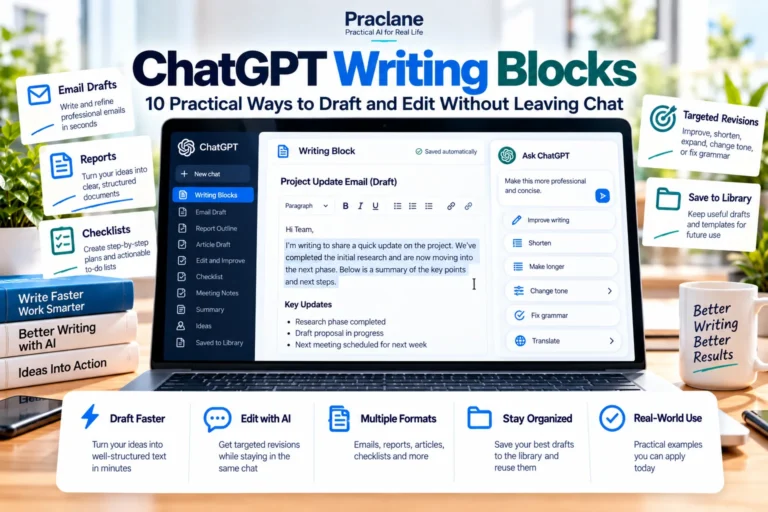
If you want a lighter-weight drafting and editing workflow directly inside ChatGPT, see our ChatGPT Writing Blocks guide.
Final Thoughts
The strongest use of ChatGPT for Word is not asking AI to write everything for you. It is using the assistant to reduce the mechanical work between rough information and a clear, usable document.
Start with a narrow task: summarize a section, restructure a report, turn notes into a memo, or review a draft for inconsistencies. Once the result is reliable, expand the workflow while keeping human review for important facts and decisions.
For related workflows, continue with our ChatGPT for work guide, see how to use ChatGPT for resumes and cover letters, or move from a document to slides with our ChatGPT for PowerPoint guide.