ChatGPT Work in 2026: 10 Tasks Worth Handing Off Instead of Doing Manually
Most people use ChatGPT like a fast assistant: ask a question, get an answer, continue the conversation. ChatGPT Work is designed for a different category of task—work that takes multiple steps and should end in a finished deliverable or completed process.
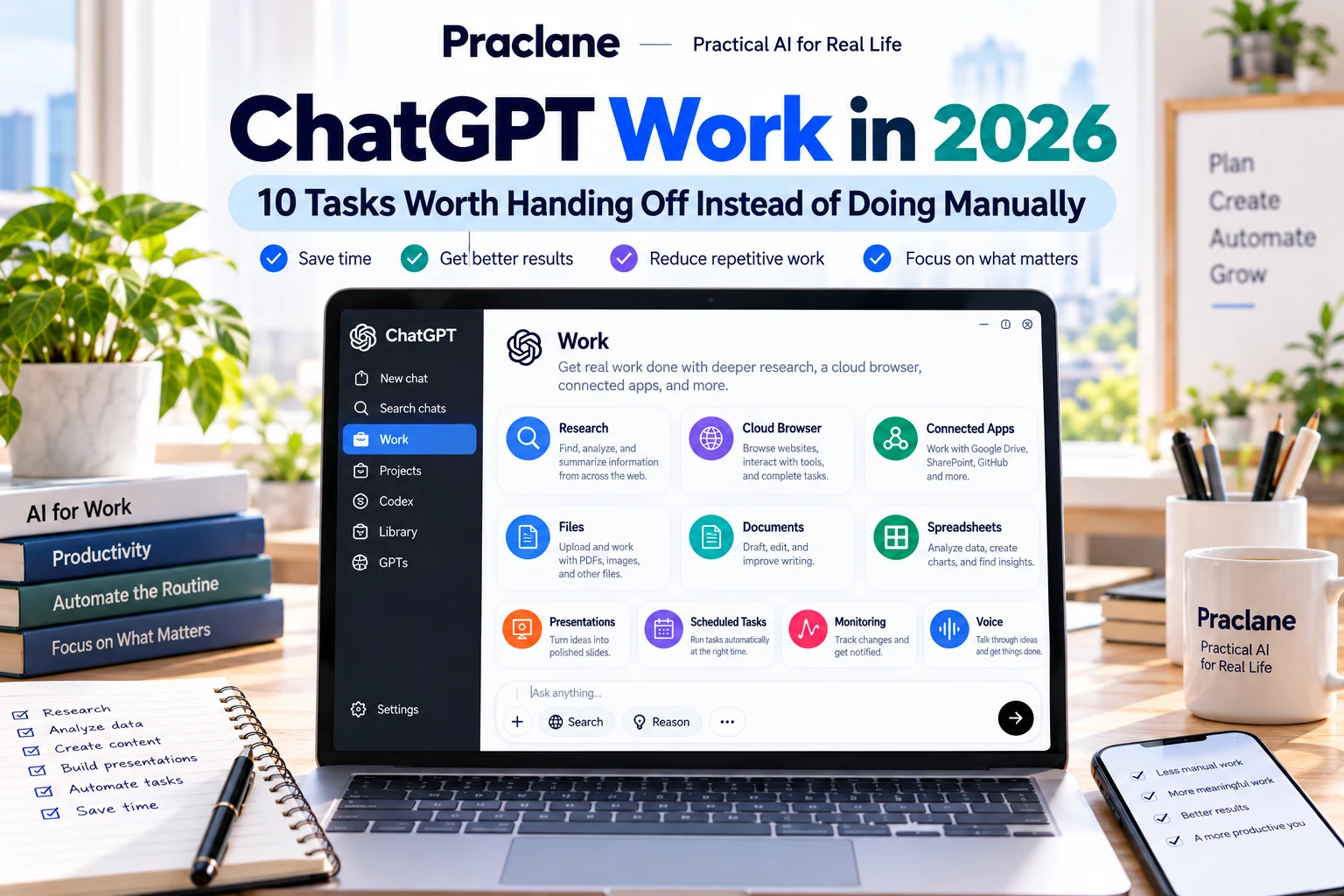
OpenAI describes Work as an agent for longer, more involved tasks. It can research, analyze, work across files and connected apps, use a cloud browser, create documents and spreadsheets, and continue recurring work through Scheduled Tasks.
This guide focuses on one question: what is actually worth handing off to Work?
Chat vs Work: The Simple Rule
| Use Chat When… | Use Work When… |
|---|---|
| You want an answer or draft | You want a task carried through several steps |
| The context fits in one conversation | The task spans files, apps, websites, or multiple sources |
| You will do the execution yourself | You want ChatGPT to perform supported execution steps |
| The output is mainly text | The output may be a finished file, report, spreadsheet, presentation, or completed web task |
Work is available on eligible paid plans in supported regions. Cloud browser availability can depend on plan, rollout, and workspace permissions.
10 Tasks Worth Handing Off to ChatGPT Work
1. Research a Topic and Deliver a Finished Brief
Instead of asking ChatGPT for a summary and manually assembling the final document, give Work the outcome.
Research the latest changes to remote-work tax rules in these three countries. Use official sources where possible. Create a two-page management brief with a comparison table, risks, open questions, and source links.
This is a strong Work task because it combines research, evaluation, organization, and file creation.
2. Turn Source Files Into a Finished Report
Use the attached project plan, status report, budget sheet, and meeting notes. Create a weekly executive report with Progress, Budget, Risks, Decisions Needed, and Next Milestones. Keep all numbers traceable to the source files.
Work can create or edit documents, spreadsheets, presentations, reports, and analyses from source material or templates.
3. Handle a Multi-Step Website Task
Work’s cloud browser can handle supported public and signed-in web tasks. It can read pages, click, type, and move through a workflow on a separate cloud computer.
Check these three supplier portals, collect the latest published lead times for the listed products, put the results in a table, and flag anything above 30 days. Do not place any orders.
Use explicit boundaries for high-impact actions such as purchases, deletions, account changes, or submissions.
4. Create a Spreadsheet From Messy Inputs
Use these invoices and the attached CSV. Create an editable spreadsheet with one row per invoice, standardized vendor names, invoice date, due date, amount, currency, and payment status. Add a summary tab with totals by vendor and month.
That is more appropriate for Work than a quick Chat response because the result is a file with structure, cleanup, formulas, and review requirements.
5. Build a Presentation From a Report
Turn this 35-page report into an 8-slide executive presentation. Preserve the important numbers, use one conclusion headline per slide, include speaker notes, and keep the design consistent with the attached master deck.
OpenAI documents Work support for creating and editing presentations, although exact formats and connected-app support depend on your plan and surface.
6. Work Across Connected Apps
Work can combine files, connected apps, plugins, and browsing when available.
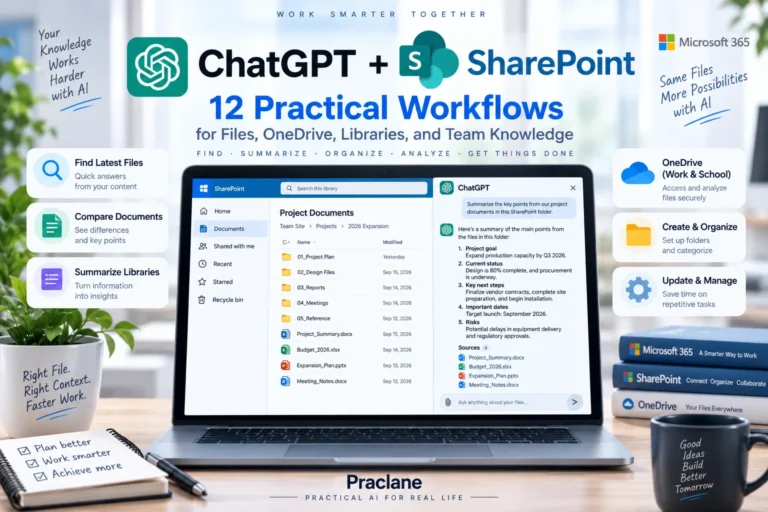
Review the project’s latest Outlook emails, Teams messages, and SharePoint files. Create a consolidated status brief with decisions, blockers, deadlines, and follow-ups. Do not send or modify anything.
This is where Work can be more valuable than manually copying information between apps.
7. Run a Repeating Weekly Workflow
Work can run once, repeat on a schedule or trigger, or monitor for changes through Scheduled Tasks.
Every Friday afternoon, review the connected project sources and create a weekly update with Completed, In Progress, Blocked, Decisions, and Next Week. Only notify me when the report is ready.
For recurring automation basics, see our ChatGPT Scheduled Tasks guide.
8. Monitor a Condition and Act Only When It Changes
Check the supplier status page every morning. If delivery lead time changes by more than five days, summarize the change, identify affected products, and notify me. Otherwise do not send an update.
This avoids repetitive manual checking and reduces notification noise.
9. Create a Deliverable From a Template
Use this existing monthly-report template. Replace only the current-month data, charts, and commentary. Keep the section order, formulas, layout, branding, and formatting unchanged.
OpenAI specifically recommends stating what must remain unchanged when Work edits an existing document, spreadsheet, or presentation.
10. Start the Task by Voice and Let Work Finish It
Work supports Voice. You can describe the outcome verbally, answer clarifying questions, and let the task continue in text after the voice conversation ends.
I’m going to explain the client situation out loud. After I finish, organize it into a client brief, identify missing information, and create a draft follow-up plan.
A Better Work Prompt Formula
- Outcome: what finished result you want
- Sources: files, apps, websites, or project context
- Constraints: what must not change
- Approval rules: actions that require confirmation
- Quality criteria: what “done” should mean
Create a finished supplier-risk report using the attached workbook and the three approved supplier websites. Verify every numeric claim against a source. Include an executive summary, comparison table, high-risk items, and recommended follow-ups. Do not contact suppliers or change any account settings. Ask before any action that submits data externally.
When Chat Is Still Better
- You only need a quick explanation
- You want to brainstorm interactively
- You will perform all actions yourself
- The task has no meaningful multi-step execution
- You want maximum speed for a simple question
If you are unsure, start in Chat. Move to Work when the task starts becoming a process rather than a conversation.
Important Safety Boundary
Agentic execution increases the importance of clear constraints. For tasks involving purchases, account changes, sending messages, external submissions, or irreversible actions, explicitly state what requires approval before execution.
Official Sources
Final Thoughts
The best Work tasks are not “answer this question.” They are “take this outcome from start to finish using these sources, constraints, and review criteria.”