How to Automate Repetitive Tasks With ChatGPT: 10 Practical Workflows
Automation does not have to mean building code, connecting APIs, or designing a complicated system.
For many people, the first useful step is much simpler: turn a task you repeat every week into a repeatable ChatGPT workflow.
This guide shows how to automate repetitive tasks with ChatGPT using 10 practical workflows. Some are simple templates you run manually, while others can use Projects, scheduled tasks, monitoring, or connected apps when those features are available.
If you want examples of everyday work tasks first, see our guide to using ChatGPT for work. For stronger instructions, see how to write better ChatGPT prompts.
What “Automation” Means in ChatGPT
There are several levels of automation, and you do not need to start with the most advanced one.
- Reusable prompt: you paste the same structure each time and change only the inputs.
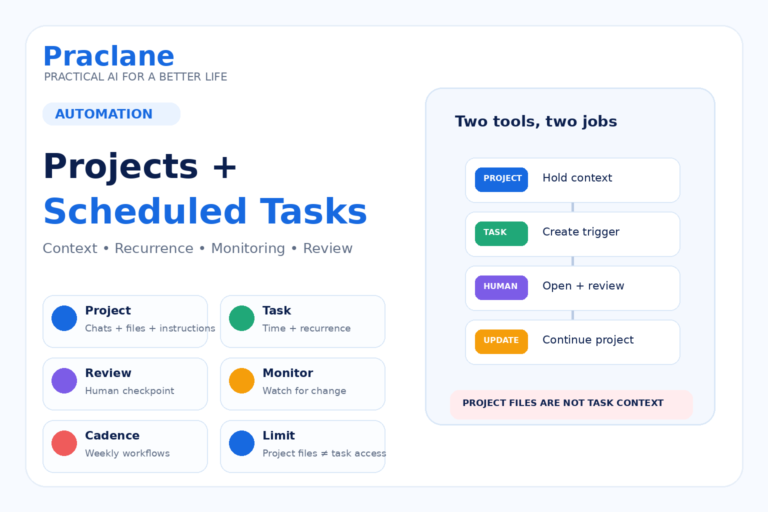
- Project workflow: related chats, files, and instructions stay together so you do not rebuild the context every time.
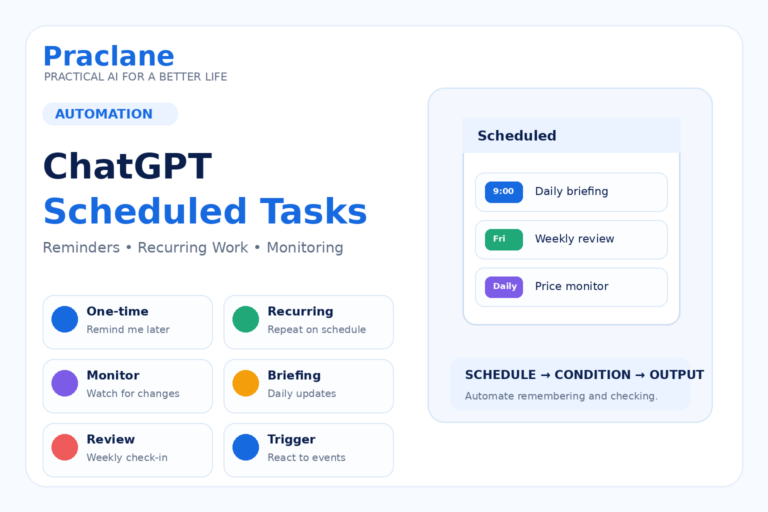
- Scheduled task: ChatGPT runs a one-time or recurring task at a set time or checks for changes.
- Event-triggered workflow: eligible accounts can react to supported activity from connected services such as Gmail, Slack, or GitHub.
OpenAI’s current Scheduled tasks documentation says ChatGPT can run one-time or recurring tasks and monitor for changes, with availability and limits depending on the account, app, and plan. OpenAI also describes Projects as reusable workspaces for ongoing and repeated work.
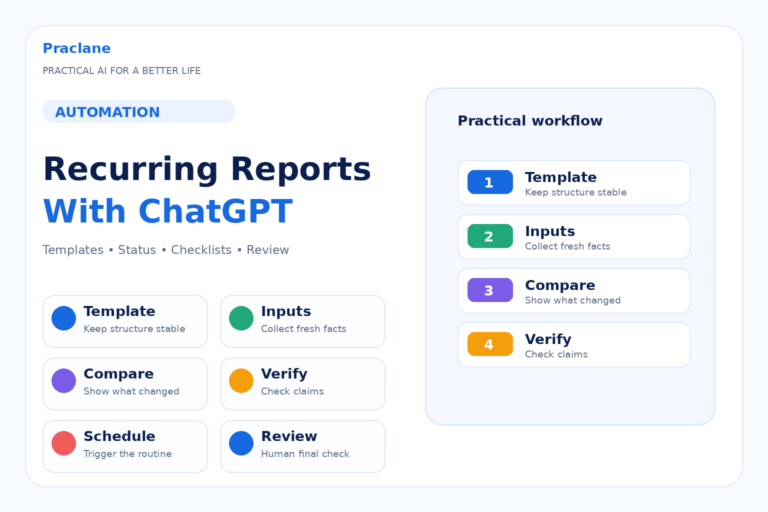
1. Turn a Weekly Status Report Into a Reusable Workflow
If you write the same report every Friday, stop starting from a blank page.
Create my weekly status report using the same format every time. Ask me for: completed work, current blockers, next week’s priorities, decisions needed, and key numbers. Then produce a concise report with the headings Progress, Risks, Next Steps, and Decisions Needed.
Save the prompt or keep the workflow inside a Project so the structure stays consistent.
2. Create a Daily Briefing
A recurring briefing is one of the clearest uses for scheduled tasks.
Every weekday morning, give me a short briefing with the three most important updates in [topic]. Use current web sources, prioritize official or primary sources, and include links. Skip the update if nothing meaningful has changed.
Keep the scope narrow. A useful briefing should reduce noise, not create another long list you have to read.
3. Monitor Something That Changes
Instead of checking the same page or topic manually, ask ChatGPT to monitor for a specific change when monitoring is available.
Check once per day for a meaningful change to [price / policy / schedule / product availability]. Notify me only if the condition changes. Include the source and explain exactly what changed.
Good monitoring tasks need a clear condition. “Keep me updated” is vague; “notify me only if the price drops below $500” is measurable.
4. Automate Meeting Follow-Up Structure
Even when the meeting itself is not automated, the work after it can become repeatable.
Whenever I paste meeting notes, return the same four sections: Decisions, Action Items, Owner, and Deadline. Do not invent missing owners or dates. Mark missing information as Not specified.
This reduces formatting work and makes your meeting records more consistent.
5. Build a Repeatable Content Pipeline
If you create articles, newsletters, social posts, or reports repeatedly, split the process into standard stages.
For every new article topic, follow this workflow: 1) identify search intent, 2) propose an outline, 3) list facts that need current verification, 4) draft the article, 5) check for repetition, 6) create a final publishing checklist. Stop after each stage if important information is missing.
A Project can be useful here because instructions, reference files, and previous work stay in one place.
6. Reuse a Spreadsheet Analysis Routine
If you review the same type of spreadsheet every week or month, define the analysis once.
When I upload this week’s sales file, always calculate total revenue, compare it with the previous period, identify the five largest increases and decreases, flag unusual values, and finish with a five-bullet executive summary. Do not change the column definitions unless I ask.
Important numbers should still be checked before they are used for financial or operational decisions.
7. Create a Recurring Study Review
Automation is useful outside work too. You can make review sessions repeat on a predictable schedule.
Every Sunday evening, give me a 20-minute review session for the topics I studied this week. Start with five recall questions, then focus the remaining questions on anything I get wrong.
If you want a complete learning workflow, see our guide to studying with ChatGPT.
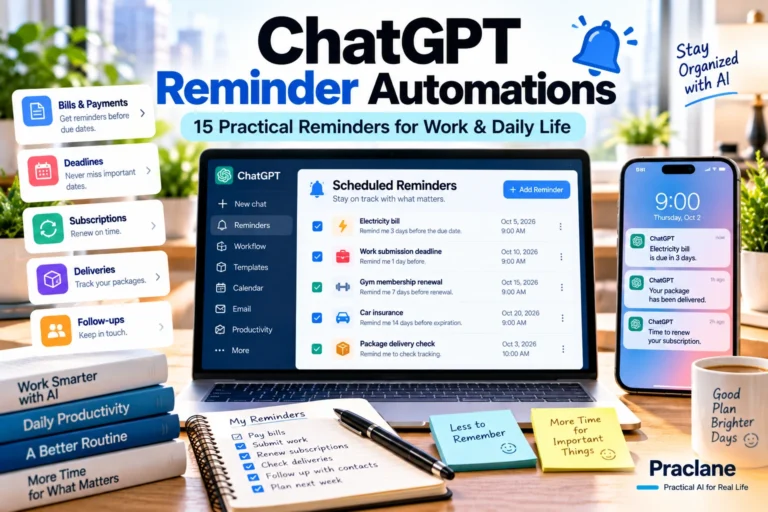
8. Automate Personal Admin Reminders
Simple reminders are often more valuable than complex automation.
Remind me on the first Saturday of every month to check upcoming bills, subscriptions, appointments, document expirations, and any tasks I postponed last month. Give me a short checklist.
This turns a vague intention into a recurring review habit.
9. Standardize Repetitive Emails and Messages
For messages you write repeatedly, automate the structure rather than copying one old email forever.
When I give you a customer name, issue, current status, and next step, draft a reply using this structure: acknowledge the issue, explain the current status, state the next action, give the expected follow-up point, and close politely. Keep it under 180 words.
You still review the message before sending, but most of the repetitive drafting disappears.
10. Use Event-Triggered Workflows for Advanced Automation
For repository research and pull-request triggers, continue with our ChatGPT + GitHub guide.
For eligible accounts, ChatGPT can support event-triggered scheduled tasks using connected services. OpenAI’s current documentation lists supported triggers involving Gmail, Slack, and GitHub for eligible paid users using Work. For concrete examples, see our ChatGPT + Gmail workflows and ChatGPT + Slack workflows.
When a new email with the subject “Weekly Sales Report” arrives, summarize the key numbers, flag any change above 15%, and prepare a short management summary. Do not send or modify anything without approval.
This is more powerful than a normal recurring reminder because the workflow begins when a supported event occurs rather than at a fixed time.
How to Decide What to Automate
A task is a good automation candidate when it is repeated, predictable, and easy to describe.
- You perform it on a regular schedule.
- The inputs are usually similar.
- The output follows a consistent structure.
- The task does not require a new high-stakes judgment every time.
- You can easily review the result before acting on it.
Automate repetition before you automate judgment. If a task depends on sensitive decisions, uncertain facts, or significant consequences, keep a human review step.
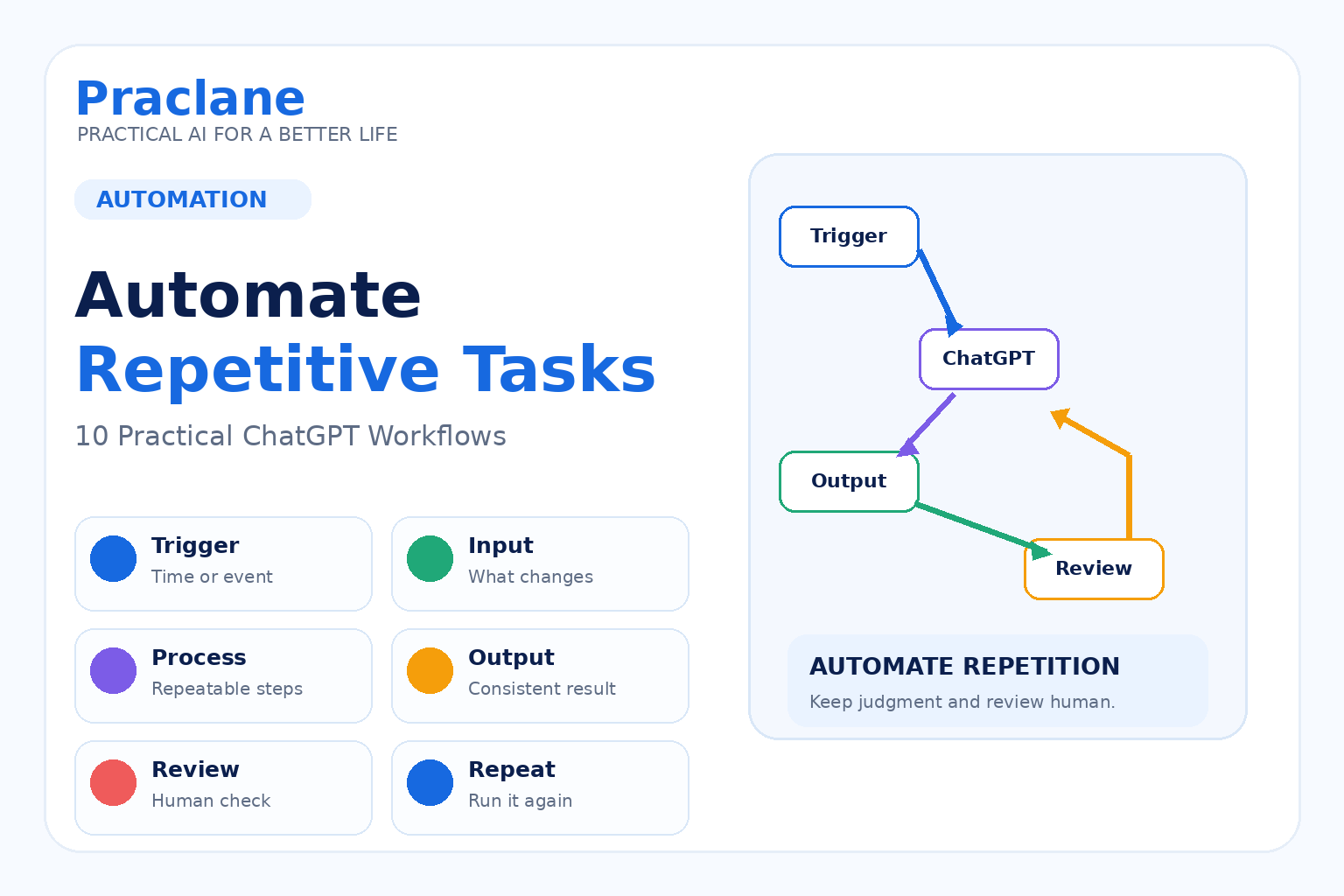
A Simple Automation Template
Trigger: When should this workflow run?
Input: What information does it need?
Process: What steps should ChatGPT follow?
Output: What should the result look like?
Review: What must a human verify before the result is used?
For example:
Every Friday at 4 p.m., ask me for the week’s completed work, blockers, and next priorities. Turn my answers into a one-page status report. Flag missing information instead of guessing. I will review the report before sending it.
Common Automation Mistakes
- Automating a process that is already confusing or inefficient.
- Using vague triggers such as “regularly” instead of a clear schedule or condition.
- Letting the workflow guess missing facts.
- Removing human review from important communications or decisions.
- Giving connected tools more access than the workflow actually needs.
- Creating too many automations before proving that the first one saves time.
Frequently Asked Questions
Can ChatGPT run tasks automatically?
Yes, when scheduled tasks are available for your account and app. ChatGPT can run eligible one-time or recurring tasks and monitoring workflows. Exact availability and limits can vary.
Do I need to know how to code?
No. Many useful automations begin with reusable prompts, Projects, and scheduled tasks. Coding or external automation tools become more relevant when you need custom integrations or more complex business logic.
Can Free users use scheduled tasks?
OpenAI currently says scheduled tasks are available to eligible Free, Go, Plus, Pro, Business, Enterprise, and Edu users, subject to account and workspace settings. Active-task limits and scheduling precision vary by plan; event-triggered Work tasks require eligible paid access.
Should every repetitive task be automated?
No. Automation is most useful when a task is repetitive, rules-based, and easy to review. If every case requires a different judgment, a reusable checklist may be better than full automation.
A practical next step is to turn a repeated reporting task into a workflow using our guide to ChatGPT for recurring reports.
Final Thoughts
The best first automation is rarely the most impressive one. It is the small repeated task that quietly consumes time every week.
Choose one workflow, define the trigger, inputs, steps, output, and review point, then test it for a few cycles. Once it is reliable, move to the next repetitive task.
That approach turns ChatGPT from a tool you occasionally ask questions into a repeatable system for getting routine work done.