ChatGPT + Slack: 12 Practical Workflows for Messages, Recaps, Search, and Team Automation
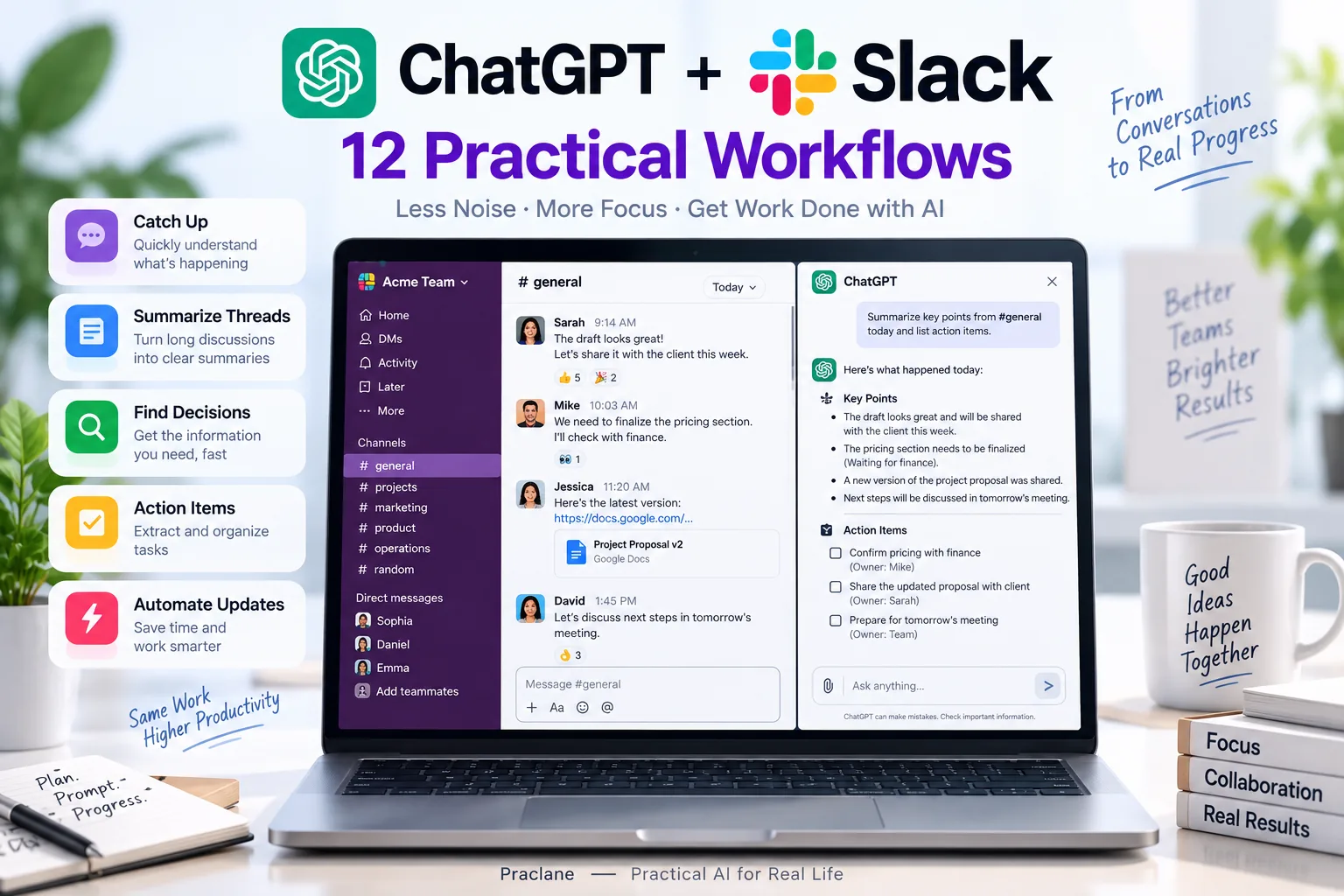
Slack is useful because work happens in real time. It is also difficult for the same reason: decisions, files, updates, and action items can disappear inside channels and threads faster than anyone can keep up.
Connecting ChatGPT + Slack gives supported users a way to search permitted conversations, summarize channels and threads, build briefs, and use available Slack actions without manually copying everything into a chat. Eligible Work users can also create event-triggered tasks that respond to new messages in selected Slack channels.
For general workplace use cases beyond Slack, see our ChatGPT for work guide. For recurring status updates, see ChatGPT recurring reports. Microsoft 365 teams can compare this with our ChatGPT + Microsoft Teams guide.
Two Different Ways to Use ChatGPT With Slack
OpenAI currently documents two related but different experiences:
| Experience | What It Does |
|---|---|
| Slack connected inside ChatGPT | Lets ChatGPT search and reference Slack messages, threads, channels, and permitted files, with supported actions where enabled |
| ChatGPT app inside Slack | Lets you use ChatGPT from a Slack sidebar to draft, search, summarize, and continue eligible conversations |
These are related, but not identical. You can connect Slack as a source in ChatGPT without relying on the ChatGPT app interface inside Slack.
What the Current Slack Connection Supports
According to OpenAI’s current Slack app documentation, ChatGPT can search Slack conversations, threads, channels, DMs, and files that the connected user has permission to access.
- Keyword search works on all Slack plans.
- Semantic search by meaning requires Slack AI Search on a supported Slack Business+ or Enterprise+ workspace.
- ChatGPT’s Slack app can connect to only one Slack workspace at a time.
- Where enabled, Slack actions can include joining channels, creating reminders, uploading files, and updating the user’s Slack profile.
- Eligible users can create Work tasks triggered by new messages in channels where @ChatGPT has been added.
How to Connect Slack to ChatGPT
- Open ChatGPT and go to Settings.
- Open Plugins or Apps, depending on your account.
- Find Slack or the plugin that includes Slack.
- Select Connect.
- Choose the intended Slack workspace and complete the Slack authorization flow.
- If your organization requires admin approval, have the Slack or ChatGPT workspace administrator approve the necessary app scopes and actions.
Eligible Plus, Pro, Business, Enterprise, and Edu users can connect Slack, subject to region and workspace settings. Managed organizations can restrict access or disable specific Slack actions.
12 Practical ChatGPT + Slack Workflows
1. Catch Up on a Busy Channel
Summarize the #product-launch channel from the last two business days. Separate Decisions, Important Updates, Risks, Action Items, and Questions That Still Need an Answer. Include links or message references where available.
A structured recap is more useful than a chronological summary because it tells you what changed and what requires action.
2. Summarize One Long Thread
Summarize this thread. Tell me the original question, the key proposals, objections, final decision, owner, deadline, and anything that was left unresolved.
3. Find a Decision Without Knowing the Exact Words
Keyword search is useful when you know the wording. Semantic search, where supported by the Slack workspace, can help when you remember the meaning but not the exact phrase.
Find the recent discussion where we decided whether to delay the mobile launch. Show the most relevant messages and summarize the final decision and reasoning. If there was no final decision, say so.
4. Build a Project Status From Several Channels
Review recent updates in #project-atlas, #design, and #engineering. Create a single status brief with Completed, In Progress, Blocked, Decisions, Risks, and Next Milestones. Note the source channel after each item.
This is useful when project reality is fragmented across specialist channels. If the work also depends on scheduled meetings and time blocks, pair it with our ChatGPT + Google Calendar workflows.
5. Extract Action Items and Owners
Review today’s discussion in #operations. Extract only actionable commitments. For each one, list Task, Owner, Deadline, Dependency, and the message where the commitment was made. Mark missing owners or deadlines instead of guessing.
For turning action items into a broader meeting workflow, see our ChatGPT for meetings guide.
6. Prepare a Handoff Before You Go Offline
Create a handoff from my recent messages in #support-escalations and #operations. Include what I completed, what is still active, people waiting for a response, risks, and what the next person should check first. Keep it under 500 words.
7. Build a Meeting Brief From This Week’s Slack Activity
Create a one-page brief for tomorrow’s product meeting using this week’s relevant Slack discussion. Include major changes, unresolved disagreements, decisions required, action items, and five questions worth asking.
8. Find Files Mentioned in a Conversation
The Slack connection can search files you are permitted to access through Slack. Use that to locate the source before summarizing it.
Find the most recent file shared in #finance that relates to the Q4 forecast. Show who shared it, when it was shared, and the surrounding discussion. Do not assume it is the final version unless the messages say so.
9. Turn a Slack Request Into a Reminder
Where the reminder action is enabled for your workspace, ChatGPT can use the supported Slack action rather than simply telling you what to remember.
Create a Slack reminder for me tomorrow at 9:30 AM to follow up on the vendor request from this thread. Use a short reminder message that includes the vendor name and the requested document.
10. Create a Weekly Channel Digest
Review #customer-feedback for this week. Group the discussion into repeated complaints, feature requests, positive feedback, urgent issues, and questions for the product team. Include representative message references but avoid duplicating the same point.
For a consistent recurring format, combine this with our recurring reports workflow.
11. Trigger a Work Task From New Channel Messages
Eligible Work users can create event-triggered tasks that respond when a new message appears in a connected Slack channel. The channel must have @ChatGPT added, and the trigger can be narrowed by channel, sender, or thread.
When a new message appears in #incidents from the on-call lead, check whether it describes a customer-impacting outage. If it does, create a short incident brief with service, start time, impact, owner, current mitigation, and missing information. Do not post or modify anything unless the task explicitly allows it.
OpenAI currently notes that direct messages, reactions, message edits, and deletions do not trigger these Slack event tasks.
12. Use ChatGPT Without Leaving Slack
The separate ChatGPT app inside Slack can be useful for quick drafting and channel work when switching to another browser tab would slow you down.
Draft a concise reply to this thread that confirms the decision, assigns the next step to me, and asks one clarifying question about the deadline. Keep the tone collaborative, not formal.
A Better Prompt Formula for Slack
- Source: exact channel, thread, DM, file, or date range
- Goal: catch up, find, summarize, compare, extract, or act
- Freshness: today, this week, since a specific date, or after a known event
- Evidence: ask for source channel or message references
- Action boundary: recommend first, or use a specific enabled Slack action
Review #project-atlas from Monday through today. Identify only decisions and commitments that affect the launch date. For each item, include the owner, deadline, source message, and whether it is Final, Proposed, or Unclear. Do not infer a decision from silence.
Important Slack Limits and Permissions
- ChatGPT respects Slack access. It can search only content available to the connected Slack user through the supported APIs.
- One workspace at a time. The current ChatGPT Slack app connection supports one Slack workspace at a time.
- Semantic search has extra requirements. It depends on Slack AI Search and a supported Slack Business+ or Enterprise+ workspace.
- Actions require scopes. Reminders, file uploads, channel changes, and profile updates may require additional permissions and administrator approval.
- Retention matters. Messages or files no longer available under Slack’s retention policy cannot be retrieved through the connection.
FAQ
Can ChatGPT search Slack messages?
Yes. The connected Slack app can search permitted channels, threads, DMs, users, and files. Keyword search is available broadly; semantic search requires supported Slack AI Search capabilities.
Can ChatGPT connect to more than one Slack workspace?
OpenAI’s current documentation says the ChatGPT Slack app can connect to one Slack workspace at a time. To switch, disconnect the current workspace and connect another.
Can ChatGPT automatically monitor a Slack channel?
Eligible users can create event-triggered tasks in Work for new messages in authorized Slack channels where @ChatGPT has been added. The exact availability depends on plan, workspace, region, and admin settings.
Is using ChatGPT inside Slack the same as connecting Slack to ChatGPT?
No. OpenAI documents them as separate experiences. One uses Slack as a connected source and action provider inside ChatGPT; the other provides a ChatGPT interface inside Slack.
Final Thoughts
The value of ChatGPT + Slack is not just faster summaries. The real advantage is turning scattered conversation into a traceable work state: what changed, what was decided, who owns the next step, and which message supports the conclusion.
Keep searches scoped, ask for evidence, separate proposals from final decisions, and use Slack actions only when the intended workspace and permissions are clear.