How to Use ChatGPT Projects: A Practical Guide to Organize Files, Chats, and Ongoing Work
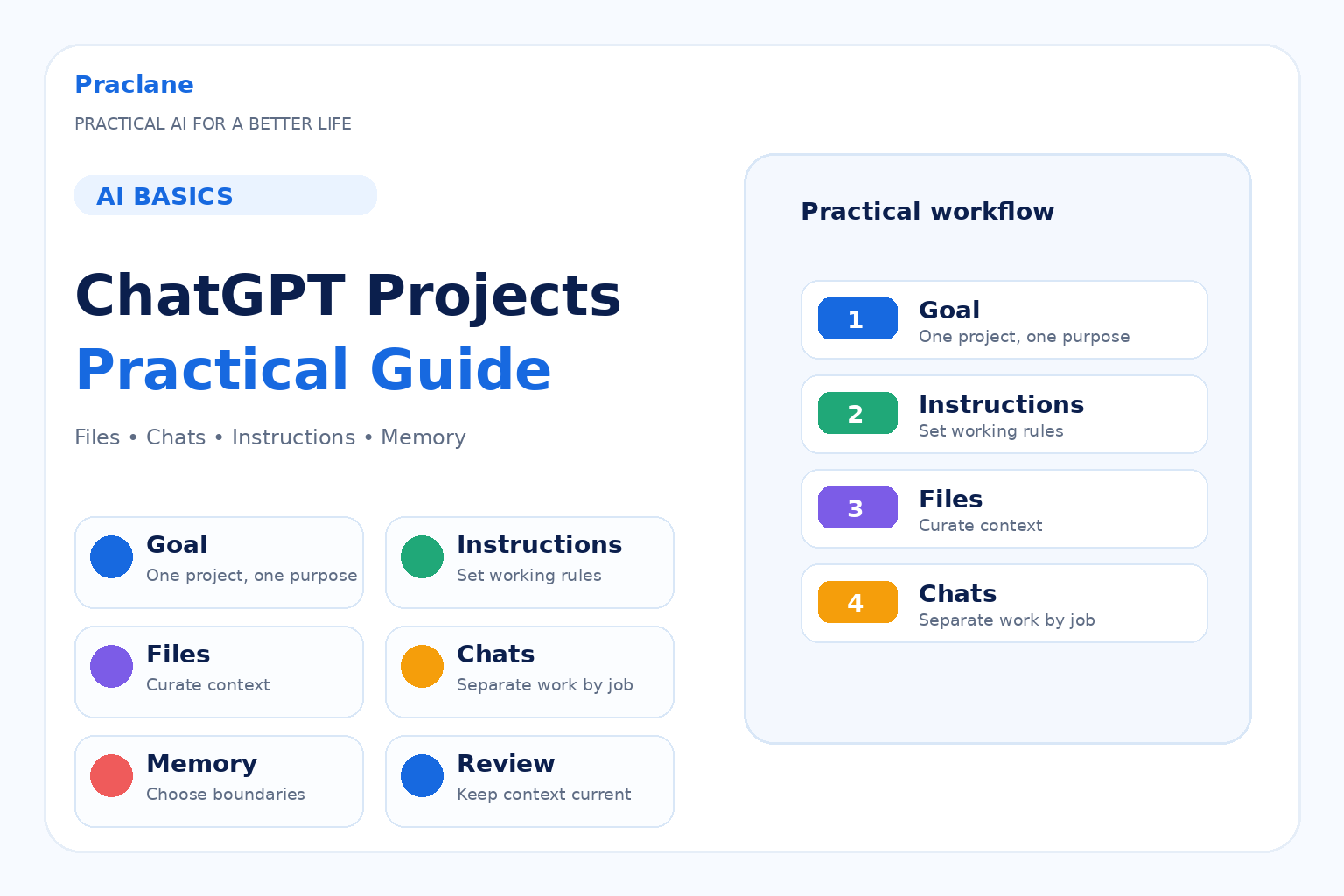
ChatGPT is easy to use for one-off questions. The harder problem is keeping a long-running piece of work organized after the conversation grows, files change, and new decisions appear.
That is what ChatGPT Projects are designed to solve. A Project keeps related chats, reference files, project instructions, and ongoing context together so you can return to the same work without rebuilding the setup every time.
This guide shows how to use ChatGPT Projects for practical work, research, study, and personal organization.
If you are new to ChatGPT, start with our beginner guide. If you want to combine Projects with recurring reminders, see our Projects + Scheduled Tasks guide.
What a ChatGPT Project Actually Does
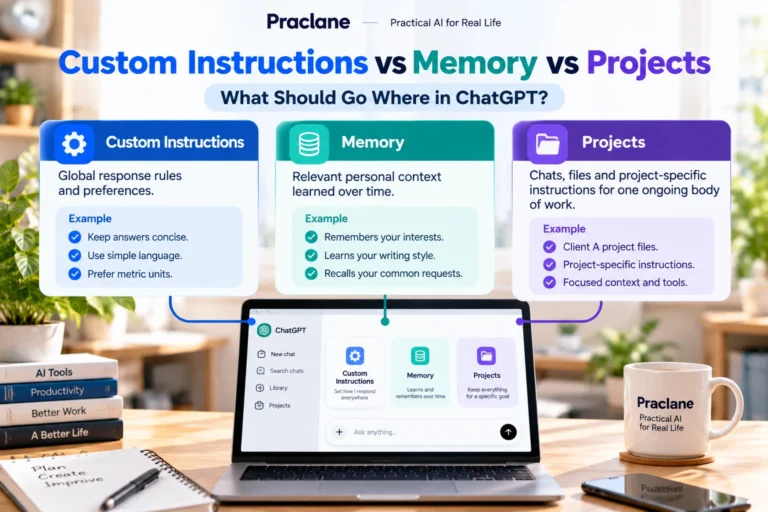
OpenAI describes Projects as workspaces for ongoing work. They let you keep related chats, upload reference files, add project-specific instructions, and reuse the same context over multiple conversations.
Projects are currently available to signed-in users across Free and paid ChatGPT plans, with limits and workspace controls varying by plan. OpenAI’s current Projects documentation also lists project sharing, memory settings, app links, and file limits.
Use a Project when the work should continue across multiple conversations instead of starting from a blank chat every time.
1. Create One Project Around One Ongoing Goal
A useful Project should have a clear purpose. Avoid turning one Project into a storage area for unrelated topics.
This Project is for [goal]. The main outcome I want is [outcome]. The work includes [types of tasks]. Help me keep decisions, open questions, source material, and next steps organized around that goal.
Examples include a product launch, thesis, language-learning plan, job search, renovation, research topic, or recurring content pipeline.
2. Add Project Instructions Before the Work Gets Messy
Project instructions define how ChatGPT should work inside that Project. They apply only there and can override your broader custom instructions for that workspace.
For this Project, be concise and practical. Separate confirmed facts from assumptions. Keep a running list of decisions, unresolved questions, and next actions. When information is missing, ask before inventing details.
Instructions are especially useful when you want the same tone, output structure, review standard, or working method across many chats.
3. Add Only the Reference Files the Project Needs
Projects can hold uploaded documents, PDFs, spreadsheets, images, and other supported files. Current file limits vary by plan, so treat the Project as a curated workspace rather than an unlimited archive.
OpenAI currently lists project limits of 5 files for Free, 25 for Go and Plus, and 40 for Edu, Pro, Business, and Enterprise, with up to 10 files uploaded at once. Limits can change, so check the official documentation for the latest numbers.
Review the files currently in this Project. Tell me which ones appear essential to [goal], which seem redundant, and what information is still missing. Do not delete or replace anything.
For document-specific workflows, see our ChatGPT with PDFs guide.
4. Move Existing Chats Into the Project When They Belong There
If you already started relevant conversations outside the Project, supported chats can be moved into it. Once moved, they inherit the Project’s instructions and context.
This is useful when a one-off conversation grows into an ongoing piece of work.
5. Separate Conversations by Job
Do not put every task into one giant chat. Use separate conversations for separate jobs while keeping them inside the same Project.
- Research and source collection
- Drafting and rewriting
- Decision log
- Data or document analysis
- Weekly review
- Planning next actions
The Project provides the shared workspace; individual chats keep each line of work easier to follow.
6. Save Important Chat Outputs Back Into the Project
When ChatGPT creates a useful summary, decision memo, draft, or analysis, supported responses can be saved as Project sources for later reuse.
Turn this conversation into a short Project reference note with: Current Status, Decisions Made, Open Questions, Risks, and Next Actions.
This prevents valuable conclusions from being buried deep inside an old chat.
7. Choose the Right Memory Boundary
Projects can use default memory or project-only memory, depending on account and workspace settings. Project-only memory creates a stronger boundary: chats inside the Project can use Project context but do not reference conversations outside it.
Shared Projects automatically use project-only memory, according to OpenAI’s current documentation.
Use a tighter Project boundary when outside context would create noise, privacy concerns, or inconsistent assumptions.
8. Use Connected Sources Carefully
Projects can use supported app links and connected apps. Current documentation lists Google Drive files or folders and Slack channels as examples of links that can be added as Project sources, subject to availability and permissions. For practical file, folder, Docs, Sheets, and Slides workflows, see our ChatGPT + Google Drive guide.
App availability varies by plan, region, workspace, and configuration, so do not build a workflow around a connector until you confirm it exists in your account.
9. Create a Weekly Project Review
Review this Project with me. Ask about completed work, changed assumptions, new files, unresolved questions, blockers, decisions made, and next priorities. Then create a concise Current State summary I can save back into the Project.
This is one of the simplest ways to stop an ongoing workspace from becoming stale.
If you want a recurring reminder for that review, our Scheduled Tasks guide explains the current scheduling workflow.
10. Treat the Project as Working Context, Not Permanent Truth
Old files, outdated assumptions, and obsolete decisions can remain inside a long-running Project. Periodically review what should still influence the work.
Based on the current Project context, list any assumptions, references, dates, or decisions that may be outdated and should be checked before we continue. Do not treat previous conclusions as correct just because they are already in the Project.
A Reusable Project Setup Prompt
This Project is for [goal]. My desired outcome is [outcome]. The key reference material is [sources]. Work with these rules: [instructions]. Keep confirmed facts separate from assumptions, maintain an open-question list, preserve important decisions, and end major work sessions with next actions. If older Project information conflicts with newer evidence, flag the conflict instead of silently choosing one.
Common Project Mistakes
- Using one Project for unrelated topics.
- Uploading every available file instead of curating useful context.
- Keeping all work in one giant conversation.
- Never updating Project instructions as the goal changes.
- Assuming older Project context is still correct.
- Forgetting that plan limits and connected-app availability can vary.
- Expecting Scheduled Tasks to automatically use Project files during a scheduled run.
Frequently Asked Questions
Are ChatGPT Projects available on Free?
Yes. OpenAI currently lists Projects as available to signed-in Free and paid users, with different file limits and workspace features depending on plan.
Can ChatGPT remember other chats inside a Project?
Projects have built-in context and memory behavior that can use related Project conversations. Exact memory behavior depends on the Project memory setting, plan, and workspace configuration.
Can I share a ChatGPT Project?
Yes. OpenAI currently supports Project sharing for signed-in users, subject to account and workspace settings. Shared Projects use project-only memory.
Should I use a Project or a normal chat?
Use a normal chat for isolated questions. Use a Project when files, instructions, decisions, and related conversations should stay together across ongoing work.
Not sure whether you need a full Project for a task? See our ChatGPT Projects vs regular chats comparison for practical scenarios where each approach works better.
If you currently rely on Custom GPTs for repeatable workflows, read our Custom GPT retirement and migration guide to compare Projects, Plugins, and reusable prompts before you move anything.
Final Thoughts
Projects are most useful when they reduce repeated setup and make ongoing context easier to manage.
Give one Project one clear goal, curate the context, separate conversations by job, and regularly clean up what the Project should continue to remember.