How to Use ChatGPT for Email: 15 Practical Prompts for Work
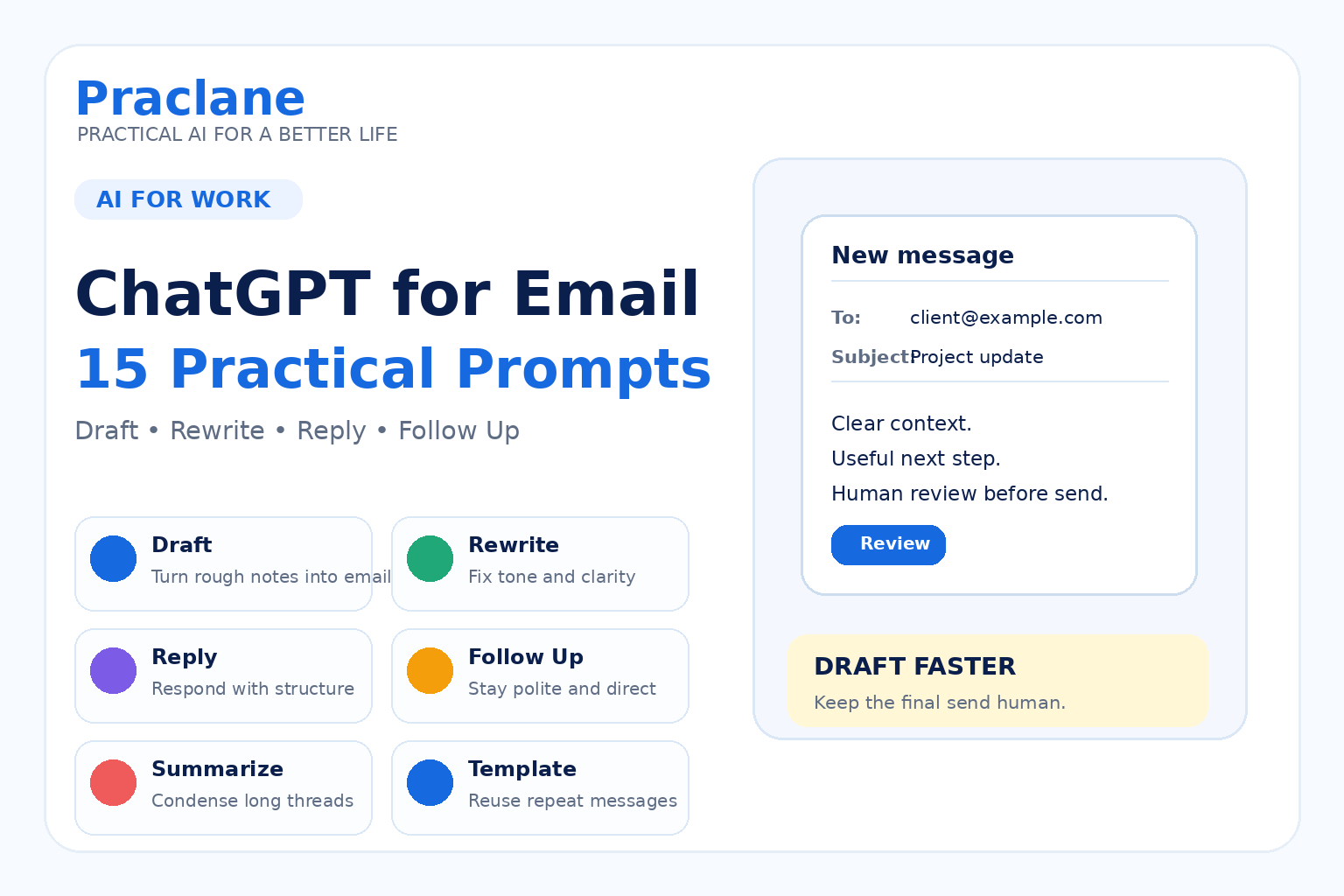
Email is one of the easiest places to save time with ChatGPT because the work is repetitive: draft, rewrite, shorten, clarify, follow up, and adjust tone.
The goal is not to let AI send messages for you. It is to use ChatGPT to create a strong first draft faster, then apply your own judgment before anything leaves your inbox.
This guide shows how to use ChatGPT for email with 15 practical prompts for real workplace situations.
If you want a broader overview first, see our guide to using ChatGPT for work. For a deeper explanation of prompt structure, see how to write better ChatGPT prompts. If you have Gmail connected to ChatGPT, our ChatGPT + Gmail guide covers inbox search, thread summaries, follow-ups, and automation workflows.
A Simple Rule Before You Draft Any Email
Give ChatGPT the information a capable coworker would need: who the message is for, what happened, what outcome you want, and any constraints such as tone or length.
The better the context, the less editing you usually need afterward.
1. Draft a Professional Email From Rough Notes
You do not need to write a polished prompt. Give ChatGPT the raw facts and ask it to turn them into a clean message.
Turn these notes into a professional email to my manager. Keep it concise and direct. Goal: explain the delay and propose a new deadline. Notes: supplier delivery moved from Tuesday to Thursday, testing needs one extra day, proposed completion Friday at 3 p.m.
2. Rewrite an Email That Sounds Too Harsh
When a message is technically correct but emotionally sharp, ask ChatGPT to soften the wording without weakening the point.
Rewrite this email so it sounds calm and professional, but keep the deadline and responsibility clear. Do not make it overly apologetic: [paste email]
3. Make a Long Email Shorter
Long emails often hide the actual request. Ask ChatGPT to keep the decision, deadline, and required action while removing repetition.
Shorten this email to under 140 words. Keep the key context, the action I need from the recipient, and the deadline. Remove repeated explanations: [paste email]
4. Write a Clear Follow-Up
Follow-ups work best when they remind the recipient of the original request without sounding accusatory.
Write a polite follow-up to an email I sent four business days ago. I asked for approval of the attached budget. I need a decision by Wednesday to keep the project on schedule. Keep it under 100 words.
5. Decline a Request Without Sounding Rude
Draft a polite decline. I cannot take on this request this week because two higher-priority projects are due. Offer next Tuesday as the earliest realistic time. Keep the tone helpful, not defensive.
This is useful when you need to protect your time while preserving the relationship.
6. Ask for Something Without Over-Explaining
Write a concise email asking our finance team for the latest expense report. Explain that I need it for Friday’s review meeting. Use a clear subject line and one direct call to action.
7. Turn a Difficult Situation Into a Neutral Email
When emotions are high, ask ChatGPT to separate facts from interpretations.
Rewrite this message using neutral, factual language. Remove blame and assumptions about intent. Keep only what happened, the impact, what needs to change, and the next step: [paste draft]
8. Write an Email for a Senior Executive
Executives often need the decision and business impact before the background.
Rewrite this update for a senior executive. Start with the decision needed, then give the business impact, key evidence, and next step. Keep it under 180 words: [paste draft]
9. Adapt One Email for a Different Audience
Create two versions of this email: one for a technical team and one for a non-technical client. Keep the facts identical but adjust vocabulary and level of detail for each audience: [paste email]
10. Reply to a Customer Complaint
Draft a customer reply using these facts only. Acknowledge the problem, explain the current status, state the next action, and give the next update time. Do not invent compensation or promises: [facts]
Do not let the model invent commitments, refunds, deadlines, or policies that you have not approved.
11. Summarize a Long Email Thread Before Replying
Summarize this email thread into: 1) what has been agreed, 2) unresolved questions, 3) owners, 4) deadlines, and 5) the reply I need to send now. Flag anything that is unclear instead of guessing.
12. Turn Meeting Notes Into a Follow-Up Email
Turn these meeting notes into a follow-up email. Include decisions, action items, owners, and deadlines. End with a short request for corrections if I missed anything: [notes]
For a broader meeting workflow, the examples in our ChatGPT for work guide cover preparation and action-item extraction too.
13. Write a Status Update That Is Easy to Scan
Convert these project notes into a status email with four short sections: Completed, In Progress, Risks, and Next Steps. Use bullets where helpful and keep the total under 220 words.
14. Improve the Subject Line
Give me 8 subject-line options for this email. Make them specific and useful, not clickbait. Label each as neutral, urgent, decision-needed, or informational: [email]
A strong subject line helps the recipient understand why the message matters before opening it.
15. Create a Reusable Email Template
Create a reusable template for weekly client updates. Use placeholders for client name, progress, blockers, decisions needed, next milestone, and next update date. Keep the tone professional and easy to scan.
If you repeat the same communication every week, a template can remove most of the drafting work while still leaving room for real context.
A Reusable Prompt for Almost Any Work Email
Draft an email to [recipient/role]. The situation is [context]. The outcome I want is [goal]. Include [key facts]. Avoid [anything to avoid]. Tone: [tone]. Length: [length]. End with [call to action]. Do not invent facts or commitments.
You can save this structure and change only the inputs. If you want to understand why this works, our prompt guide explains context, requirements, and output format in more detail.
What You Should Not Paste Into ChatGPT
Follow your employer’s AI, security, and privacy rules. Avoid pasting passwords, authentication codes, private keys, payment-card data, unnecessary personal data, or confidential information that you are not authorized to process with an AI tool.
When possible, replace identifying information with placeholders before asking for help with wording.
Common Mistakes When Using ChatGPT for Email
- Asking for a “professional email” without explaining the situation.
- Letting the draft become longer than the original problem requires.
- Using a tone that does not match your relationship with the recipient.
- Sending an AI draft without checking names, dates, numbers, and commitments.
- Using generic templates when the message needs a real human response.
For important facts or claims, use the process in our ChatGPT verification guide.
Frequently Asked Questions
Can ChatGPT write professional emails?
Yes. It is useful for first drafts, rewriting, shortening, tone adjustments, follow-ups, summaries, and reusable templates. The final message should still be reviewed by the sender.
Can I paste an entire email thread into ChatGPT?
You can when your organization’s policies allow it, but remove unnecessary sensitive or identifying information first. For confidential work, follow your employer’s approved tools and data-handling rules.
Should I copy ChatGPT’s email exactly?
Usually no. Treat the result as a draft. Check whether the message sounds like you, accurately represents the situation, and makes the intended request clear.
If you are using ChatGPT during a job search, continue with our guide to resumes and cover letters.
For a reusable structure you can copy for replies, follow-ups, requests, declines, and difficult messages, use our ChatGPT Email Prompt Template.
Final Thoughts
The biggest benefit of ChatGPT for email is not generating more messages. It is reducing the time you spend turning rough thoughts into clear communication.
Use AI for the first draft and structure; keep accountability, judgment, and the final send human.