ChatGPT Study Mode: 9 Practical Ways to Learn Without Just Getting the Answer
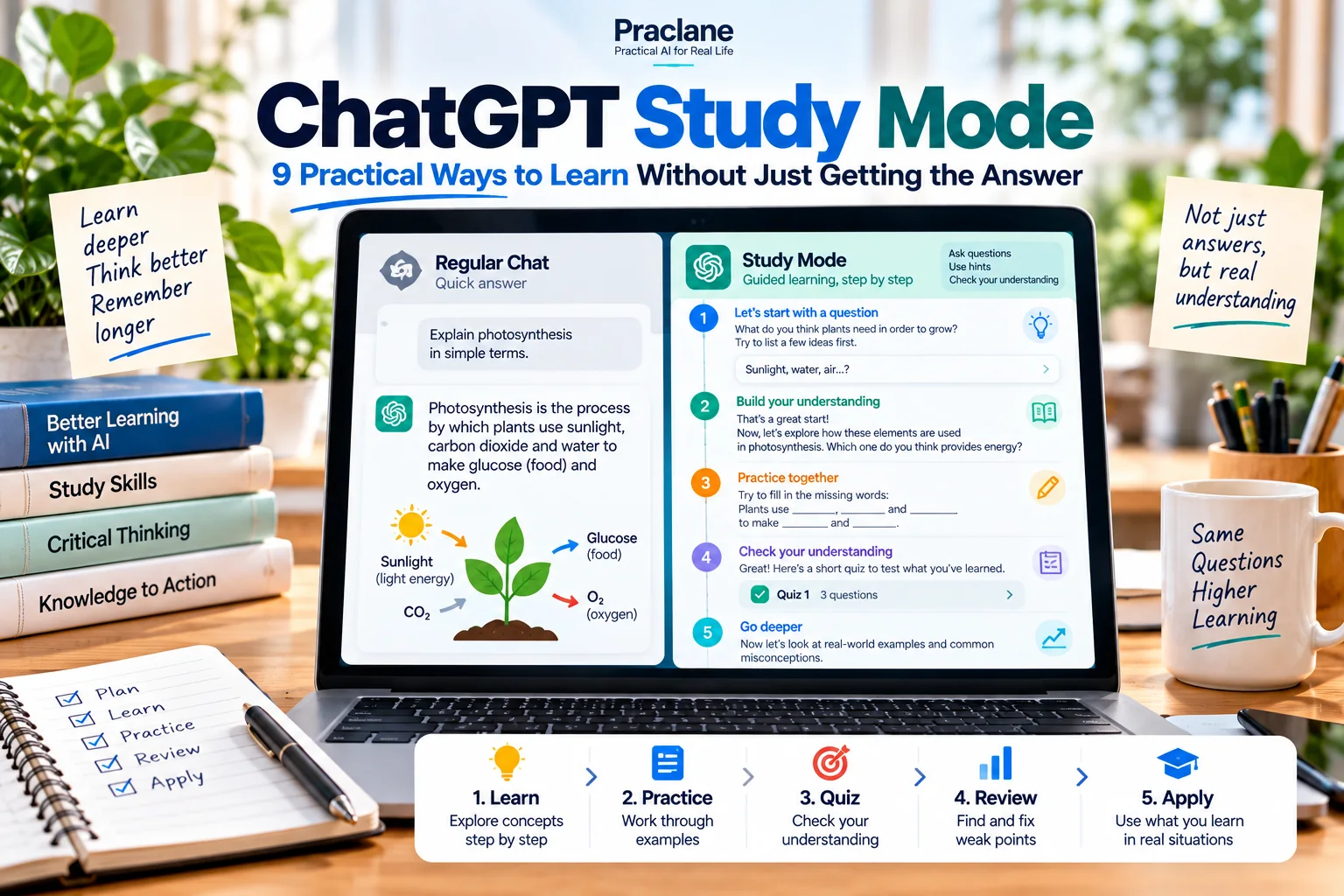
ChatGPT Study Mode is built for a different goal than a normal answer: helping you understand the material rather than simply finishing the task for you.
That difference matters. A regular chat is often optimized for getting to an answer quickly. Study Mode can instead ask questions, guide your reasoning, explain concepts in layers, and check whether you actually understood the step before moving on.
This guide shows how to use ChatGPT Study Mode in realistic learning situations, where it is stronger than regular chat, and how to avoid turning it back into an answer generator.
What Is ChatGPT Study Mode?
OpenAI’s current Study Mode documentation describes it as a learning experience that can ask questions, guide your thinking, explain ideas step by step, and check your understanding as you progress.
Study Mode is currently available across ChatGPT plans globally on web, iOS, and Android, and works with the ChatGPT models available to you. OpenAI notes that it must be used in a regular conversation: it is not available inside Temporary Chats, GPTs, or Projects.
How to Turn On Study Mode
- Start a normal ChatGPT conversation.
- On web, type @study or open the + menu and search for Study.
- On iOS or Android, open the + menu and select or search for Study.
- Tell ChatGPT what you are learning, your level, and where you are stuck.
You can also open Study Mode directly at chatgpt.com/studymode when the feature is available to your account.
Regular Chat vs Study Mode
| Learning Need | Regular Chat | Study Mode |
|---|---|---|
| Get a quick explanation | Strong | Strong |
| Get the final answer quickly | Usually better | May slow down and guide first |
| Practice reasoning | Needs explicit prompting | Designed for this |
| Quiz and feedback loop | Possible | Natural fit |
| Work through confusion step by step | Possible | Designed for this |
| Use uploaded notes, PDFs, or images | Yes | Yes, when uploads are available |
9 Practical Study Mode Workflows
1. Learn a New Concept From Zero
I am new to compound interest. Teach it from the beginning. Ask one question at a time, use a simple numerical example, and do not move on until I can explain the idea back to you in my own words.
This works well when you need a concept to stick rather than just a definition.
2. Solve a Math Problem Without Giving Away the Answer
Help me solve this problem, but do not give the final answer. First ask what formula I think applies. If I choose the wrong path, give me a hint and let me try again.
The key is explicitly protecting the thinking step. If Study Mode answers too directly, ask it to use hints only.
3. Turn Class Notes Into a Guided Review
Use these notes to teach me the topic in three stages: core ideas, common misunderstandings, and application. After each stage, ask me two questions and wait for my answers.
If your notes are in a PDF, our ChatGPT with PDFs guide covers document handling in more detail.
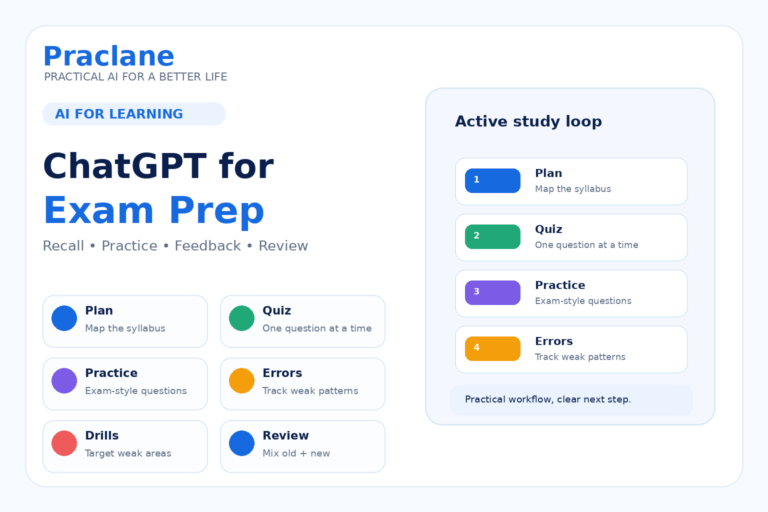
4. Prepare for an Exam With Active Recall
Quiz me on this chapter one question at a time. Mix definitions, application questions, and common traps. Do not reveal the answer until I commit to one. Keep a list of topics I miss and retest them later.
For a full exam-preparation workflow, see our ChatGPT exam prep guide.
5. Learn From a Mistake Instead of Just Correcting It
Here is my answer and the correct answer. Do not just tell me I was wrong. Identify the first step where my reasoning broke down, ask me why I made that step, and help me rebuild the logic from there.
6. Use a Textbook Excerpt Without Overloading Yourself
Teach me this excerpt in layers. Start with the simplest explanation, then add the technical detail only after I can summarize the simple version correctly.
This is especially useful for dense material. Our difficult texts guide includes additional reading strategies.
7. Practice a Language With Correction Delayed
Have a short conversation with me in Spanish at A2 level. Do not interrupt every error. After five turns, review my mistakes, explain the two most important ones, and ask me to repeat the corrected pattern.
For a broader language-learning system, see our language learning with ChatGPT guide.
8. Use an Image of a Problem or Diagram
Use this photo of the physics problem. First tell me what information the diagram gives. Then ask me which principle might apply. Do not solve it until I attempt the setup.
If the image is hard to read, OpenAI recommends uploading a clearer version or pointing ChatGPT to the exact area or question.
9. Build a Personalized Review Loop
Track the topics I consistently miss in this study session. At the end, give me a short review plan for tomorrow with three priorities and five practice questions.
When Memory is enabled and available, Study Mode may also use relevant remembered preferences or past learning context. Our ChatGPT Memory guide explains how that personalization works and how to control it.
A Worked Scenario: Learning vs Finishing
Suppose the task is: “A car travels 150 km in 2.5 hours. What is its average speed?”
| Approach | Likely Interaction | Learning Value |
|---|---|---|
| Direct-answer prompt | Formula + calculation + result | Fast, but little retrieval practice |
| Study Mode with no extra instruction | May ask what formula you would use | Better engagement |
| Study Mode with explicit hint rule | Asks for formula, checks setup, hints after mistakes | Best for practicing reasoning |
The lesson is not that Study Mode is automatically better. It is better when your goal is learning the method. If you simply need to calculate a value quickly for real work, regular chat may be more efficient.
How to Keep Study Mode From Becoming an Answer Machine
- Ask for one question at a time.
- Tell it not to reveal the final answer until you commit.
- Request hints before explanations.
- Ask it to identify the first reasoning error, not just the final error.
- Make yourself explain the concept back in your own words.
- Ask for a second problem that tests the same idea in a different form.
Important Limits
- Study Mode can still give direct answers. If that happens, explicitly request hints and questions instead.
- It is not available everywhere. OpenAI says Study Mode does not run inside Temporary Chats, GPTs, or Projects.
- Uploaded material can still be misread. Verify diagrams, equations, and important source details.
- School rules still apply. Follow your teacher’s or institution’s policy for graded work.
- Personalization is optional. Study Mode works with Memory off, but may be less personalized.
FAQ
Is ChatGPT Study Mode free?
OpenAI currently says Study Mode is available across ChatGPT plans globally on web, iOS, and Android.
Can Study Mode use PDFs and images?
Yes, when uploads are available in the conversation. You can upload notes, slides, PDFs, worksheets, or images and ask Study Mode to focus on a particular page, section, or question.
Can I use Study Mode inside a Project?
Not currently. OpenAI says Study Mode should be started in a regular ChatGPT conversation and is not available in Projects, GPTs, or Temporary Chats.
For a hands-on active-recall workflow using notes, quizzes, and weak-topic review, continue with our ChatGPT Flashcards study guide.
Final Thoughts
Study Mode is most valuable when the question is not “Can ChatGPT solve this?” but “Can ChatGPT help me learn how to solve the next one without help?”
Use regular chat when speed is the priority. Use Study Mode when understanding, recall, and reasoning are the real goal.