How to Use ChatGPT for PowerPoint: 12 Practical Workflows
PowerPoint work often takes longer than the actual thinking behind the presentation. You have to turn notes into a story, decide what belongs on each slide, rewrite dense text, check numbers, match the audience, and make the deck easy to present.
This guide shows how to use ChatGPT for PowerPoint with 12 practical workflows for creating, revising, reviewing, and presenting slide decks. It covers both general ChatGPT workflows and the current PowerPoint-native experience available through ChatGPT for PowerPoint.
If you want broader workplace examples first, start with our guide to using ChatGPT for work. If your instructions tend to produce generic results, see how to write better ChatGPT prompts.
What Is ChatGPT for PowerPoint?
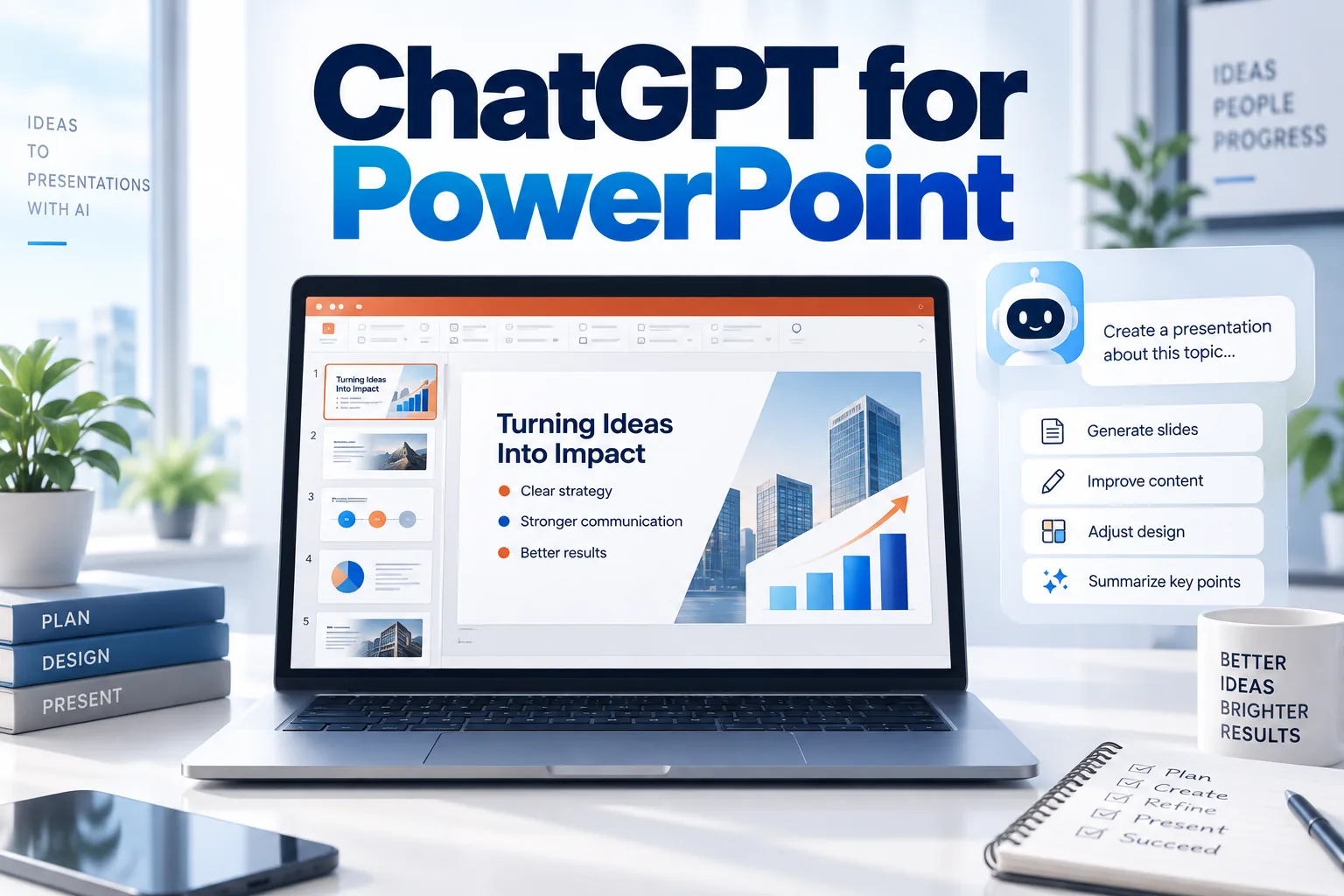
OpenAI’s current ChatGPT for PowerPoint documentation describes a PowerPoint-native experience that runs in a sidebar inside Microsoft PowerPoint. It can help create, edit, understand, and polish presentations while keeping the slide structure editable.
You can use it to build a first draft from source material, add or revise slides in an existing deck, ask questions about the presentation’s story, and adjust a deck for a specific audience. Availability can depend on your plan, account, workspace settings, and administrator controls.
ChatGPT can also create and edit presentation files through OpenAI’s current presentation tools and Work workflows. The exact experience depends on where you are using ChatGPT, so it is better to focus on the workflow rather than assume every account has the same interface.
12 Practical Ways to Use ChatGPT for PowerPoint
1. Turn Notes Into a Slide Outline
Before designing slides, use ChatGPT to turn rough notes into a logical sequence. This is often the highest-value step because a clear story makes the rest of the deck easier.
Turn these project notes into a 10-slide presentation outline for senior management. For each slide, give me the title, the main message, and 3–5 supporting points. End with decisions needed and next steps: [paste notes]
Do not ask for “10 slides about this topic.” Tell ChatGPT who the audience is and what decision or understanding the deck should create.
2. Build a First Draft From Source Material
If you already have a report, memo, PDF, spreadsheet, or set of notes, use that material as the source for the presentation instead of starting from a blank prompt.
Create a first draft of an 8-slide presentation from the attached report. Use only facts from the report. Lead with the main conclusion, then show the supporting evidence, risks, recommendation, and next steps.
When source accuracy matters, ask ChatGPT to flag anything it cannot support from the material rather than filling gaps automatically.
3. Improve the Story of an Existing Deck
A presentation can contain correct information and still feel confusing. Ask ChatGPT to review the narrative: what the audience learns first, what evidence comes next, and whether the conclusion feels earned.
Review this deck for story and structure. Tell me what the presentation is trying to say, where the logic becomes weak or repetitive, which slides feel out of order, and what I should change before editing the design.
OpenAI specifically notes that ChatGPT for PowerPoint can help users ask questions about a deck’s story and structure.
4. Rewrite Slides for an Executive Audience
Executives usually need the decision, evidence, risk, and next action faster than a technical audience does. Use ChatGPT to reduce detail without removing the meaning.
Rewrite slides 4–8 for an executive audience. Keep the important numbers and conclusions, remove unnecessary explanation, and make each slide communicate one clear message. Do not change the facts.
The same method works in reverse when you need a more detailed technical or training version of the same presentation.
5. Add a Missing Slide Without Rebuilding the Deck
Sometimes the deck is mostly complete but one part is missing: risks, timeline, budget, recommendations, or next steps.
Add a risks slide after the market overview. Include the three most important risks, impact, likelihood, and mitigation. Match the existing presentation style and do not change the surrounding slides.
This type of specific instruction is better than asking ChatGPT to “improve the whole presentation,” because it makes the scope of the edit clear.
6. Turn Dense Paragraphs Into Slide-Friendly Copy
Slides should not read like a document. Give ChatGPT a long paragraph and ask it to keep only what the audience needs to understand quickly.
Turn this paragraph into slide-ready content. Give me one headline that states the main message, three short supporting bullets, and one optional callout number. Keep the wording concise and factual: [paste paragraph]
A useful test is whether someone can understand the point of the slide in a few seconds before the presenter starts speaking.
7. Create Speaker Notes
When a slide must stay simple, put the explanation in speaker notes instead of adding more text to the slide itself.
Create speaker notes for this 8-slide deck. Keep each slide’s notes under 120 words. Explain what I should say, the transition to the next slide, and any number or assumption I should be ready to clarify.
Speaker notes are especially useful for handoffs, training decks, and presentations delivered by more than one person.
8. Turn Spreadsheet Results Into a Management Slide
Raw spreadsheet analysis rarely belongs directly on a slide. Ask ChatGPT to identify the message first, then choose the numbers that support it.
Use this sales analysis to create one management slide. State the main takeaway in the title, show the three numbers that matter most, explain the biggest change versus last month, and recommend the clearest chart type.
The goal is not to show every number. It is to make the decision-relevant pattern visible.
9. Build a Comparison Slide
Comparison slides become messy when every option has too many criteria. Ask ChatGPT to organize the differences around the factors the audience actually cares about.
Create a comparison slide for these three software options. Use the criteria Cost, Setup Time, Ease of Use, Integrations, Reporting, and Best Fit. Keep the slide readable and put detailed caveats in speaker notes.
If the comparison depends on current prices or features, verify the source information before presenting it.
10. Prepare for Audience Questions
A good deck is not only the slides. You also need to be ready for objections, missing context, and follow-up questions.
Review this presentation from the perspective of a skeptical CFO. Give me the 10 questions you are most likely to ask, explain which slide each question relates to, and tell me what evidence I should prepare before the meeting.
This can expose weak assumptions before someone else does.
11. Check the Deck for Consistency
Long decks often develop small inconsistencies: different terminology, mismatched dates, duplicate claims, changing units, or conflicting numbers.
Audit this presentation for consistency without changing it. Check terminology, dates, units, totals, repeated claims, slide numbering, and references to earlier slides. Return a list of issues with slide numbers.
For important claims, use our ChatGPT verification workflow before the deck goes to a client, manager, or external audience.
12. Create a Final Presentation Checklist
Before presenting, ask ChatGPT to review the deck against the real situation: audience, time limit, purpose, and decision required.
Review this deck for a 12-minute presentation to senior management. Check whether the number of slides is realistic, whether the opening explains why the topic matters, whether each slide has one main message, and whether the ending makes the required decision and next steps clear.
This last pass is often more useful than adding another round of design changes.
A Better Prompt Structure for Presentation Work
Presentation prompts become much more reliable when you include five things:
- Audience: who will see the deck.
- Purpose: inform, persuade, train, review, or request a decision.
- Source material: notes, report, spreadsheet, memo, or existing deck.
- Constraints: slide count, time limit, style, facts that must stay unchanged.
- Output: outline, new slides, rewrite, speaker notes, or review.
Create a 7-slide project update for a senior leadership meeting. The goal is to explain why the launch is two weeks late and get approval for the revised timeline. Use only the attached project notes and schedule. Keep the presentation under 10 minutes. Include one slide for progress, one for the cause of the delay, one for risks, one for the revised plan, and a final decision slide.
This is far more useful than “make a PowerPoint about my project.”
Common Mistakes When Using ChatGPT for PowerPoint
- Starting with design instead of the story. Decide what the audience should understand before worrying about visual polish.
- Putting too much text on each slide. Move explanation into speaker notes when possible.
- Asking for a full-deck rewrite with no constraints. Large edits are safer when you ask for a plan first.
- Letting the AI invent supporting evidence. When the deck is based on source material, explicitly tell ChatGPT to stay grounded in that material.
- Ignoring the time limit. A 30-slide deck is not useful if you have 10 minutes to present.
- Trusting numbers without checking them. Verify important metrics, dates, sources, and claims before sharing.
OpenAI’s current guidance for ChatGPT for PowerPoint also recommends being specific about what should change, what should stay unchanged, and where the edit should happen. For larger edits, it recommends asking for a plan first.
Frequently Asked Questions
Can ChatGPT create PowerPoint presentations?
Yes. OpenAI currently offers presentation creation and editing workflows, including ChatGPT for PowerPoint and presentation tools that can create and edit slide decks. The exact interface depends on your account, plan, workspace, and device.
Can ChatGPT edit an existing PowerPoint?
Yes. ChatGPT for PowerPoint is designed to revise existing presentations, add or change slides, and help users understand the structure and story of a deck while keeping the slide structure editable.
Can ChatGPT create speaker notes?
Yes. Provide the slide content, audience, and time limit, then ask for concise speaker notes, transitions, and likely questions for each slide.
Can ChatGPT use a PDF or report to make slides?
Yes. When file uploads or the relevant presentation workflow are available, you can provide source material and ask ChatGPT to build a presentation from it. If you work with PDFs often, see our guide to using ChatGPT with PDFs.
Should I let ChatGPT redesign the whole deck automatically?
For an important presentation, it is usually safer to ask for a review and an edit plan first. Then make changes in smaller groups so you can verify the story, facts, and visual consistency as you go.
Final Thoughts
If you prefer a design-first workflow for presentations, flyers, and social graphics, see our ChatGPT + Canva guide.
The best use of ChatGPT for PowerPoint is not generating more slides. It is reducing the friction between raw information and a clear presentation.
Start with the story, give ChatGPT the source material and audience, make the scope of each edit clear, and review every important claim before presenting.
For broader workplace workflows, continue with our ChatGPT for work guide. If your presentation starts with spreadsheet analysis, see how to use ChatGPT for Excel; for long-form documents, continue with our ChatGPT for Word guide.