ChatGPT Voice in 2026: 8 Practical Ways to Use Live Conversations in Real Life
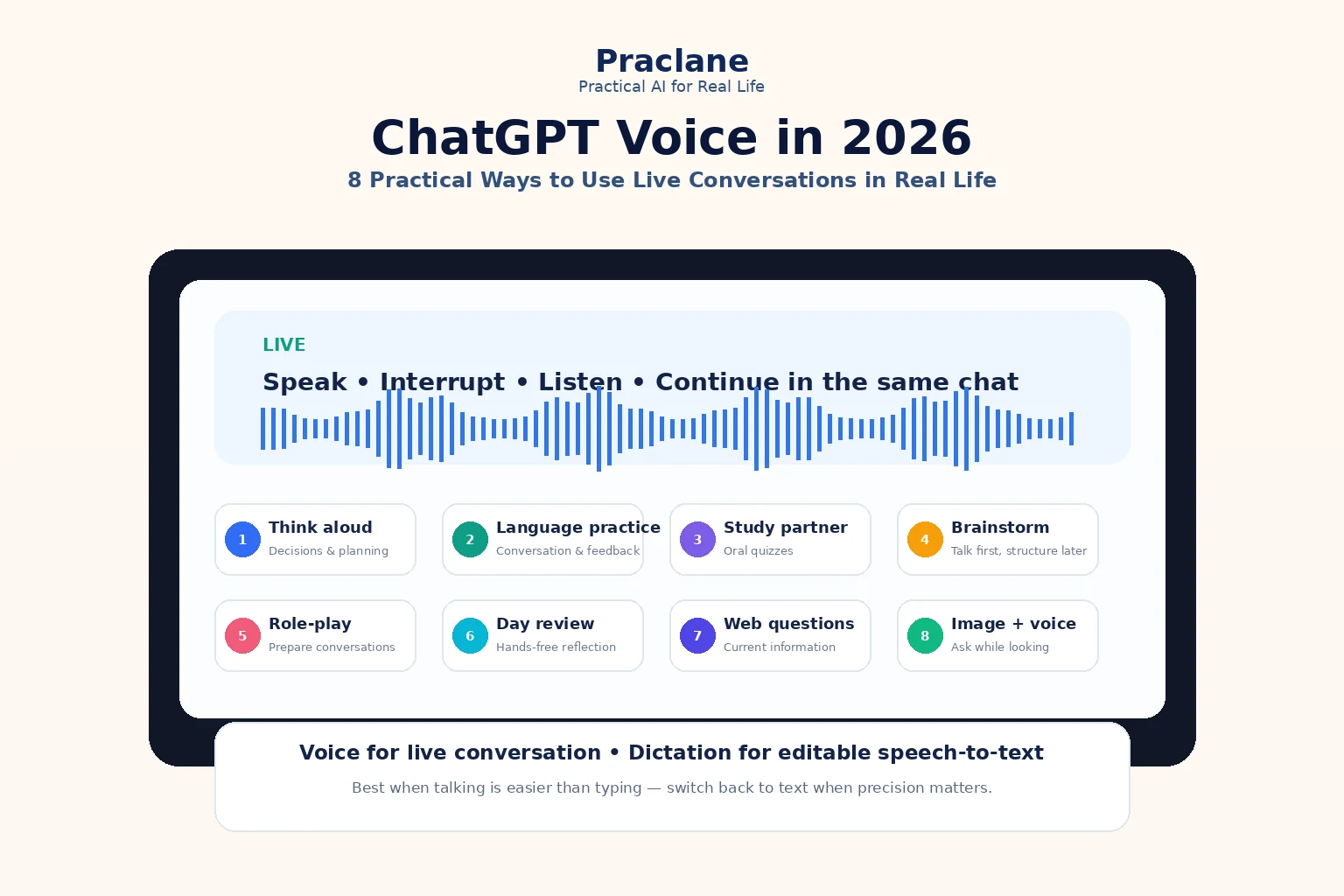
ChatGPT Voice in 2026 is no longer just “speech input.” The current Live experience is designed for real back-and-forth conversation: you can speak, interrupt, listen while reading the response in text, and continue in the same chat with typed messages or images.
That makes Voice useful for situations where typing is the bottleneck: walking, commuting, practicing a language, thinking through a decision, or talking through an idea before you sit down to write.
What ChatGPT Voice Can Do in 2026
OpenAI’s current ChatGPT Voice documentation says Voice works inside a normal chat. Live can listen and speak at the same time, so interruptions feel more natural. It can also use web search and memory, show supported visual results, and work with text and images when those features are available to your account.
The current Voice options can include Live, Advanced, and Standard, depending on plan, device, region, and settings. Live is the default modern experience; Advanced remains relevant for supported mobile video or screen-sharing workflows; Standard is a turn-by-turn transcription-based mode.
Voice vs Dictation: Do Not Confuse Them
| Feature | Voice | Dictation |
|---|---|---|
| Main goal | Live back-and-forth conversation | Turn one recording into editable text |
| When to use | Brainstorming, practice, discussion, live questions | Speak a prompt, edit the transcript, then send |
| Output | Spoken response plus text in the chat | Editable transcription before sending |
| Transcript accuracy | Conversation transcript is not guaranteed verbatim | Designed to return editable text from the recording |
OpenAI’s dictation documentation specifically recommends dictation when you want a single audio message converted to text that you can review before sending.
8 Practical Ways to Use ChatGPT Voice
1. Think Through a Decision While Walking
Some problems are easier to explain aloud than type. Use Voice to externalize the decision, then have ChatGPT structure what you said.
I am going to talk through this decision for two minutes. Do not answer until I say “done.” When I finish, separate facts, assumptions, constraints, risks, and the next decision I actually need to make.
2. Practice a Language Conversation
Voice is especially useful when the skill you are learning is spoken interaction rather than written grammar.
Speak to me in beginner Spanish. Ask one question at a time. After I answer, correct only the most important mistake, give me a more natural version, and continue the conversation.
For text-based language workflows, see our ChatGPT language-learning guide.
3. Use Voice as a Study Partner
You can turn a topic into an oral quiz rather than passively reading an explanation.
Quiz me on this topic out loud. Ask one question, wait for my answer, then tell me what I missed before moving to the next question. Increase the difficulty if I answer correctly.
If you want a more structured guided-learning experience, combine this idea with our ChatGPT Study Mode guide.
4. Brainstorm Without Staring at a Blank Document
Voice works well at the messy beginning of a writing task. Talk first, structure later.
I am going to explain the article idea in a rough way. Listen until I say “organize it.” Then give me the main argument, supporting points, missing evidence, and a draft outline.
5. Prepare for a Difficult Conversation
Use Voice to role-play rather than simply asking for a script.
Role-play as my manager. I need to explain that this deadline is unrealistic without sounding defensive. Push back realistically. After three exchanges, stop and tell me where my explanation became unclear or emotional.
6. Review Your Day Hands-Free
At the end of the day, talk through what happened and turn it into a structured review.
I will describe my day. When I finish, give me: Completed, Unfinished, Important Follow-Ups, Problems to Solve Tomorrow, and one thing I should stop carrying mentally tonight.
This pairs naturally with our habits and routines workflows.
7. Ask Current Questions Without Switching to Typing
Live can use web search when available. That makes it useful for conversational follow-up around current information.
Search the web for the latest official information on this topic. Give me the short answer first, then tell me which source is most authoritative and what is still uncertain.
For deeper multi-source work, switch to the workflow in our Search vs Deep Research comparison.
8. Combine an Image With a Voice Question
Where supported, Live can work with text and images in the same conversation. That is useful when pointing at something is easier than describing it.
I attached a photo. Tell me what you can observe directly, what you are inferring, and what additional information you would need before giving me a confident answer.
A Useful Voice Prompt Pattern
- Conversation role: coach, interviewer, teacher, brainstorming partner
- Turn-taking rule: ask one question at a time, wait until I say done, let me interrupt
- Feedback rule: correct one mistake, challenge assumptions, summarize at the end
- Output after speaking: checklist, plan, notes, next actions, or written draft
Act as a thinking partner. Ask one question at a time. Keep your spoken replies under 30 seconds unless I ask for more detail. At the end, turn the conversation into a written summary with decisions and next steps.
Where Voice Is Weaker Than Text
- Exact wording: voice transcripts are not guaranteed to be verbatim.
- Noisy environments: background sound, long pauses, and overlapping speech can cause interruptions or recognition errors.
- Multi-person conversation: Live is primarily designed for one-on-one interaction and is not optimized for several people speaking at once.
- Long precise instructions: complex constraints are often easier to review in text.
- File-heavy work: Live currently cannot find or add files from ChatGPT Library directly, although supported files may still be attachable manually depending on account.
Privacy and Audio Retention
OpenAI says audio clips from Live and Advanced Voice conversations, and video clips from Advanced Voice conversations, are stored with the transcript that appears in chat history. Clips are retained for 30 days. When you delete a chat, associated clips are also deleted within 30 days unless OpenAI needs to keep them for security, safety, or legal reasons, or the clips were previously shared for model improvement and disassociated from the account.
For Dictation, audio is retained while the associated chat remains in history and is deleted within 30 days after you delete the chat, subject to similar exceptions described by OpenAI.
FAQ
Can I interrupt ChatGPT while it is speaking?
Yes. Live can listen and speak at the same time, so you can interrupt or continue speaking while ChatGPT responds.
Can ChatGPT Voice search the web?
Live can use web search when the feature is available to your account.
Is the Voice transcript exact?
No. OpenAI says the transcript may not exactly match what you or ChatGPT said, especially when speech overlaps, background noise is present, or the conversation moves quickly.
Should I use Voice or Dictation?
Use Voice for live conversation. Use Dictation when you mainly want to record a prompt, review its transcription, edit it, and then send it as text.
Final Thoughts
Voice is most useful when talking is easier than typing. The best workflows use conversation for exploration and then convert the useful parts into structured text, decisions, or next actions.
Use Voice for thinking, practice, coaching, and hands-free interaction. Switch back to text when exact wording, detailed constraints, or precise records matter more than conversational flow.