ChatGPT + Microsoft Teams: 12 Practical Workflows for Messages, Meetings, Planner, and Team Collaboration
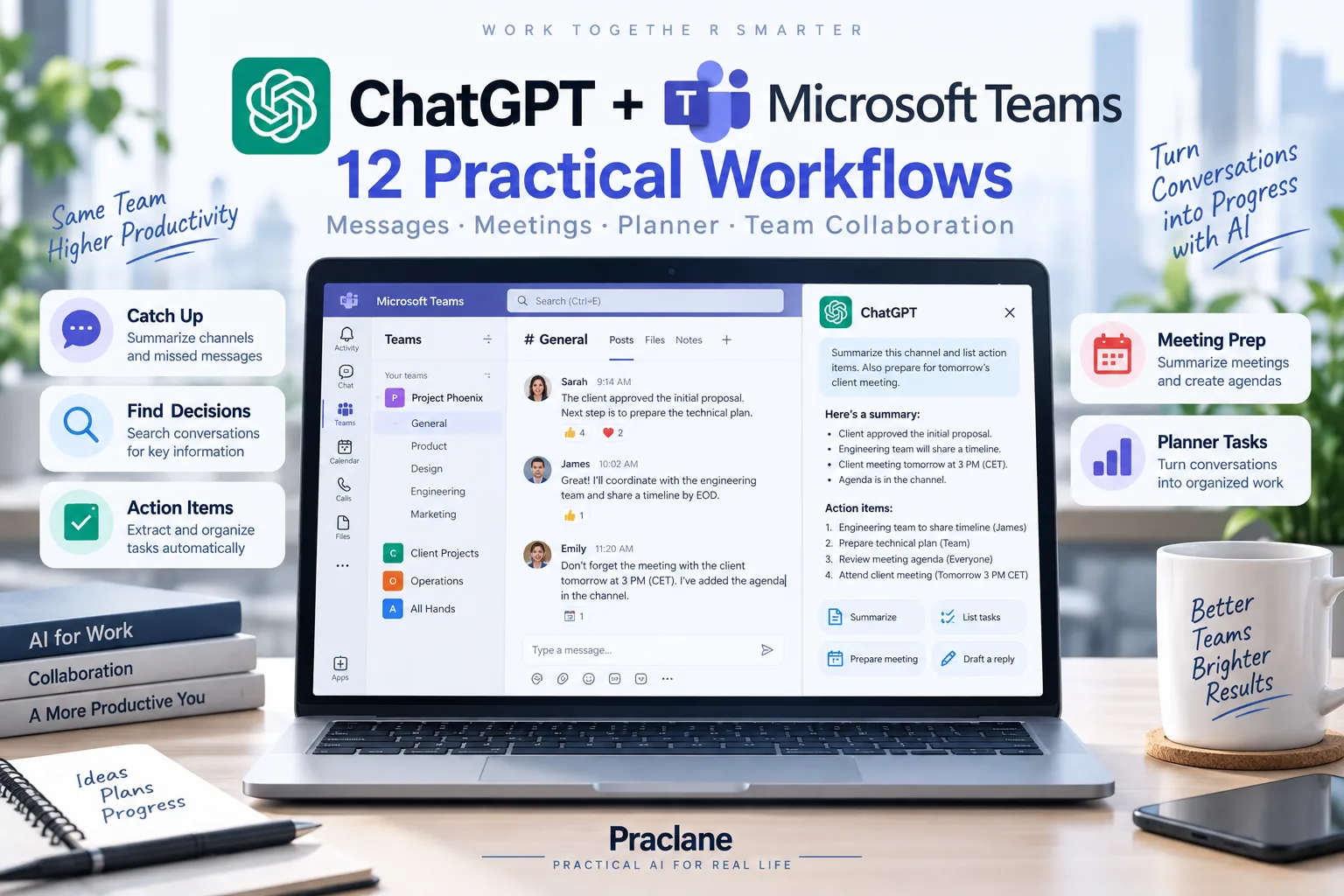
Microsoft Teams can hold an enormous amount of operational context: project chats, channel decisions, meeting details, transcripts, Planner tasks, and day-to-day team coordination. The challenge is turning that stream into a clear picture of what changed and what happens next.
With ChatGPT + Microsoft Teams, supported users can search and reference Teams content available to their Microsoft work or school account. Depending on permissions and workspace settings, the live app can also send or reply to messages, create supported chats or channels, work with Planner tasks, and retrieve information from eligible scheduled meetings.
If your team uses Slack instead, see our ChatGPT + Slack guide. The practical goals are similar, but the available actions and Microsoft 365 permissions are different.
What the Microsoft Teams App in ChatGPT Can Do
OpenAI’s current Microsoft Teams app documentation describes both live access and a separate administrator-managed sync option for eligible workspaces.
| Capability | Practical Use |
|---|---|
| Search chats and channels | Find decisions, discussions, people, and recent updates |
| Send or reply to messages | Use supported write actions when enabled |
| Create chats or channels | Set up supported collaboration spaces |
| Planner tasks | Read, create, update, or delete supported tasks |
| Meeting information | Retrieve eligible scheduled meeting information and supported transcript content |
Live access can support approved actions. Administrator-managed Teams sync is read-only and is configured separately by eligible Enterprise and Edu workspace administrators.
How to Connect Microsoft Teams to ChatGPT
- Open ChatGPT and go to Settings.
- Open Apps or Plugins.
- Select Microsoft Teams or the Microsoft plugin that includes Teams.
- Choose Connect and sign in with the Microsoft work or school account that has access to the teams, channels, chats, meetings, and Planner resources you need.
- Review the requested Microsoft permissions and finish authorization.
- If a feature is missing, confirm both the Microsoft Entra permission and the ChatGPT workspace action setting.
Availability depends on plan, region, workspace configuration, Microsoft account type, and your organization’s Entra policies. Some actions may require administrator approval before they become available.
12 Practical ChatGPT + Microsoft Teams Workflows
1. Catch Up on a Busy Teams Channel
Summarize the Project Atlas channel from the last two business days. Separate Decisions, Important Updates, Risks, Action Items, and Open Questions. Include the source channel or message context where available.
This gives you a work-state summary instead of a chronological recap. If key project evidence lives in Microsoft 365 files, our ChatGPT + SharePoint workflows show how to search, compare, and summarize approved files.
2. Find the Decision Hidden in a Chat
Find the recent Teams discussion about delaying the mobile release. Show the messages that establish the final decision, the stated reason, the owner of the next step, and any deadline. If no final decision was reached, say so.
3. Turn a Channel Into a Project Status Brief
Review the latest messages in the project planning and engineering channels. Create one status brief with Completed, In Progress, Blocked, Decisions, Risks, and Next Milestones. Note the source channel after each important item.
4. Extract Action Items and Owners
Review today’s Teams discussion about the launch. Extract only actionable commitments. For each one, list Task, Owner, Deadline, Dependency, and the source message. Mark missing owners or deadlines instead of guessing.
For broader meeting-to-action workflows, see our ChatGPT for meetings guide.
5. Draft a Reply Using Channel Context
Where message-send actions are enabled, you can ask ChatGPT to prepare a response using the surrounding Teams context. For important messages, preview the draft before sending.
Draft a reply to the latest message in the project channel. Confirm that I will own the risk review, ask one clarifying question about the deadline, and do not make any commitment beyond what was already agreed. Show me the draft only.
6. Create a Handoff Before You Go Offline
Create a handoff using my recent messages and active project channels. Include what I completed, what is still active, people waiting for a response, blocked work, risks, and the first three things the next person should check.
7. Find and Group Planner Tasks
The live Teams app can work with supported Microsoft Planner tasks when the required permissions and actions are enabled.
Find the Planner tasks for Project Atlas. Group them by owner and status, then flag overdue items, tasks with no owner, and anything due in the next three business days.
8. Create a Planner Task From a Teams Commitment
From the latest project channel discussion, identify the commitment assigned to me about updating the launch checklist. Propose a Planner task with title, description, due date, and project plan. Show the task before creating it.
Separating the proposed task from the action helps prevent accidental creation from an ambiguous conversation.
9. Prepare for a Scheduled Teams Meeting
Prepare me for my next scheduled Teams meeting about the product launch. Include meeting time, attendees, objective, recent relevant channel decisions, open questions, and five points I should be ready to discuss.
If Outlook Calendar is also connected, combine this with our ChatGPT + Outlook workflows for broader scheduling context.
10. Turn an Eligible Meeting Transcript Into Follow-Up
Where a Teams meeting transcript exists and the required permission is enabled, ChatGPT can retrieve eligible transcript content.
Use the available transcript from yesterday’s project review. Create a concise recap with Decisions, Action Items, Owners, Deadlines, Risks, and Questions That Remain Open. Flag sections where the transcript is ambiguous.
OpenAI notes that recording actions provide recording metadata, not the recording file contents themselves.
11. Create a New Team Chat or Channel
Where supported creation actions are enabled, ChatGPT can create eligible chats or channels.
Propose a new Teams channel for the Q4 launch review. Use the existing Project Atlas team if available. Name it clearly and write a one-sentence purpose. Show the proposed team, channel name, and purpose before creating anything.
12. Create a Friday Teams + Planner Review
Review this week’s relevant Teams conversations and Planner tasks for Project Atlas. Create a Friday review with Decisions, Completed Work, Open Tasks, Overdue Work, Risks, Meetings That Need Follow-Up, and Top Priorities for Monday.
For a consistent reporting structure, see our recurring reports guide.
Live Teams Access vs. Administrator-Managed Sync
A personal live Teams connection uses your Microsoft account permissions to search or act on supported content when you ask. It can include write actions when those actions are approved.
Administrator-managed Teams sync is different. Eligible Enterprise and Edu workspace administrators can configure approved Teams content for indexed, read-only workspace search. Members do not need to create an individual synced account, and the synced source itself does not provide write actions.
A Better Prompt Formula for Teams
- Source: team, channel, chat, meeting, or Planner plan
- Time window: today, this week, since a milestone, or exact dates
- Task: find, summarize, extract, compare, draft, or act
- Evidence: source channel, message, meeting, or task
- Action boundary: recommend first or apply a specific enabled action
Review the Project Atlas Teams channels and Planner plan from Monday through today. Identify only decisions and commitments that affect the launch date. Include owner, deadline, source, and status. Do not send messages, create tasks, or change anything.
Important Microsoft Teams Limits
- Permissions control scope. ChatGPT can only use Teams content and actions authorized for the signed-in Microsoft account and workspace.
- Meeting transcript access is conditional. A transcript must exist and your Microsoft account must be able to access it.
- Recordings are not returned as full recording files through the documented recording action. The app can provide eligible recording metadata.
- Write actions can require extra Microsoft permissions. Sending messages, creating channels, or editing Planner tasks may need admin approval.
- Administrator-managed sync is read-only. It is separate from individual live app access.
FAQ
Can ChatGPT search Microsoft Teams messages?
Yes, on supported accounts. The Teams app can search or retrieve messages from chats and channels the signed-in Microsoft account is authorized to access.
Can ChatGPT send a Teams message?
Where the send action and required Microsoft permissions are enabled, the live Teams app can send or reply to supported chat or channel messages.
Can ChatGPT manage Microsoft Planner tasks?
Yes, where supported Planner actions are enabled. The Teams app can read and may create, update, or delete supported Planner tasks depending on permissions.
Can ChatGPT summarize a Teams meeting transcript?
Yes, when an eligible transcript exists and the signed-in Microsoft account plus ChatGPT workspace have the required permissions to retrieve it.
Final Thoughts
The value of ChatGPT + Microsoft Teams is not just faster summaries. It is the ability to connect conversation, meeting context, and task ownership into one clearer operating picture.
Keep requests scoped to the right team, channel, meeting, or Planner plan; ask for source evidence; separate proposals from final decisions; and preview important write actions before applying them.