Turn Study Notes into Commute Revision Audio with Gemini Notebook

You have read the lesson once, but the details fade before you get home. Gemini Notebook’s Audio Overview can turn a small set of study materials into a discussion you can replay on your commute. Give that discussion a listening goal, then use it to test what you remember.
This workflow generates new audio from your sources. It does not require a recorded lecture. Google renamed NotebookLM to Gemini Notebook in July 2026; if you need the basic source setup, start with our Gemini Notebook guide. The steps below were checked against Google’s documentation on October 19, 2026, rather than tested in a signed-in account.
Start with one lesson you want to remember
Choose two or three short, related sources you can check afterward. Give them clear titles and keep an original copy nearby. A narrow topic makes it easier to notice what the discussion leaves out.
For a fictional example, imagine learning balcony gardening from “Seed Starting Basics,” “Watering Notes,” and a one-page record of your own observations. Your listening goal is to explain how watering a seed tray differs from watering an established plant. Leave unrelated fertilizer notes out of this session.
You need a signed-in Google Account and access in a supported country. Personal accounts must meet the applicable age requirement; work or school access may require an administrator to enable it. Check Google’s access requirements if the product is unavailable.
Give the audio a specific revision job
Open your notebook and find Audio Overview in Studio. You need notebook edit access to generate it. In its generation panel, choose Deep Dive for a two-host discussion, choose the language, and enter your instructions. Google documents 80+ audio languages; the Shorter, Default, and Longer length choices are English-only. A length preference is not a promise of an exact running time.
Use the commute revision audio prompt to specify your topic, level, listening goal, and the distinction you keep mixing up. For the gardening example, ask for beginner explanations of seed-tray moisture versus established-plant watering. Request recall questions, but check whether the generated audio actually includes them.
Choose the language before generating. To get a different-language version later, generate another overview with that language selected. See Google’s Audio Overview instructions for the available controls.
Make the phone playback ready before leaving
In the mobile app, open the notebook’s Studio panel to find the overview. If you need another version, use the pencil beside Audio Overviews to choose sources, add a prompt, and adjust supported settings, then generate again. Select only this lesson’s materials; changing the selection does not update an existing download.
Once the audio is ready, select Download for offline listening and find it under Downloaded on the app’s main page. The player supports pause, skipping, speed changes, and background playback while using another app or turning off the display. App availability and supported features can vary. See Google’s mobile app instructions for these controls.
Finish with a recall check and the original sources
Pause after an explanation and try to answer from memory. After listening, check three things against the originals: the central distinction, any numbers or conditions mentioned, and one important point the audio omitted. If an example sounds new, check whether it came from a source.
Keep a short list of what still needs review. For the fictional gardening lesson, that might be “I can explain the watering difference, but need to reread the signs of overwatering.” AI voices can sound convincing while making mistakes. When your materials change, confirm the updated sources and generate a fresh overview before using it for revision again.
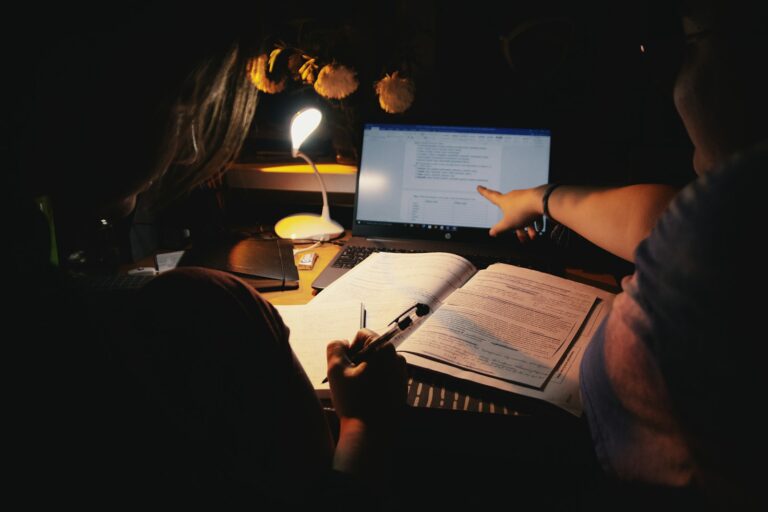
Photo: Workperch / Unsplash.