How to Use Gemini Notebook (Formerly NotebookLM): A Practical Guide for Research and Studying
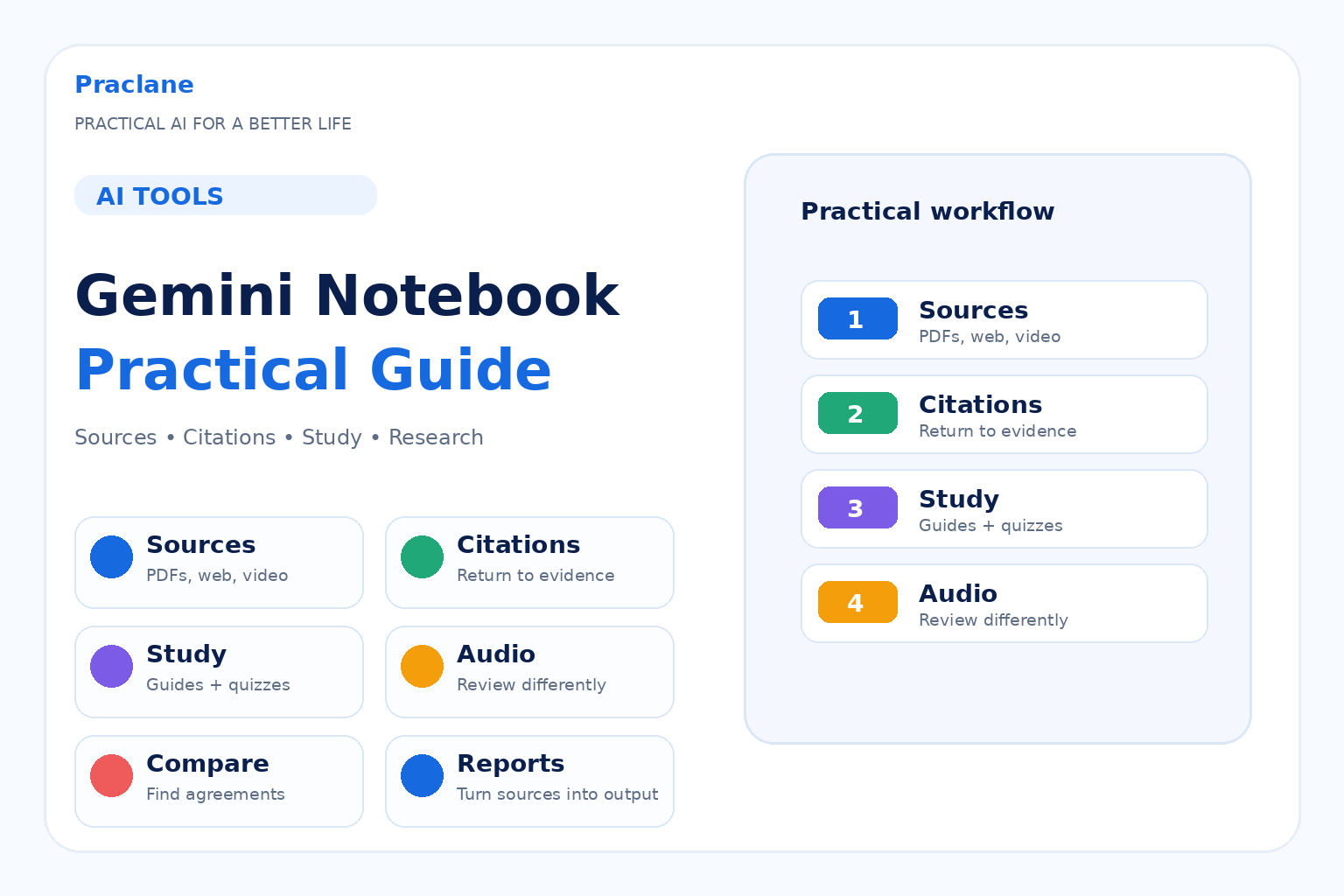
Google renamed NotebookLM to Gemini Notebook in July 2026, but the core idea remains the same: collect a set of sources, ask questions grounded in those sources, and turn the material into useful study or research outputs.
This guide shows how to use Gemini Notebook for practical research and studying without treating it like a general-purpose chatbot.
If you are still deciding between tools, see our ChatGPT vs NotebookLM / Gemini Notebook comparison. For general study workflows, see our ChatGPT study guide.
What Gemini Notebook Is Best At
Gemini Notebook is built around a notebook and its sources. You add material such as PDFs, websites, YouTube videos, audio files, Google Docs, Google Slides, Word files, PowerPoint files, CSV files, images, and other supported formats. The assistant can then answer questions using those sources and provide inline citations back to the material.
Google’s current Gemini Notebook overview describes it as an AI-powered research assistant for refining and organizing ideas, while the source documentation lists current supported source types and limits.
The important distinction is that the notebook’s sources are the center of the workflow.
1. Create One Notebook for One Clear Topic
Start with a notebook that has a specific purpose instead of mixing unrelated material.
Goal for this notebook: understand [topic] well enough to [exam/report/project outcome]. Help me identify the main questions I should be able to answer from these sources.
A clear scope makes later questions, reports, and study materials more useful.
2. Add the Best Sources Before Adding More Sources
More sources do not automatically mean better research. Start with the documents, lectures, papers, websites, or notes that are most relevant to your goal.
Based only on the sources currently selected, list the major topics covered, the important gaps, and any areas where two sources appear to disagree.
When the source set becomes large, Gemini Notebook can organize sources with labels, and you can select or deselect sources for a particular question.
3. Ask Source-Grounded Questions
Using only the selected sources, explain [question]. Separate what the sources clearly state from what is your interpretation. Cite the relevant source passages.
This is one of the strongest reasons to use the tool: the answer is connected to the source collection instead of starting from a completely open conversation.
4. Open the Citations Instead of Trusting the Summary
Inline citations let you jump back to the source. Use them.
Source grounding reduces uncertainty, but it does not guarantee that every summary or interpretation is correct. If a claim matters, open the citation and read the relevant passage yourself.
For a broader checking process, see our AI verification guide.
5. Compare Multiple Sources
Compare these selected sources on [question]. Create a table with Source, Main Claim, Evidence, Assumptions, Where It Agrees With Others, and Where It Differs. Do not resolve disagreements unless the sources provide enough evidence.
This is useful for literature reviews, competing explanations, policy documents, product research, or several lecture materials covering the same topic.
6. Generate a Study Guide
The Studio panel can turn your sources into reports and study-oriented outputs.
Create a study guide from these sources. Prioritize core concepts, relationships between ideas, common confusions, and questions I should be able to answer without looking at the notes.
Google’s current notebook documentation lists Studio outputs including reports, study guides, flashcards, quizzes, mind maps, Audio Overviews, Video Overviews, slide decks, data tables, and infographics.
7. Create Flashcards and Quizzes
Create a difficult quiz from the selected sources. Focus on application and comparison instead of simple definitions. Do not reveal the answer until I respond.
Flashcards and quizzes can be customized by difficulty and prompt. For exam-specific workflows, see our exam prep guide.
8. Use Audio Overviews for a Different Review Mode
Audio Overviews turn your sources into an AI-generated spoken discussion. Current options include formats such as Deep Dive, Brief, Critique, and Debate, with customization for focus and language.
See Google’s current Audio Overview documentation for supported controls and limitations.
For this Audio Overview, focus on the three ideas that are easiest to confuse. Explain the difference between them and use examples from the sources.
Audio is useful as a review format, but important details should still be checked against the original material.
9. Turn Research Into a Briefing or Report
Create a briefing from these sources for [audience]. Include the main question, strongest evidence, important disagreements, unresolved issues, and five source-backed takeaways. Keep interpretation separate from direct source claims.
Generated reports can also be exported to Google Docs, while supported data-table outputs can be exported to Sheets.
10. Use a Notebook as a Research Workspace, Not a Source of Truth
The quality of the notebook depends heavily on the quality of the material inside it. A weak source remains a weak source after it is summarized.
Before using the output in a paper, presentation, decision, or publication, verify the original source, date, author, context, and any claim that materially affects your conclusion.
A Reusable Gemini Notebook Prompt
Use only the selected sources to help me understand [topic]. First summarize the major themes. Then identify agreements, disagreements, missing information, and terms I need to understand. Cite the relevant sources for each important claim. If the sources do not support an answer, say so instead of filling the gap from general knowledge.
Common Mistakes
- Adding a large number of sources before defining the question.
- Assuming a citation automatically means the interpretation is correct.
- Mixing unrelated projects inside one notebook.
- Using low-quality sources and expecting source grounding to fix them.
- Reading only generated reports instead of the most important original material.
- Creating flashcards or quizzes before checking whether the source material is complete.
Frequently Asked Questions
Is NotebookLM now called Gemini Notebook?
Yes. Google renamed NotebookLM to Gemini Notebook on July 16, 2026. Google describes it as the same standalone research product under the new name.
Can Gemini Notebook answer questions from PDFs?
Yes. PDFs are among the supported source types. You can add them to a notebook, ask questions grounded in the selected material, and use citations to return to relevant passages.
Can Gemini Notebook search for new sources?
Yes. Current versions can help discover sources from the web, after which you can review and import the sources you want to use in the notebook.
Is Gemini Notebook only for students?
No. The same source-grounded workflow can be used for research packets, reports, onboarding material, document comparison, project references, and other knowledge work.
Final Thoughts
Gemini Notebook is most useful when you already have—or want to build—a source collection that should stay at the center of the work.
Define the question, curate the sources, follow the citations, and use Studio outputs as different ways to work with the same evidence.