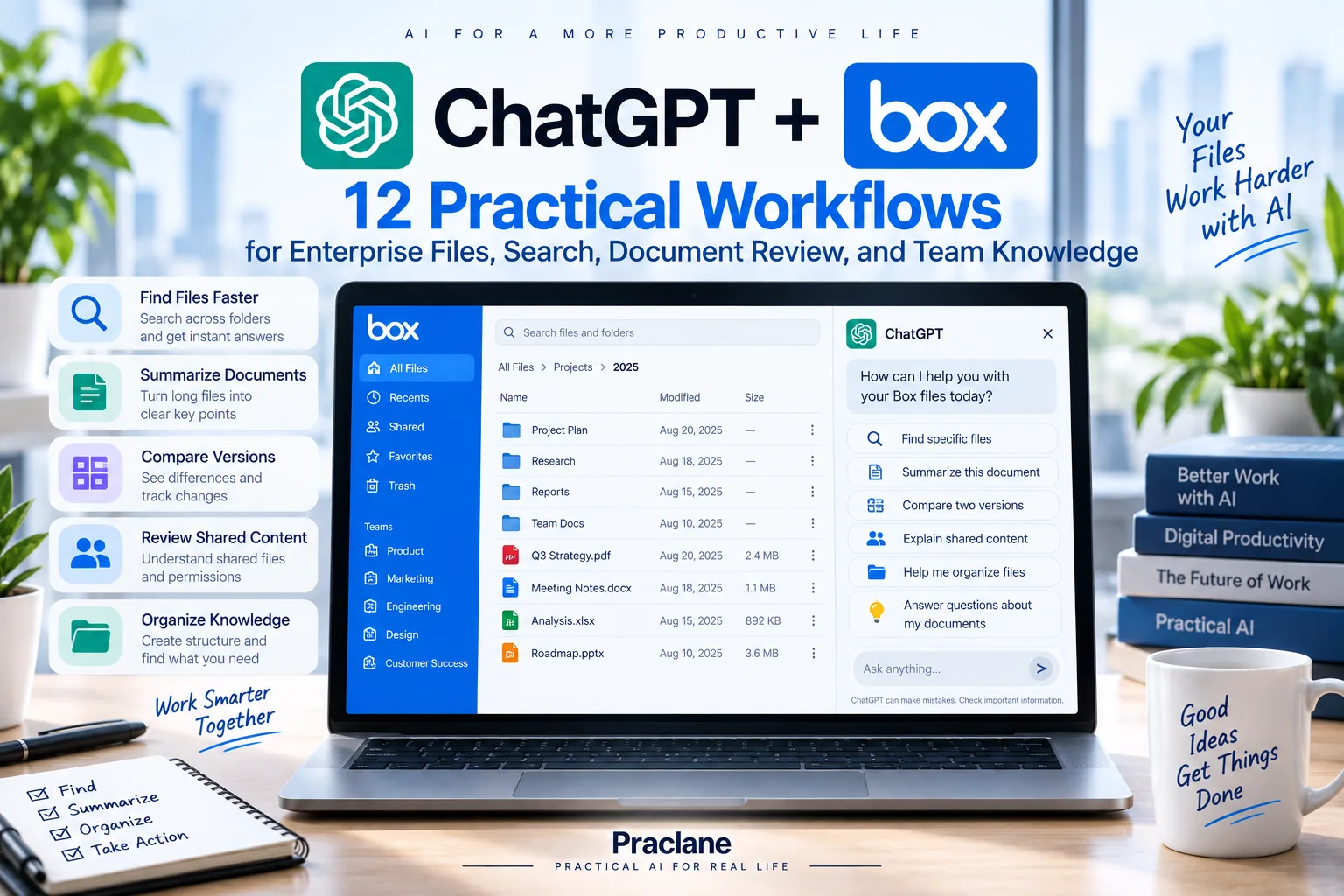
ChatGPT + Box: 12 Practical Workflows for Enterprise Files, Search, and Document Review
Box is often used for documents that matter beyond one person: contracts, proposals, policies, project files, presentations, reports, and shared enterprise content. The challenge is usually not creating another document—it is finding the right source quickly and understanding what changed.
With ChatGPT + Box, supported users can search and use files and folders that their connected Box account is already allowed to access. ChatGPT can summarize, compare, and reason over authorized content, and some connections may expose additional Box actions depending on permissions, workspace settings, and approvals.
If your organization uses Google Drive or Microsoft 365 instead, compare our ChatGPT + Google Drive and ChatGPT + SharePoint guides. For knowledge-base pages and project notes, see our ChatGPT + Notion workflows.
What ChatGPT Can Do With Connected Box
OpenAI’s current Box app documentation says ChatGPT can search and use files that the connected Box account can access. The current app does not require individual sync.
| Capability | Practical Use |
|---|---|
| Find files | Locate documents by project, title, folder, subject, or other context |
| Summarize | Turn long documents into concise briefs, checklists, or action items |
| Compare | Compare authorized documents and surface meaningful differences |
| Shared content | Use files shared with the connected Box account when permissions allow |
| Available Box actions | Use supported actions only when the app, provider permissions, workspace settings, and approvals allow them |
How to Connect Box to ChatGPT
- Open ChatGPT and go to Apps or Plugins.
- Find and select Box.
- Select Connect, or install the plugin if Box is presented that way.
- Sign in to the Box account that already has access to the files and folders you need.
- Review the permissions shown by Box.
- Approve the connection and return to ChatGPT.
If a file is missing, first verify that the connected Box account can open it directly in Box. Connecting Box does not give ChatGPT access to content that the account itself cannot access.
12 Practical ChatGPT + Box Workflows
If your team stores similar project files in Dropbox, compare these ideas with our ChatGPT + Dropbox workflows.
1. Find the Latest Project Brief
Find the latest Project Atlas brief in Box. Show the file name, folder, modified date if available, and the five most important priorities. If several files look like possible current versions, show the candidates instead of choosing silently.
2. Summarize a Long Document for a Specific Audience
Summarize this strategy document for an operations manager. Focus on responsibilities, deadlines, risks, dependencies, and decisions that require approval. Keep the summary under 500 words.
3. Compare Two Document Versions
Compare these two onboarding documents in Box. Ignore formatting changes. List only differences that affect steps, responsibilities, deadlines, systems, or required approvals. Include the relevant section for each difference.
4. Review Files Shared With You
ChatGPT can use shared Box content when the connected Box account already has permission to access it.
Find documents shared with me that relate to the Q4 launch. Create a table with file name, likely purpose, who shared it if available, and what action or decision each document appears to support.
5. Build an Executive Brief From Several Files
Use the current project plan, latest status report, risk register, and budget summary in Box. Create a one-page executive brief with Progress, Budget, Risks, Decisions Needed, Owners, and Next Milestone. Cite the source file after every number or deadline.
6. Find Conflicting Numbers or Dates
Check the project documents in this Box folder for conflicting launch dates, budget totals, owners, or milestone names. Create a table showing the conflicting value, each source file, and the relevant section. Do not decide which value is correct unless one file clearly establishes authority.
7. Turn a Folder Into a Project Handoff
Use the authorized files in this project folder to create a handoff for a teammate. Include Current State, Key Files, Decisions, In Progress, Blocked, Owners, Deadlines, Risks, and the first three things they should check.
8. Audit Documentation for Stale Information
Review the onboarding and process documents in this Box folder. Flag files that appear stale because they contain old dates, retired product names, outdated links, or instructions that conflict with newer documents. Create a review list only.
9. Prepare for a Client Review
Use the latest proposal, project status report, and open-issues document in Box to prepare a client review brief. Include what changed since the previous review, decisions needed, unresolved issues, commitments, and five questions to discuss.
For meeting-specific preparation and follow-up, see our ChatGPT for meetings guide.
10. Extract Action Items From a Document
Review this project update and extract every explicit action item. Create a table with Task, Owner, Deadline, Dependency, Status, and Source Section. Mark missing owners or deadlines as Missing instead of guessing.
11. Create a Compliance Review Checklist
Use the current policy and process documents in this Box folder to create a compliance review checklist. Every checklist item must cite the source file and section. If two sources conflict, create a separate Conflict to Resolve section.
12. Use Supported Box Actions Carefully
Available Box actions can vary by account, workspace, provider permissions, and enabled capabilities. If a connection offers an action that changes Box content, review the target and proposed change before approval.
Review the files in this folder and propose how they should be organized by project phase. Do not move, rename, share, or modify anything. Show the proposed structure and wait for my approval before using any available Box action.
A Better Prompt Formula for Box
- Folder or project: where to search
- Document target: title, subject, date, or file type
- Task: find, summarize, compare, audit, or extract
- Traceability: file name, section, owner, or date
- Action boundary: read only, propose, or use an explicitly approved Box action
Use only authorized files in the Project Atlas folder. Find the latest project plan and status report, summarize current progress and risks, and cite the source file after every deadline and number. Do not modify, move, rename, or share anything.
Important Box Limits
- No individual sync is required. Use the current Box app or plugin instead of older instructions that refer to personal sync.
- Box permissions remain the source of truth. ChatGPT cannot retrieve files the connected Box account cannot access.
- Shared content works only when your Box account has access. A shared link or mention does not automatically grant permission.
- Actions vary. A Box write action is available only when the current app offers it and provider permissions, workspace settings, and approvals allow it.
- Managed workspaces can restrict app access. Administrators may control whether Box is available and which roles or actions are allowed.
For high-stakes document review, use the verification process in our ChatGPT verification guide before relying on a summary or comparison.
FAQ
Can ChatGPT search Box files?
Yes, on supported accounts. ChatGPT can search and use files and folders available to the connected Box account.
Can ChatGPT use Box files shared with me?
Yes, when the connected Box account already has permission to access the shared file and the app can retrieve it.
Does Box need to sync with ChatGPT first?
No. OpenAI’s current Box documentation says individual sync is not required.
Can ChatGPT change files in Box?
Some Box actions may be available depending on the current app, account, workspace settings, provider permissions, and approvals. Check the available action before relying on a write workflow.
Final Thoughts
The best ChatGPT + Box workflows make enterprise content easier to find and compare without losing the link back to the source file.
Use precise folder or document scope, ask for file-level evidence, treat conflicting versions as a review problem rather than guessing, and require confirmation before any supported action changes enterprise content.