ChatGPT + Gmail: 12 Practical Workflows for Email, Follow-Ups, and Automation

Email becomes much more useful in ChatGPT when the source inbox is connected. Instead of copying messages into a chat one by one, supported accounts can connect Gmail so ChatGPT can reference permitted email content when it is relevant to a request.
This guide focuses on ChatGPT + Gmail as a practical work system: finding the right message, turning long threads into decisions, preparing replies, identifying follow-ups, and using supported event-triggered tasks when a new email arrives.
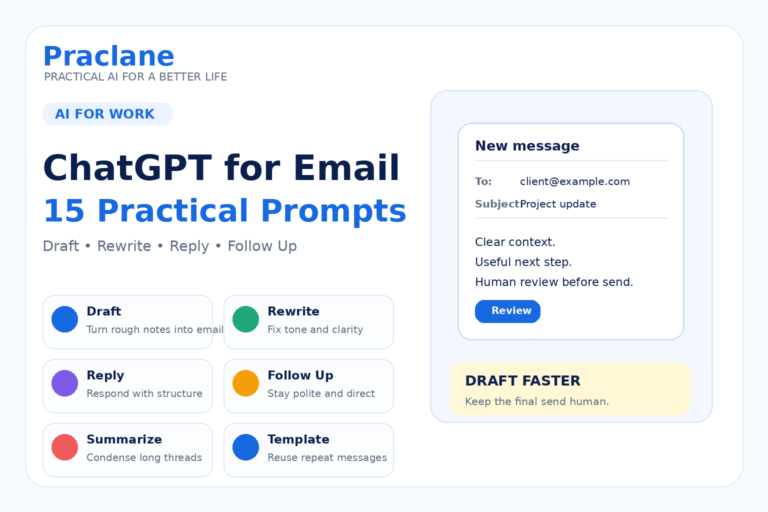
If you mainly want reusable writing prompts, start with our ChatGPT email prompts for work. This article is different: it focuses on what becomes possible when Gmail itself is connected to ChatGPT. Microsoft users can compare the same type of workflow in our ChatGPT + Outlook guide.
What ChatGPT Can Do With Connected Gmail
OpenAI’s current Google app documentation describes Gmail as a connected Google app whose information can be accessed for supported requests, subject to your Google permissions and ChatGPT workspace settings.
OpenAI also supports connecting multiple Google accounts for Gmail, Google Calendar, and Google Contacts on supported plans. That can be useful if you need to work across a personal inbox and a work inbox without constantly disconnecting one account.
| Workflow | What ChatGPT Helps With |
|---|---|
| Search | Find relevant messages by sender, topic, date, or context |
| Summarize | Compress long threads into decisions, changes, and next steps |
| Extract | Pull deadlines, owners, requests, numbers, and commitments |
| Draft | Prepare a reply based on the actual conversation context |
| Automate | On eligible accounts, trigger Work tasks from new Gmail messages |
How to Connect Gmail to ChatGPT
- Open ChatGPT and go to Settings.
- Open Plugins or Apps, depending on the interface shown for your account.
- Find Gmail or the plugin that includes the Gmail connection.
- Select Connect and choose the Google account you want to authorize.
- Review the requested permissions and complete Google’s authorization flow.
- If you use a managed workspace, confirm that both the ChatGPT workspace and Google Workspace administrators allow the required connection and scopes.
Availability can vary by plan, region, workspace, role, and administrator settings. A successful connection also does not guarantee that every possible Gmail action is enabled for your account.
12 Practical ChatGPT + Gmail Workflows
1. Build a Morning Inbox Brief
Instead of opening every new message, ask for a short briefing that separates urgent requests from information that can wait.
Review the important email from this morning. Group it into: Urgent Today, Needs a Reply, Waiting on Someone Else, and FYI. For each item, include the sender, subject, requested action, and deadline if one is stated.
2. Find the Message You Cannot Remember
Search becomes more useful when you describe what you remember instead of guessing the exact subject line.
Find the recent email from a supplier about a delivery delay. I do not remember the subject. It mentioned a revised arrival date and a production issue. Show the most likely matches and explain why each one matches.
3. Turn a Long Thread Into Decisions and Open Questions
Long reply chains often mix old information with the current state. Ask ChatGPT to separate what was decided from what remains unresolved.
Summarize this email thread. Separate: Final Decisions, Current Plan, Open Questions, Action Items, Owners, and Deadlines. Ignore ideas that were discussed but later rejected.
4. Extract Every Commitment From a Conversation
This is useful after negotiations, project updates, or client conversations where commitments are buried across several replies.
Review the emails in this thread and list every commitment made by either side. Include who made it, what was promised, the date or deadline, and the message where it appeared. Flag anything that sounds ambiguous.
5. Draft a Reply Using the Full Thread Context
Let ChatGPT use the conversation as context, but still tell it what you want the reply to accomplish.
Based on this thread, draft a concise reply confirming the agreed delivery date, asking for the missing specification, and avoiding any new commitments. Keep the tone professional and under 180 words.
For more reusable reply structures, see our 15 practical ChatGPT email prompts.
6. Compare What Two People Said About the Same Issue
When information arrives from several people, ask ChatGPT to compare the claims without silently resolving disagreements.
Compare the recent emails from the project manager and the vendor about the launch delay. Create a table showing where their dates, causes, responsibilities, or next steps agree and where they conflict. Do not decide who is correct unless an email provides direct evidence.
7. Find Unanswered Requests
A useful inbox review is not just “what is unread?” It is “what still requires action?”
Review my recent project-related email and identify requests that appear to need a response from me. Exclude messages that were already answered later in the thread. Sort the remaining items by urgency and explain the urgency signal.
8. Prepare for a Meeting From Recent Email
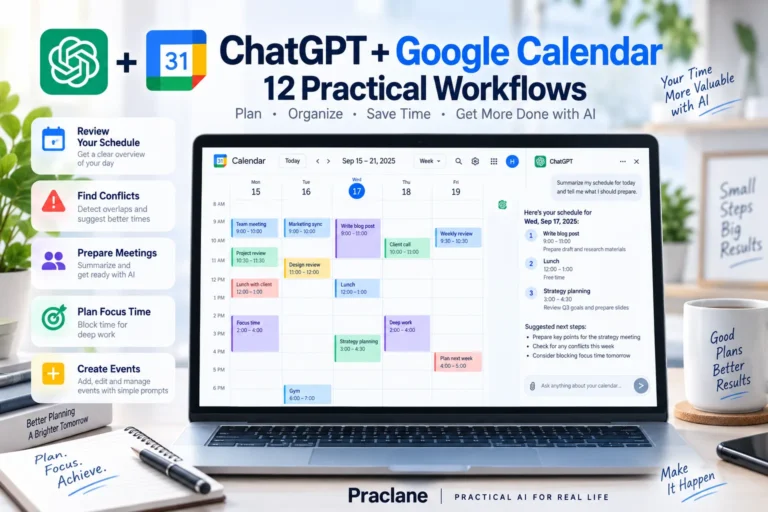
Use the latest thread as meeting context so you walk in knowing the unresolved points. If your schedule is also connected, our ChatGPT + Google Calendar guide shows how to combine real calendar context with meeting preparation.
Use the recent emails about the Q4 launch to prepare a meeting brief. Include the current status, three unresolved issues, decisions that need to be made, promises already made to stakeholders, and five questions I should ask.
For the meeting itself, our ChatGPT for meetings guide covers preparation, notes, and follow-up workflows.
9. Create a Weekly Email-Based Project Digest
For projects that live heavily in email, a weekly digest can surface changes without copying every message into a report.
Review this week’s email about Project Atlas. Create a weekly digest with: Decisions, Completed, In Progress, Blocked, New Risks, Deadlines, and Follow-Ups. Include the sender or thread after every important item.
You can combine this structure with our recurring report workflow.
10. Turn an Email Into a Clean Task List
Emails often contain requests mixed with background context. Ask for explicit tasks rather than a generic summary.
Turn this email into a task list. For each task, include the action, owner, deadline, dependency, and what “done” means. If the owner or deadline is not stated, mark it as Missing instead of guessing.
11. Work Across Personal and Work Gmail Accounts
On supported accounts, ChatGPT can connect multiple Gmail accounts. This can help when a real-world task spans more than one inbox.
Check both of my connected Gmail accounts for messages about my flight change. Show which inbox each result came from, and summarize the latest confirmed departure time, booking reference, and any action I still need to take.
12. Trigger a Work Task When a Matching Email Arrives
OpenAI’s current Scheduled Tasks documentation supports event-triggered tasks in Work for eligible users. Gmail triggers can respond to a new message and can be narrowed by sender or subject.
When a new email arrives from our billing provider with “invoice” in the subject, review the message, extract the invoice number, amount, due date, and any exception, then create a short summary for me. Do not take any payment action.
This is an automation workflow, not a normal recurring reminder. See our ChatGPT Scheduled Tasks guide and automation workflows for related ideas.
A Better Prompt Formula for Gmail
- Scope: inbox, sender, thread, project, or date range
- Task: find, summarize, extract, compare, draft, or monitor
- Decision rule: what counts as urgent or important
- Constraints: what ChatGPT must not assume or change
- Output: table, brief, reply draft, checklist, or digest
Review email from the last five business days about Project Atlas. Identify only items that require action from me. Exclude requests already resolved later in the thread. Return a table with Sender, Request, Deadline, Evidence, and Next Action. Mark missing deadlines as Missing.
Important Limits and Privacy Notes
- Access follows your Google permissions. ChatGPT cannot use mail your connected account cannot access.
- Workspace controls matter. Managed ChatGPT or Google Workspace environments can restrict apps, actions, accounts, and OAuth scopes.
- A connected app is not a guarantee of complete retrieval. Narrow, specific requests are safer than assuming every relevant message was found.
- Event-triggered tasks are limited by feature availability. They run in Work for eligible users and require the supported Gmail connection.
- Disconnecting Gmail stops future access through that connection. Existing chats are separate from the connection itself.
OpenAI states that data accessed directly from connected Google apps is not used to train its generalized models except in the specific cases described in its Google app data controls documentation, such as when content is manually copied into a conversation or a conversation is submitted as feedback.
FAQ
Can ChatGPT connect directly to Gmail?
Yes, on supported accounts. Gmail can be connected through ChatGPT’s current app/plugin system, subject to plan, region, workspace, and Google authorization requirements.
Can ChatGPT use more than one Gmail account?
Yes. OpenAI announced support for multiple Gmail, Google Calendar, and Google Contacts accounts on supported plans in August 2026.
Can ChatGPT automatically react to new Gmail messages?
Eligible users can create event-triggered tasks in Work that respond to new Gmail messages, including filters based on sender or subject.
Does ChatGPT automatically index my entire Gmail account when I connect it?
OpenAI’s current documentation says an ordinary Google app connection does not automatically create a personal synced index. The connection lets ChatGPT access information needed for supported requests, subject to your permissions and settings.
Final Thoughts
The most useful ChatGPT + Gmail workflows do not begin with “summarize my inbox.” They begin with a clear work question: What needs action? What changed? What was promised? What is still unanswered?
Use Gmail as the evidence source, give ChatGPT a precise decision rule, and keep high-impact commitments, amounts, dates, and external replies subject to human review.