How to Use ChatGPT Scheduled Tasks: Reminders, Recurring Work, and Monitoring
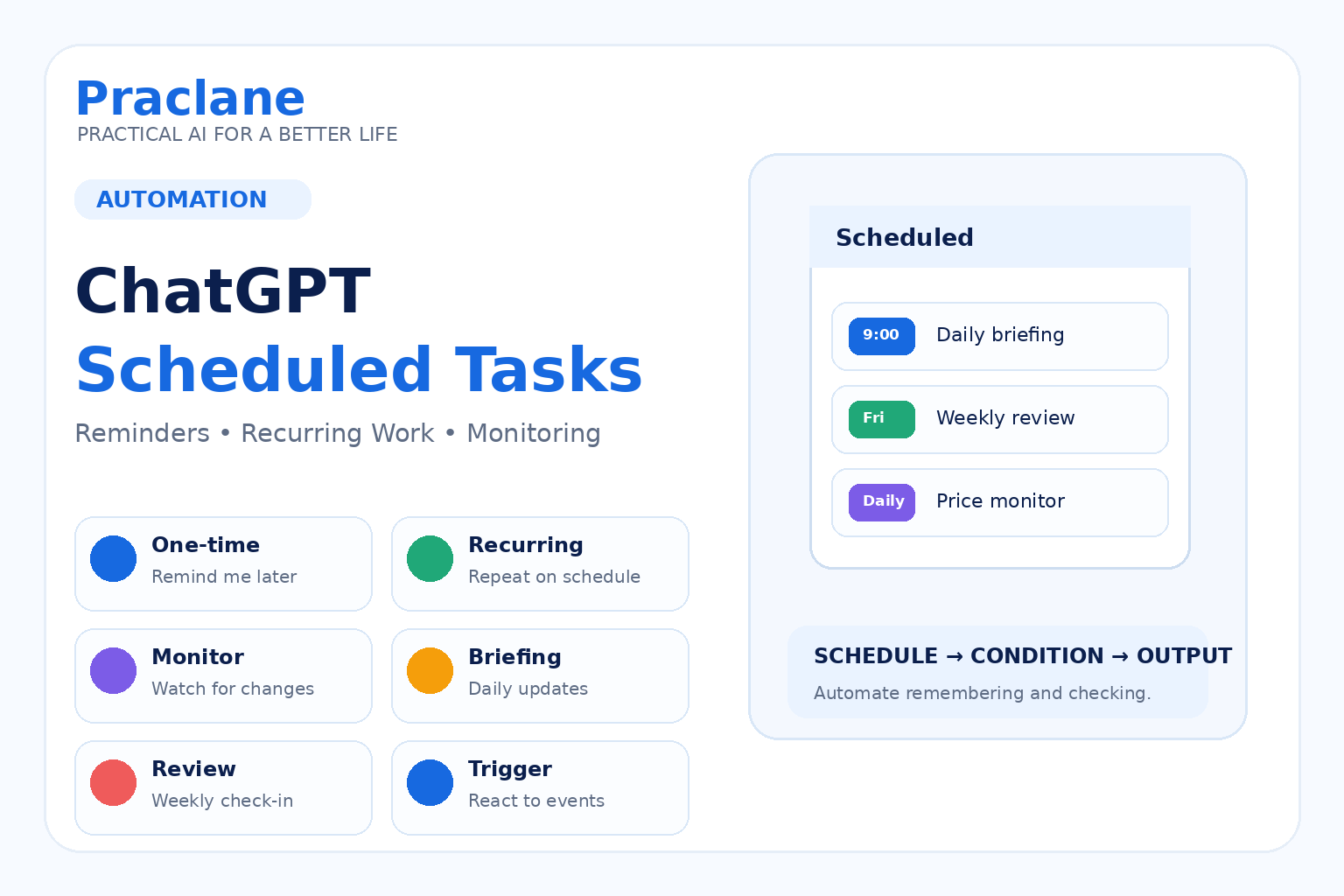
Most people use ChatGPT only when they remember to open it. Scheduled Tasks add a different pattern: ask ChatGPT to do something later, repeat it on a schedule, or check for a change and notify you when it matters.
This guide explains how to use ChatGPT Scheduled Tasks for reminders, recurring updates, monitoring, and practical workflows without turning every task into a complicated automation project.
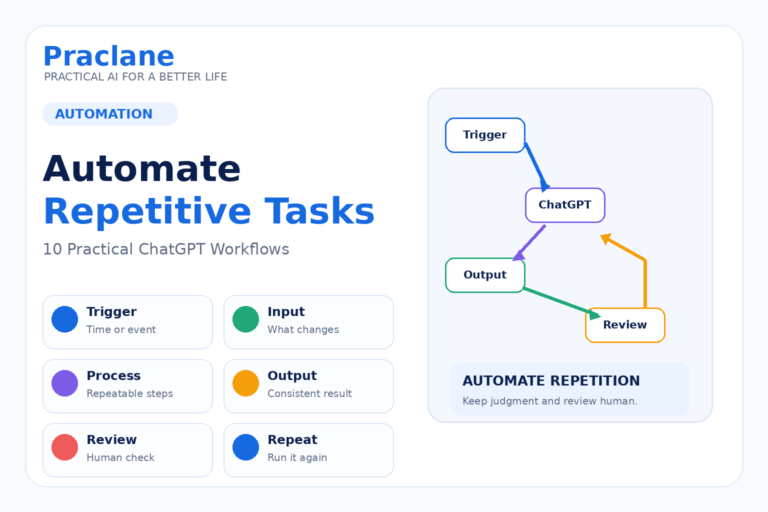
For the bigger picture, see our guide to automating repetitive tasks with ChatGPT.
What Are ChatGPT Scheduled Tasks?
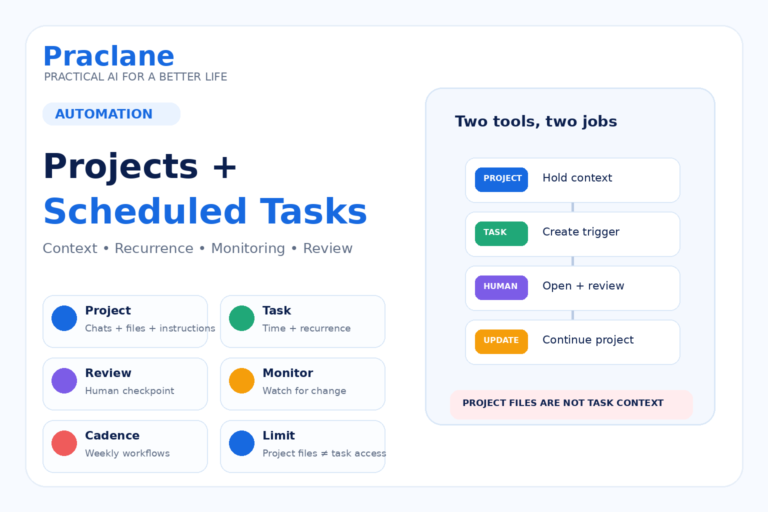
Scheduled Tasks let eligible ChatGPT users create one-time tasks, recurring tasks, and monitoring tasks. OpenAI’s current Scheduled Tasks documentation also describes a Scheduled page where users can review, edit, pause, resume, or delete tasks.
A scheduled task is most useful when the trigger is clear and the output is easy to review.
Who Can Use Scheduled Tasks?
As of September 2026, OpenAI says Scheduled Tasks are available to eligible Free, Go, Plus, Pro, Business, Enterprise, and Edu users, subject to account and workspace settings.
| Plan | Active task limit | Scheduling notes |
|---|---|---|
| Free / Go | 3 | One-time tasks or recurring tasks no more than once per day; flexible time windows |
| Plus | 5 | Eligible paid scheduling features, including exact times and more frequent schedules |
| Business / Edu | 10 | Workspace settings can affect availability |
| Pro / Enterprise | 15 | Higher active-task limits; workspace settings can apply |
Plan limits and feature availability can change. Check the official documentation before relying on a specific limit or schedule.
1. Create a One-Time Reminder
Start with something simple that has a clear time and action.
Remind me tomorrow afternoon to submit the expense report. Include a short checklist: receipt images, project code, total amount, and manager approval.
Free tasks can use broader windows such as morning, afternoon, or night. Exact delivery times require eligible paid access.
2. Create a Recurring Weekly Review
Every Friday afternoon, remind me to review this week’s completed work, blockers, unfinished tasks, and next week’s top three priorities. Give me the same short checklist each time.
A repeated checklist works well because the task does not need to invent a new process every week.
3. Schedule a Daily Briefing
Every weekday morning, give me a concise briefing on [topic]. Use current web sources, prioritize official or primary sources, and include only meaningful changes. Keep it under five bullets.
Keep the subject narrow enough that the briefing reduces noise instead of creating another feed to read.
4. Monitor for a Specific Change
Monitoring is more useful when you define exactly what counts as a meaningful change.
Check once per day whether [price/policy/schedule/product availability] has changed. Notify me only if [specific condition]. Include the source and explain exactly what changed.
“Tell me if anything happens” is weak. “Notify me if the price falls below $500” is measurable.
5. Schedule a Study Review
Every Sunday evening, give me a 20-minute review session for the topics I studied this week. Start with five recall questions, then focus the remaining questions on anything I get wrong.
For a broader learning system, see our guide to studying with ChatGPT.
6. Build a Monthly Personal-Admin Check
On the first weekend of every month, remind me to review upcoming bills, subscriptions, appointments, document expirations, and tasks I postponed last month. Give me a short checklist.
7. Create a Recurring Work Prompt
If a repeated task needs input from you, the scheduled task can remind you to provide it and then use a consistent structure.
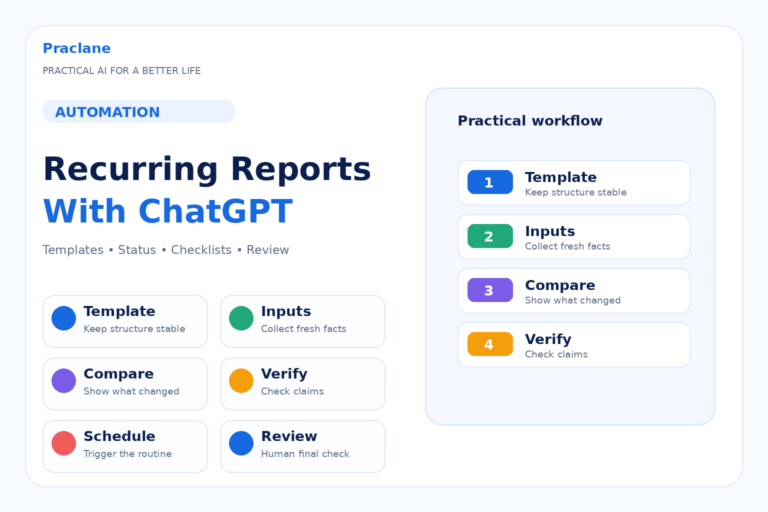
Every Friday at the end of the workday, ask me for completed work, blockers, key numbers, and next priorities. Turn my answers into a one-page status report. Flag missing information instead of guessing.
Our ChatGPT prompt templates guide includes reusable structures you can adapt for recurring work.
8. Use Event-Triggered Tasks When You Need an Actual Event
OpenAI also supports event-triggered tasks for eligible users through ChatGPT Work. These can respond to supported Gmail, Slack, or GitHub activity rather than waiting for a clock time.
When a new email arrives from [sender] with [condition], summarize the message, list any requested actions, and prepare a draft response. Do not send anything without approval.
Event-triggered tasks currently require Work and eligible Plus, Pro, Business, Enterprise, Edu, or supported healthcare workspace access. They are not available on Free or Go.
How to Manage Scheduled Tasks
Open the Scheduled page to review active tasks, see upcoming runs, and edit, pause, resume, or delete them. If the Scheduled page does not appear in the desktop app, OpenAI recommends using ChatGPT on the web because availability can depend on the app version and account.
You can also change task notification preferences under Settings > Notifications.
A Better Scheduled-Task Formula
Schedule: When should it run?
Condition: What counts as worth reporting?
Sources: Where should current information come from?
Output: What should the result look like?
Stop rule: When should it stop or stay silent?
Review: What still requires human approval?
Example:
Check every weekday afternoon for a change to [specific policy]. Use the official source first. Notify me only if the policy text or effective date changes. Show the old and new information, link the source, and stop after the change has been confirmed.
Common Scheduled-Task Mistakes
- Creating vague tasks such as “keep me updated.”
- Scheduling too many low-value updates and ignoring the notifications.
- Using a recurring task when a simple one-time reminder is enough.
- Failing to define a stop condition for monitoring.
- Assuming a task has access to a service or source you have not connected or authorized.
- Letting a task take an important external action without a review step.
Frequently Asked Questions
Can Free users use ChatGPT Scheduled Tasks?
Yes, eligible Free users can currently create scheduled tasks, subject to account availability and limits. OpenAI says Free users can have up to three active tasks and can schedule a one-time task or a recurring task no more than once per day using flexible time windows.
Can ChatGPT run a task every hour?
Eligible paid plans can support recurring schedules as frequent as hourly. Free users are limited to less frequent schedules.
Can a task watch Gmail or Slack for an event?
Eligible event-triggered tasks in Work can respond to supported Gmail, Slack, and GitHub activity. These require supported paid access and connected-app permissions.
Do Scheduled Tasks work with Voice or GPTs?
OpenAI’s current documentation says Scheduled Tasks do not support Voice chats or GPTs.
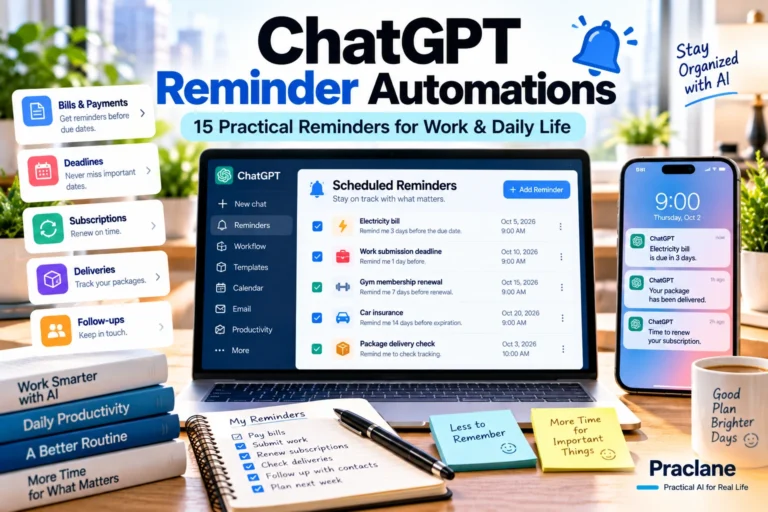
For ready-to-use reminder ideas, see our 15 ChatGPT reminder automations for bills, renewals, follow-ups, deliveries, deadlines, and recurring reviews.
Final Thoughts
Scheduled Tasks are most useful when they remove a small repeated piece of mental overhead: remembering, checking, reviewing, or monitoring.
Start with one task that has a clear schedule, a clear condition, and a useful output. Only add more when the first one proves it saves time.