ChatGPT Web vs Desktop vs Mobile: Which Should You Use? 9 Real Scenarios
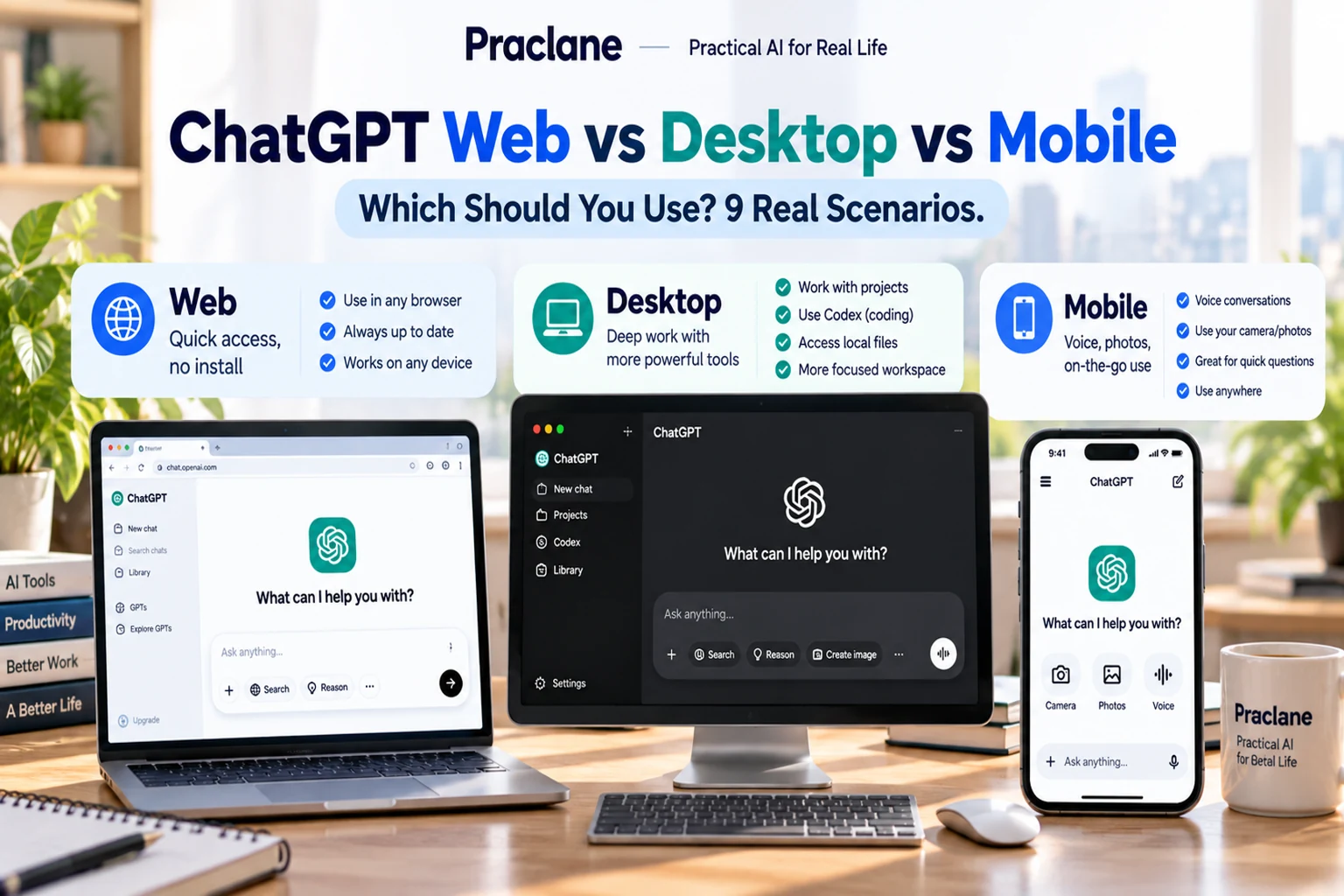
ChatGPT now works across the web, desktop, and mobile—but the experience is not identical. The best surface depends less on “which version is better” and more on what you are trying to do: quick questions, long work sessions, voice conversations, local files, browser tasks, coding, or work on the move.
This guide compares ChatGPT web vs desktop vs mobile through nine practical scenarios. The goal is to help you choose the right surface for the task instead of forcing every workflow into the same device.
Quick Answer
| Use Case | Best Starting Point | Why |
|---|---|---|
| Quick everyday questions | Web or mobile | Fastest access with little setup |
| Long document or research session | Desktop or web | More screen space and easier file handling |
| Voice conversation while moving | Mobile | Natural hands-free use |
| Local files, development, or agentic work | Desktop | New desktop app includes Chat, Work, and Codex |
| Public or temporary computer | Web | No installation required |
| Photo or image question | Mobile | Easy access to phone photos and camera files |
What Is Different in 2026?
OpenAI’s current desktop app combines Chat, Work, and Codex on macOS and Windows. On supported desktop workflows, Work and Codex can also use a built-in browser, files, local development context, and other desktop-specific capabilities. The web version remains the simplest universal entry point, while iOS and Android are the most natural surfaces for voice and mobile use.
Feature parity can change. Some tools depend on plan, workspace settings, operating system, and the specific ChatGPT mode you are using. Treat the scenarios below as a practical decision guide, not a permanent feature matrix.
9 Real Scenarios: Web vs Desktop vs Mobile
1. You Need a Quick Answer at Work
Best fit: Web. If you need to rewrite a sentence, check an idea, summarize pasted text, or ask a fast question, the browser is usually the lowest-friction option. There is nothing to install, and you can open it from almost any supported computer.
Rewrite this project update so it is concise and professional. Keep all dates and commitments unchanged.
2. You Are Doing Two Hours of Research With Files
Best fit: Desktop or web. For a long session with PDFs, spreadsheets, notes, and multiple follow-up questions, the larger screen and easier file management usually matter more than portability.
If the work becomes a recurring project, move the conversation and files into a ChatGPT Project so context stays organized over time.
3. You Need ChatGPT to Work Across Websites
Best fit: Desktop. OpenAI’s new desktop app supports a built-in browser for eligible Work and Codex tasks. You and ChatGPT can work with the same page, move across tabs, handle downloads, and continue after sign-in where permissions allow.
Use this for research-heavy or agentic workflows where the browser itself is part of the task. Always review the active account and site before allowing high-impact actions.
4. You Want to Think Out Loud While Walking
Best fit: Mobile. Voice is most useful when typing is the bottleneck. A walk, commute, or short break can become a brainstorming or review session without opening a laptop.
For detailed examples, see our ChatGPT Voice in 2026 guide.
5. You Need to Ask About a Photo
Best fit: Mobile. If the source is already on your phone—or you just took a picture—the mobile app removes an extra transfer step.
Look at this photo of the whiteboard. Turn the visible action items into a checklist. Mark anything unreadable instead of guessing.
6. You Are Coding or Working With Local Development Files
Best fit: Desktop. The current desktop app places Codex alongside Chat and Work. That makes desktop the natural choice when the task depends on repositories, terminals, local files, development tools, or browser-based testing.
On macOS, ChatGPT can also work with supported apps such as code editors, terminals, and Notes when those permissions are enabled.
7. You Are Using a Shared or Locked-Down Computer
Best fit: Web. If you cannot install software, the browser remains the most practical option. Use a private browsing session when appropriate, sign out when finished, and avoid leaving sensitive downloads behind.
8. You Need Fast Access Without Breaking Focus
Best fit: Desktop. Desktop shortcuts and companion-style access can be useful when you want ChatGPT available without keeping a browser tab visible all day. On macOS, OpenAI documents the Option + Space shortcut for fast access.
9. You Move Between Work and Personal Tasks All Day
Best fit: Use all three strategically. Start a deep research task on desktop, check the result on mobile later, and use the web from another computer when needed. The strongest setup is often not choosing one surface permanently—it is choosing the right surface for each stage.
A Simple Decision Rule
- Choose web when access and simplicity matter most.
- Choose desktop when the task depends on long sessions, local files, browsers, Work, or Codex.
- Choose mobile when voice, portability, and phone-based images matter most.
What About Feature Differences?
Do not assume a feature shown on one device is available in exactly the same way everywhere. OpenAI explicitly notes that desktop, web, and mobile capabilities can differ, and workspace administrators can also restrict tools.
If a workflow depends on a specific capability—such as Work, Codex, a built-in browser, an app connection, or a particular voice feature—check the current OpenAI documentation before designing a permanent process around it.
FAQ
Is the ChatGPT desktop app better than the web version?
Not for every task. The desktop app is stronger when local desktop context, Work, Codex, or the built-in browser matters. The web version remains excellent for normal chats, research, file uploads, and access from computers where you do not want to install software.
Is ChatGPT mobile good for serious work?
Yes for many workflows, especially voice, image questions, quick reviews, and follow-ups. For large spreadsheets, long documents, coding, and multi-window work, a desktop-sized screen is usually more efficient.
Do my chats appear on different devices?
When you are signed in to the same account, your available chat history is generally accessible across supported surfaces, subject to account settings and the type of conversation. Temporary Chat behaves differently because it is not saved to history.
Official Sources
- Moving to the new ChatGPT desktop app
- Using the built-in browser in the ChatGPT desktop app
- Downloading the ChatGPT macOS app
- Using the ChatGPT Windows app
Final Thoughts
Web, desktop, and mobile are not three competing products. They are three surfaces for different kinds of work. Use the browser for universal access, desktop for deep and agentic workflows, and mobile when portability and voice are the advantage.