ChatGPT Library: 10 Practical Ways to Reuse Files and Connected Documents
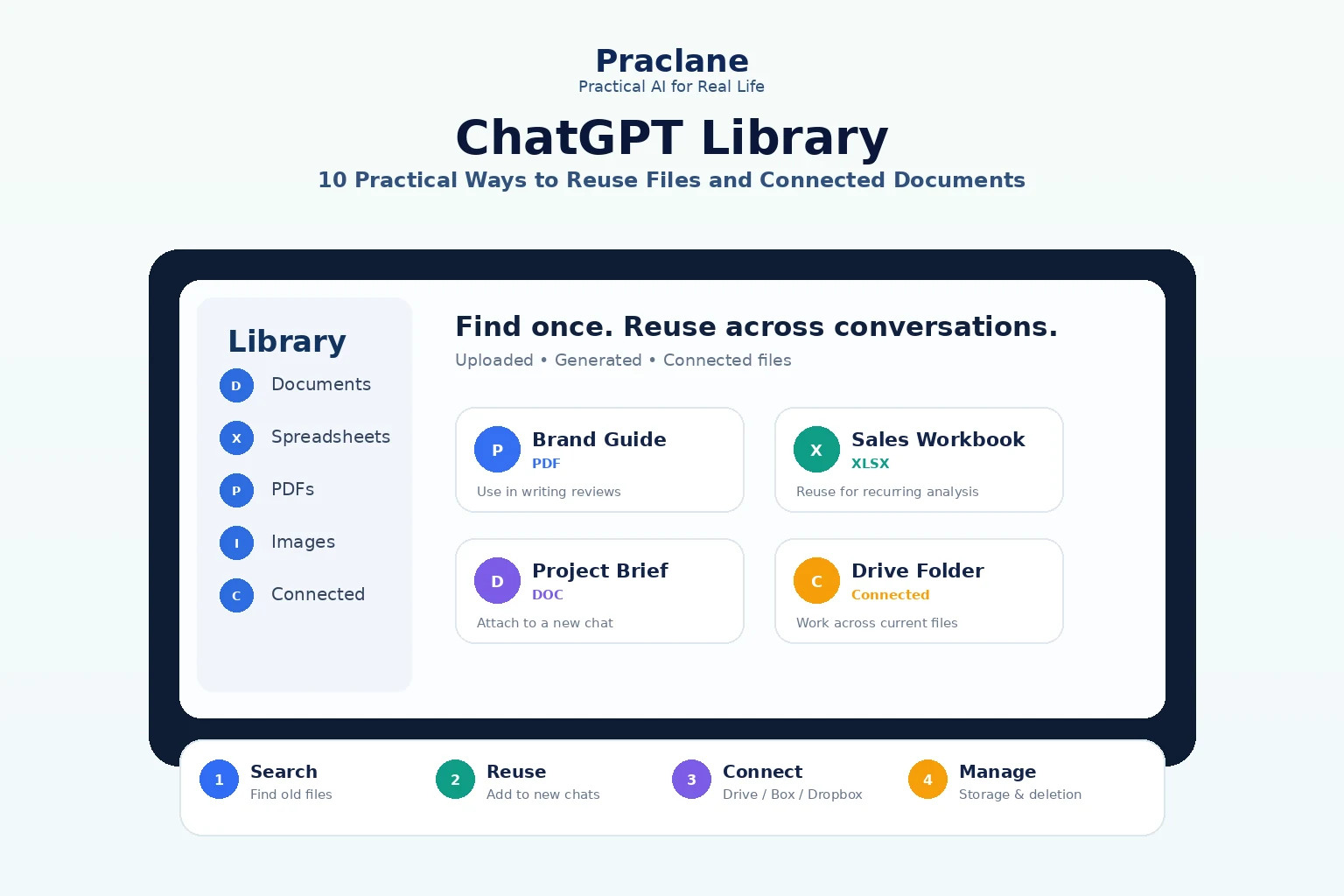
ChatGPT Library changes one of the most repetitive parts of working with AI: finding the same file again. Instead of re-uploading a report, spreadsheet, image, or presentation every time you start a new conversation, Library can keep eligible files available for reuse.
It can also surface supported files and folders from connected Google Drive, Box, Dropbox, and SharePoint accounts. The result is a workflow that feels less like “attach a file to one chat” and more like building a reusable working set of documents.
What ChatGPT Library Does
OpenAI’s current Library documentation says Library can store and help you find files you upload to or create in ChatGPT, including documents, spreadsheets, presentations, PDFs, and images. You can browse, search, download, delete, and add saved files to new conversations.
When supported, Library can also show connected content from Google Drive, Box, Dropbox, and SharePoint. Connected files remain associated with the original service rather than becoming independent copies managed only by ChatGPT.
| Source | How It Appears | Good For |
|---|---|---|
| Uploaded file | Saved in Library when eligible | Reusable PDFs, spreadsheets, documents, images |
| Generated file | Saved in Library when eligible | Reports, spreadsheets, presentations, exports |
| Google Drive | Connected to original source | Current shared or personal work files |
| Box / Dropbox / SharePoint | Available when connected and authorized | Team and enterprise document workflows |
10 Practical ChatGPT Library Workflows
1. Reuse the Same Reference File Across Different Chats
Instead of uploading your company style guide every time, keep it in Library and attach it whenever a new writing task needs the same reference.
Add the brand guide from my Library to this conversation. Use it only to check tone, terminology, capitalization, and prohibited phrases in the draft below.
2. Keep a Reusable Spreadsheet for Recurring Analysis
If the same spreadsheet is analyzed every week, Library reduces attachment friction. You can bring the saved file into a fresh chat and give it a new question without hunting for the original upload.
Add last month’s sales workbook from Library. Compare the regional totals with the figures I am about to provide and flag any change greater than 10%.
For spreadsheet-specific workflows, see our ChatGPT for Excel guide.
3. Reuse a PDF Without Starting From Scratch
A saved report can support multiple tasks: one chat for a summary, another for structured extraction, and another for verification.
Our same-PDF comparison shows why those instructions produce very different results from the same source.
4. Build a Small Personal Reference Collection
Keep frequently reused documents in one place: resume versions, course notes, research papers, travel documents, household spreadsheets, templates, or product manuals.
Search my Library for the latest resume and the job-description checklist. Add both to this conversation and compare the resume against the checklist.
5. Search for an Old File When You Remember the Topic, Not the Chat
Sidebar search and Library can reduce dependence on remembering which conversation originally contained the file. This is especially useful when an old chat is no longer visible in the sidebar.
Find the document I used for the onboarding process and open the latest matching file.
6. Work Across a Connected Google Drive Folder
Where supported and authorized, Library can browse connected Google Drive files and folders. You can select a folder and ask ChatGPT to work across the files it contains.
Use the connected Project Atlas folder. Compare the latest plan, risk register, and weekly update. Create a single status brief and cite the source filename for every deadline.
For deeper Drive workflows, see our ChatGPT + Google Drive guide.
7. Keep a Source Document Open Beside the Conversation
OpenAI documents a workflow where supported Google Docs, Sheets, or Slides can remain open beside the conversation while ChatGPT summarizes, analyzes, or compares their content. Where the relevant action is authorized, ChatGPT may also update the source file directly.
This is useful when you need AI assistance but still want the source document visible as the reference point.
8. Separate Reusable Files From Temporary Conversations
Temporary Chat behaves differently. Files uploaded to a temporary conversation are not saved to Library while the conversation remains temporary.
If your priority is “use once and do not keep,” Temporary Chat may be appropriate. If your priority is “reuse this file later,” a regular chat or direct Library upload is a better fit. See our Temporary Chat vs regular chat comparison.
9. Audit What You Are Actually Storing
Library includes a Storage view that shows usage and remaining space. That makes it easier to treat saved AI files as something you actively manage rather than an invisible archive.
| Plan | Current Library Storage |
|---|---|
| Free | 500 MB |
| Go | 4 GB |
| Plus / Business | 20 GB |
| Pro | 100 GB |
Limits and availability can change, so check the current Library page in your account before planning a large archive.
10. Delete the File, Not Just the Chat
OpenAI’s retention documentation makes an important distinction: deleting a chat does not necessarily delete a file that remains saved in Library.
If you want the saved Library copy removed, delete the file from Library as well. This is one of the most important practical privacy habits for people who regularly upload documents.
File Size and Storage Limits to Know
- Files uploaded to a conversation or GPT: up to 512 MB per file.
- Text and document files: up to 2 million tokens per file.
- CSV and spreadsheets: approximately 50 MB, depending on row size.
- Images: up to 20 MB per image.
Library storage is separate from daily chat and attachment limits. Managed-workspace rules can differ from personal-plan limits.
Library vs Project: Which Should Hold Your Files?
| Use Library When… | Use a Project When… |
|---|---|
| You want the file reusable across different conversations | The file belongs to one ongoing body of work |
| You want a central file collection | You want files, chats, and project instructions together |
| You may use the same source in unrelated tasks | You want evolving project context to stay organized |
For a detailed decision guide, see ChatGPT Projects vs regular chats.
FAQ
Does ChatGPT Library save uploaded files?
Eligible uploaded and generated files can be saved to Library so you can find and reuse them later.
Does deleting a chat delete the Library file?
Not necessarily. A file saved in Library can remain after the conversation is deleted. Delete the file from Library when you also want that saved copy removed.
Can Library show Google Drive files?
Yes, on supported plans and accounts with the required Google Drive connection and permissions. Connected-source availability can vary by account, plan, region, and workspace policy.
Are files from Temporary Chat saved?
Not while the chat remains temporary. If you later save the conversation, eligible files may also be saved, subject to current feature availability and storage limits.
Final Thoughts
Library is most valuable when a file is not a one-time attachment. If a document, spreadsheet, image, or reference will be useful again, treating it as part of a reusable file system can save more time than any single prompt.
The key habit is simple: know what is saved, know where it comes from, and delete the Library copy separately when you no longer want it stored there.