ChatGPT + Canva: 12 Practical Workflows for Presentations, Flyers, Social Graphics, and Design Briefs
Most design work does not start with colors and fonts. It starts with an unclear idea: a presentation that needs structure, a flyer that needs the right message, a social post that needs a stronger hook, or a campaign concept that is not yet ready for a designer.
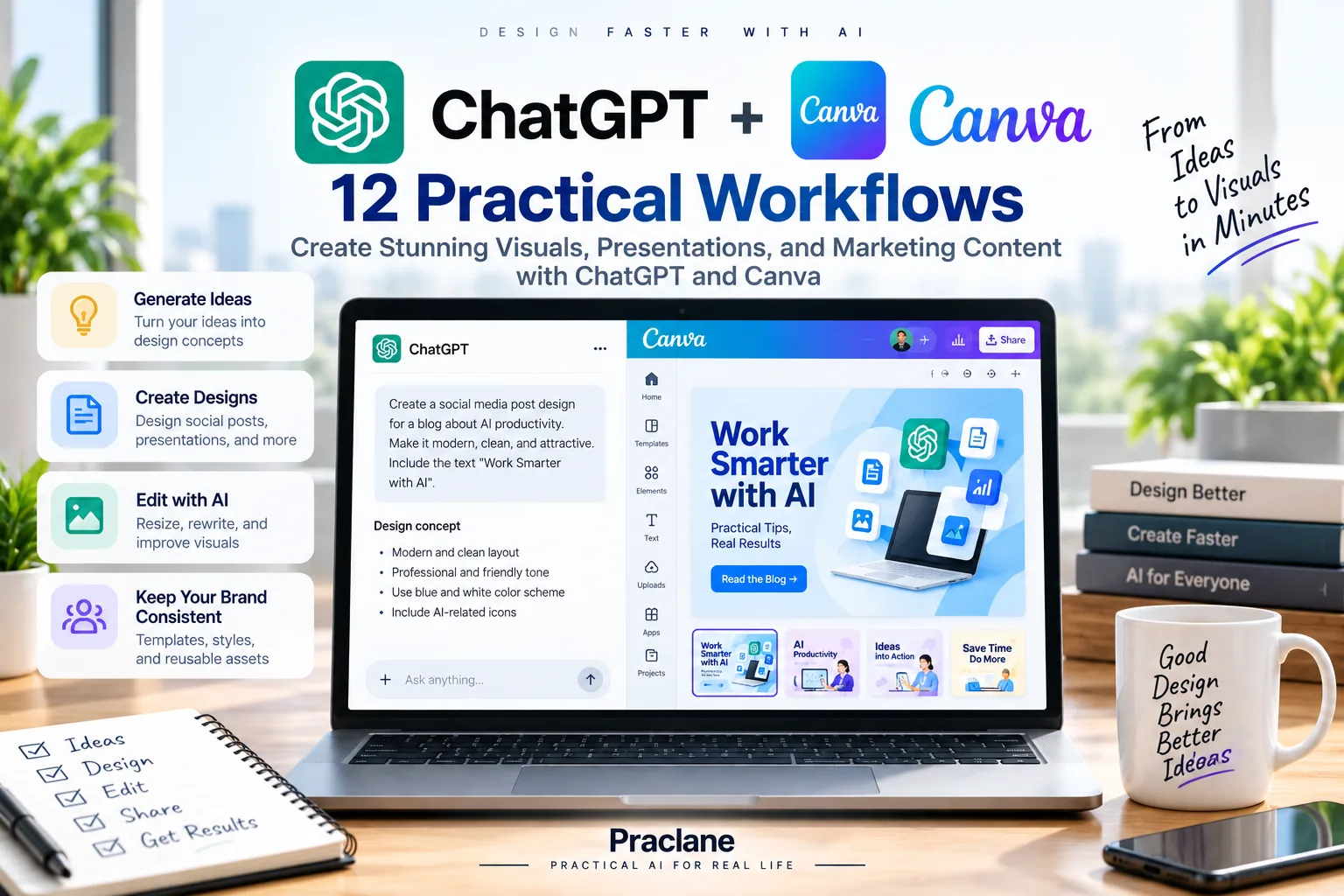
With ChatGPT + Canva, supported users can bring conversation context into the Canva app inside ChatGPT and ask Canva to turn ideas into visual assets such as presentations or flyers. The exact Canva actions available can vary by account, plan, region, app version, and workspace settings.
This guide focuses on practical workflows that combine ChatGPT’s planning and writing strengths with Canva’s visual creation experience.
What ChatGPT + Canva Is Good For
OpenAI’s current connected apps documentation uses Canva as an example of an app that can use relevant ChatGPT conversation context to create a design. OpenAI specifically shows examples such as turning ideas into a presentation or designing a flyer for a business.
| Stage | How ChatGPT + Canva Helps |
|---|---|
| Idea development | Clarify audience, goal, message, and content before design |
| Structure | Turn rough notes into a slide outline, flyer hierarchy, or campaign concept |
| Design creation | Use the Canva app to create a supported visual asset from the conversation context |
| Iteration | Refine copy, hierarchy, tone, and alternate concepts |
| Reuse | Adapt the same message into multiple design formats when supported |
How to Connect Canva to ChatGPT
- Open ChatGPT and go to Apps or Plugins.
- Find Canva.
- Select the available install or connection option.
- Sign in to Canva if the app asks for account authorization.
- Review the permissions and app information shown before enabling it.
- In a supported conversation, mention Canva directly or choose it from the available app menu.
App availability depends on your ChatGPT plan, region, workspace, model, and interface. In a managed workspace, an administrator can also restrict which apps and actions are available.
12 Practical ChatGPT + Canva Workflows
1. Turn Rough Ideas Into a Presentation
Help me structure these ideas into an 8-slide presentation for a non-technical management audience. Give each slide one takeaway headline and no more than four supporting points. Then use Canva to turn the approved outline into a presentation.
The useful sequence is structure first, design second. This prevents a polished deck from hiding a weak story.
2. Create a Flyer From a Business Brief
Create a flyer concept for a neighborhood dog-walking service. Audience: busy professionals. Main benefit: reliable daily walks. Include a clear headline, three benefits, service area, contact CTA, and a friendly trustworthy tone. After I approve the copy, use Canva to create the flyer.
3. Build a Social Media Post From a Long Article
Turn this article into one LinkedIn visual post. Extract the strongest single idea, write a short headline, three supporting points, and a one-sentence caption. Then use Canva to create a clean professional graphic from that content.
4. Create Three Design Directions Before Choosing One
Give me three distinct creative directions for this campaign: 1) minimal and premium, 2) energetic and modern, 3) warm and approachable. For each direction, define the headline style, visual mood, layout idea, and tone. Do not generate the final design until I choose one.
This separates creative exploration from execution and makes comparison easier.
5. Turn Meeting Notes Into a One-Page Visual Summary
Use these meeting notes to create a one-page visual summary with Decisions, Action Items, Owners, Deadlines, and Next Steps. Keep the text minimal. Then use Canva to turn the approved structure into a clean internal update.
For extracting meeting information before design, see our ChatGPT for meetings guide.
6. Build a Simple Infographic From Data
Turn these five metrics into a simple infographic. Identify the one headline number, group the remaining metrics into two sections, and write short labels that do not exaggerate the data. Then use Canva to create a visual draft.
Always verify the source data before turning numbers into visual claims.
7. Create a Design Brief for a Human Designer
Create a design brief for a landing-page hero image. Include objective, audience, key message, required text, visual mood, things to avoid, output size, and examples of what “good” should feel like. Keep the brief implementation-neutral.
You can use Canva to prototype the idea first, then hand the brief to a designer if the final asset needs more custom work.
8. Rewrite Copy to Fit a Visual Layout
This flyer copy is too long. Rewrite it for a visual layout with one 6-word headline, a 20-word subheading, three benefit bullets under 8 words each, and one CTA under 5 words. Keep the meaning accurate.
9. Adapt One Message Into Multiple Formats
Use this campaign message to create content structures for: a 16:9 presentation cover, a square social post, a vertical story, and an A4 flyer. Keep the core message consistent but adjust the amount of text for each format. Use Canva for the supported formats after I approve the copy.
10. Build a Presentation From a Source Document
Use this report to create a 10-slide presentation for executives. Each slide should have one conclusion headline, evidence, and a suggested visual. Do not invent numbers. Once the outline is approved, use Canva to create the presentation.
If you work primarily in PowerPoint, compare our ChatGPT for PowerPoint workflows.
11. Create a Consistent Mini Content Series
Create a five-post visual content series on practical AI productivity. Keep the same overall structure across all five posts: title, one key idea, three short tips, and CTA. Suggest a consistent visual system, then use Canva to produce the supported designs.
12. Review a Concept Before Regenerating It
Before creating another design, review this concept against the goal: [goal]. Check message clarity, information hierarchy, audience fit, CTA strength, and whether any text is unnecessary. Give me specific changes first, then create the revised Canva version only after I approve them.
A Better Prompt Formula for Canva
- Format: presentation, flyer, social post, infographic, or other supported design
- Audience: who should understand or act on it
- Goal: inform, persuade, promote, summarize, or explain
- Content constraints: required text, facts, numbers, and what not to invent
- Visual direction: clean, bold, premium, playful, technical, or another mood
Create a one-page flyer for [audience]. Goal: [goal]. Required facts: [facts]. Main CTA: [CTA]. Tone: clear and trustworthy. Keep total copy under 120 words. First show me the content hierarchy and copy. After approval, use Canva to create the visual.
Important Canva Limits
- App availability varies. Canva may not be available on every plan, region, model, workspace, or interface.
- The app can use relevant conversation context. Review what information you include before asking Canva to generate a design.
- Exact design actions can vary. Do not assume every Canva feature, template, asset, export, or editing control is exposed inside ChatGPT.
- Generated design does not guarantee factual accuracy. Check names, prices, dates, claims, and numbers before publishing.
- Brand rules still need human review. Confirm logos, brand colors, legal text, and usage rights in the final Canva asset.
FAQ
Can ChatGPT create Canva presentations?
OpenAI’s connected-app documentation specifically uses turning conversation ideas into a presentation as a Canva example. Exact availability and actions depend on your account and app setup.
Can ChatGPT make a flyer in Canva?
Yes, where the Canva app is available and supports the requested workflow. OpenAI also uses designing a business flyer as an example of Canva using conversation context.
Does Canva see my whole ChatGPT history?
OpenAI says enabled apps may access relevant conversation context needed to respond to your request. Review the app’s permissions and avoid including information you do not want shared with the app.
Should I use Canva or ChatGPT Images?
Use Canva when you want a structured design workflow around layouts, presentations, flyers, or reusable design assets. Use ChatGPT Images when the main task is generating or editing an image itself.
If the task is direct image generation or editing rather than layout design, compare our ChatGPT Images 2.5 editing workflows.
Final Thoughts
The strongest ChatGPT + Canva workflow is not “make this pretty.” It is: clarify the message, structure the information, choose a visual direction, then create and review the design.
Keep factual content separate from visual styling, approve copy before generating important assets, and verify the final Canva design before publishing or sharing it.