ChatGPT + Google Calendar: 12 Practical Workflows for Scheduling, Meetings, and Time Planning
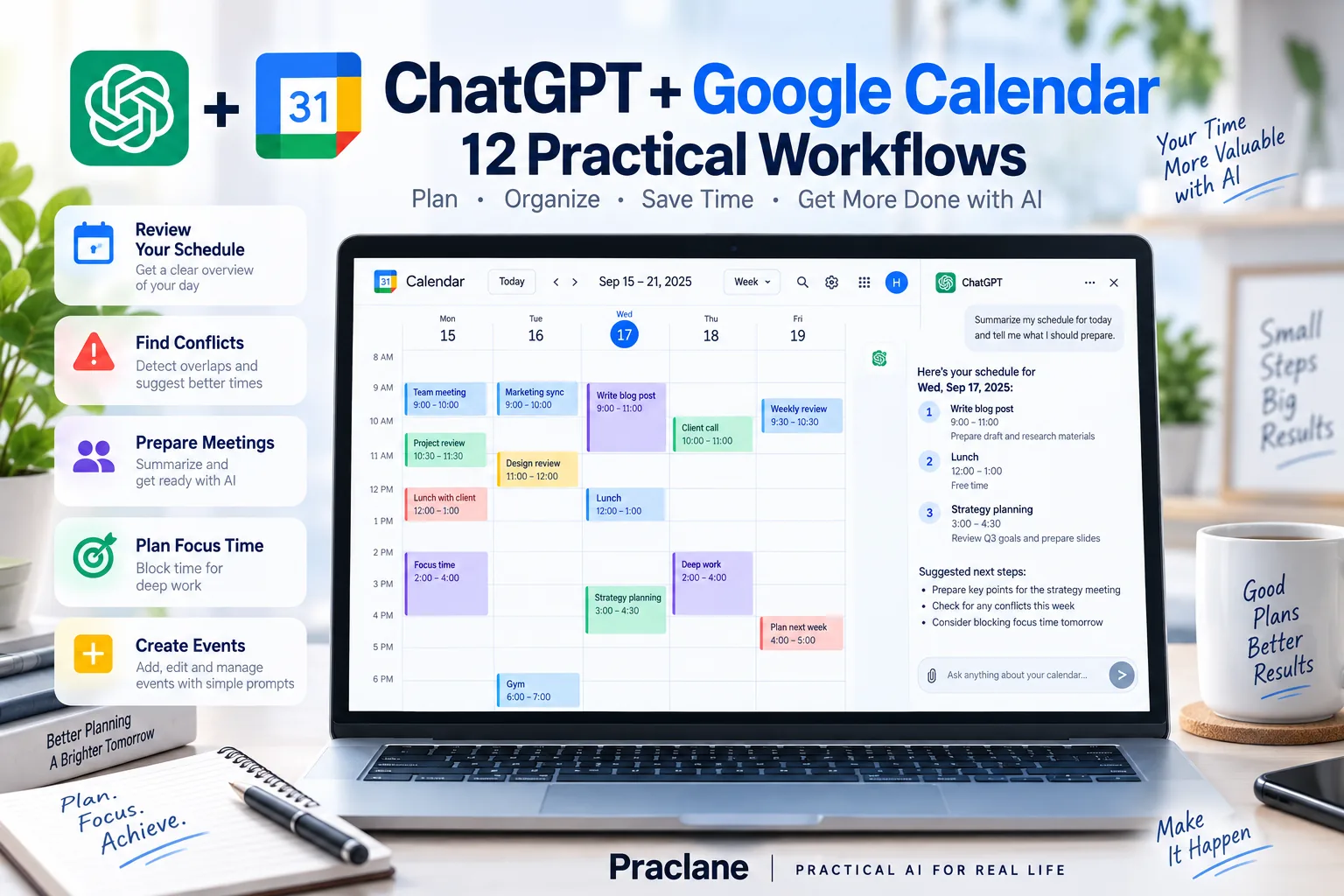
A connected calendar changes ChatGPT from a generic planning assistant into something that can reason about your actual schedule. Instead of manually typing every appointment, supported accounts can connect Google Calendar so ChatGPT can reference permitted events and use available calendar actions.
This guide shows ChatGPT + Google Calendar workflows for reviewing your day, finding conflicts, preparing meetings, combining multiple calendars, analyzing where your time goes, and—when supported and authorized—setting up meetings from ChatGPT.
For broader planning methods that do not require a connected calendar, see our ChatGPT weekly planning guide. For meeting-specific prompts, see ChatGPT for meetings.
What ChatGPT Can Do With Google Calendar
OpenAI’s current Google app documentation lists Google Calendar as a supported connected app and includes authorization for calendar events. OpenAI’s 2026 product updates also describe write actions that can set up meetings through supported calendar apps, with availability controlled by account permissions and workspace settings.
Google Meet-related actions can also appear under Google Calendar. OpenAI documents scopes for supported Meet information such as meeting spaces, conference records, recordings, transcripts, transcript entries, and related artifacts.
| Use | Example |
|---|---|
| Schedule review | Summarize today and identify tight transitions |
| Calendar search | Find the meeting with a specific person or topic |
| Conflict detection | Compare overlapping events or multiple connected calendars |
| Meeting preparation | Turn event details and related sources into a briefing |
| Supported actions | Create or update calendar events when enabled and authorized |
How to Connect Google Calendar to ChatGPT
- Open ChatGPT and go to Settings.
- Open Plugins or Apps, depending on your current interface.
- Find Google Calendar or the plugin that includes the Google Calendar connection.
- Select Connect and choose the Google account you want to authorize.
- Review the requested permissions and complete Google authorization.
- In a managed workspace, ask an administrator if the connection or required calendar actions are unavailable.
Supported Plus, Pro, Business, and Enterprise users can also connect multiple Google accounts for Gmail, Google Calendar, and Google Contacts, which is useful when personal and work schedules need to be considered together.
12 Practical ChatGPT + Google Calendar Workflows
1. Start the Day With a Schedule Brief
Review my calendar for today. Give me a chronological schedule, highlight meetings that need preparation, flag transitions shorter than 15 minutes, and identify any open blocks longer than 45 minutes.
The point is not just to list events. Ask ChatGPT to interpret the shape of the day.
2. Check Work and Personal Calendars Together
Multiple connected Google accounts can help reveal conflicts that are invisible when calendars are viewed separately.
Check both of my connected calendars for tomorrow. Show all events in one timeline, label which account each event comes from, and flag any overlap or travel-time problem.
3. Find a Meeting From Partial Details
Find the next meeting involving Sarah that mentions onboarding or the new hire process. Show the date, time, attendees, location or meeting link, and the event description.
Include a person, date range, or distinctive topic when possible so the search stays targeted.
4. Find Scheduling Conflicts Before They Become Problems
Review my calendar for the next seven days. Flag overlapping meetings, back-to-back meetings with different locations, events outside normal work hours, and days with more than five hours of scheduled meetings.
5. Prepare for the Next Important Meeting
If Gmail or Google Drive is also connected, a meeting-preparation workflow can combine the calendar event with related messages and files. For inbox context, see our ChatGPT + Gmail guide.
Prepare me for my next meeting with the design team. Start with the calendar event, then use relevant connected email and Drive files if available. Give me the objective, latest decisions, unresolved questions, commitments, and five points I should be ready to discuss.
Our ChatGPT + Google Drive guide covers file-based preparation in more detail.
6. Create a Meeting From a Natural-Language Request
Where Google Calendar write actions are enabled and authorized, ChatGPT can use supported calendar actions to set up a meeting.
Set up a 30-minute meeting titled “Q4 Launch Review” with Alex and Priya next Tuesday afternoon. Use my work calendar. Before creating it, show me the proposed time, attendees, and event details for confirmation.
For important appointments, previewing the intended event before applying the action is a sensible safeguard.
7. Protect Focus Time Around Existing Commitments
Review next week’s calendar and identify three realistic 90-minute focus blocks between 9 AM and 5 PM. Avoid moving existing events. Prefer mornings, and leave at least 15 minutes between focus time and meetings.
If event creation is available, you can then ask ChatGPT to create the selected blocks after reviewing them.
8. Add Buffers for Travel or Context Switching
Review Thursday’s calendar. Identify meetings that require travel or major context switching. Recommend where I should reserve 15- or 30-minute buffers and explain why. Do not create anything yet.
9. Audit Where Your Workweek Went
A calendar can be treated as rough time-allocation data.
Analyze my completed calendar events from this workweek. Group scheduled time into Meetings, Deep Work, Admin, Learning, Travel, and Personal. Show the approximate hours and percentage for each category, then identify two patterns worth reviewing. Do not assume unscheduled time was productive work.
10. Build a Weekly Plan Around Real Meetings
Use next week’s calendar as fixed commitments. Then help me plan these priorities around them: [paste priorities]. Suggest realistic work blocks, preserve lunch, and keep Friday afternoon light for catch-up.
This works well with the prioritization framework in our weekly planning guide.
11. Turn Google Meet Records Into Follow-Up
Where the relevant Google Meet information is available through the connected Google Calendar actions, ChatGPT can use permitted meeting records such as transcripts or related artifacts.
Use the available record from yesterday’s project review meeting. Create a concise recap with Decisions, Action Items, Owners, Deadlines, and Questions That Remain Open. Flag anything where the transcript is ambiguous.
12. Create a Repeatable Friday Calendar Review
Review this week’s calendar and prepare a Friday review. Show major meetings, time spent by category, meetings that produced follow-up work, unfinished scheduling issues, and commitments that should carry into next week.
If you want a recurring notification rather than an on-demand review, see our guide to ChatGPT Scheduled Tasks.
A Better Prompt Formula for Calendar Work
- Calendar scope: work, personal, or all connected calendars
- Time window: today, tomorrow, this week, or exact dates
- Goal: review, search, plan, analyze, or create
- Constraints: working hours, buffers, immovable events, preferred times
- Action rule: recommend first or apply the supported change
Review my work calendar from Monday through Friday. Keep all existing events fixed. Find two 90-minute focus blocks before 2 PM, avoid back-to-back scheduling, and leave 30 minutes free before my Thursday client meeting. Recommend the blocks first; do not create events yet.
Important Limits to Know
- Capabilities vary. Available read and write actions depend on plan, region, workspace controls, Google authorization, and rollout status.
- Calendar access follows permissions. Connecting ChatGPT does not grant access to calendars or events your Google account cannot already access.
- Meet data is separate from ordinary event metadata. Recordings, transcripts, and artifacts are available only when they exist and the required permissions/actions are enabled.
- Check time zones. For travel, remote teams, and daylight-saving transitions, confirm the final event time in the source calendar.
- Use confirmation for important writes. Ask ChatGPT to show the proposed event before creating or changing high-impact appointments.
FAQ
Can ChatGPT connect to Google Calendar?
Yes, on supported accounts. Google Calendar is available through ChatGPT’s current connected app/plugin system, subject to account and workspace requirements.
Can ChatGPT create Google Calendar events?
OpenAI’s current product documentation supports calendar write actions for setting up meetings where the relevant action is enabled and the Google permissions are authorized.
Can ChatGPT check multiple Google Calendars?
Supported accounts can connect multiple Google accounts for Google Calendar, Gmail, and Google Contacts. Your request should clearly identify which calendars or accounts to include.
Can ChatGPT use Google Meet transcripts?
Google Meet actions surfaced under Google Calendar can support meeting records, recordings, transcripts, transcript entries, and related artifacts where those resources exist and the required access is enabled.
Final Thoughts
Google Calendar is most useful in ChatGPT when you treat it as a source of constraints, not just a list of meetings. Your real schedule tells ChatGPT when you are busy, where conflicts exist, and how much uninterrupted time is actually available.
Use ChatGPT to interpret the schedule, recommend changes, and prepare for meetings. For important calendar writes, verify the time, attendees, account, and event details before the change is applied.