ChatGPT Images 2.5: 7 Practical Editing Workflows That Go Beyond Simple Image Generation
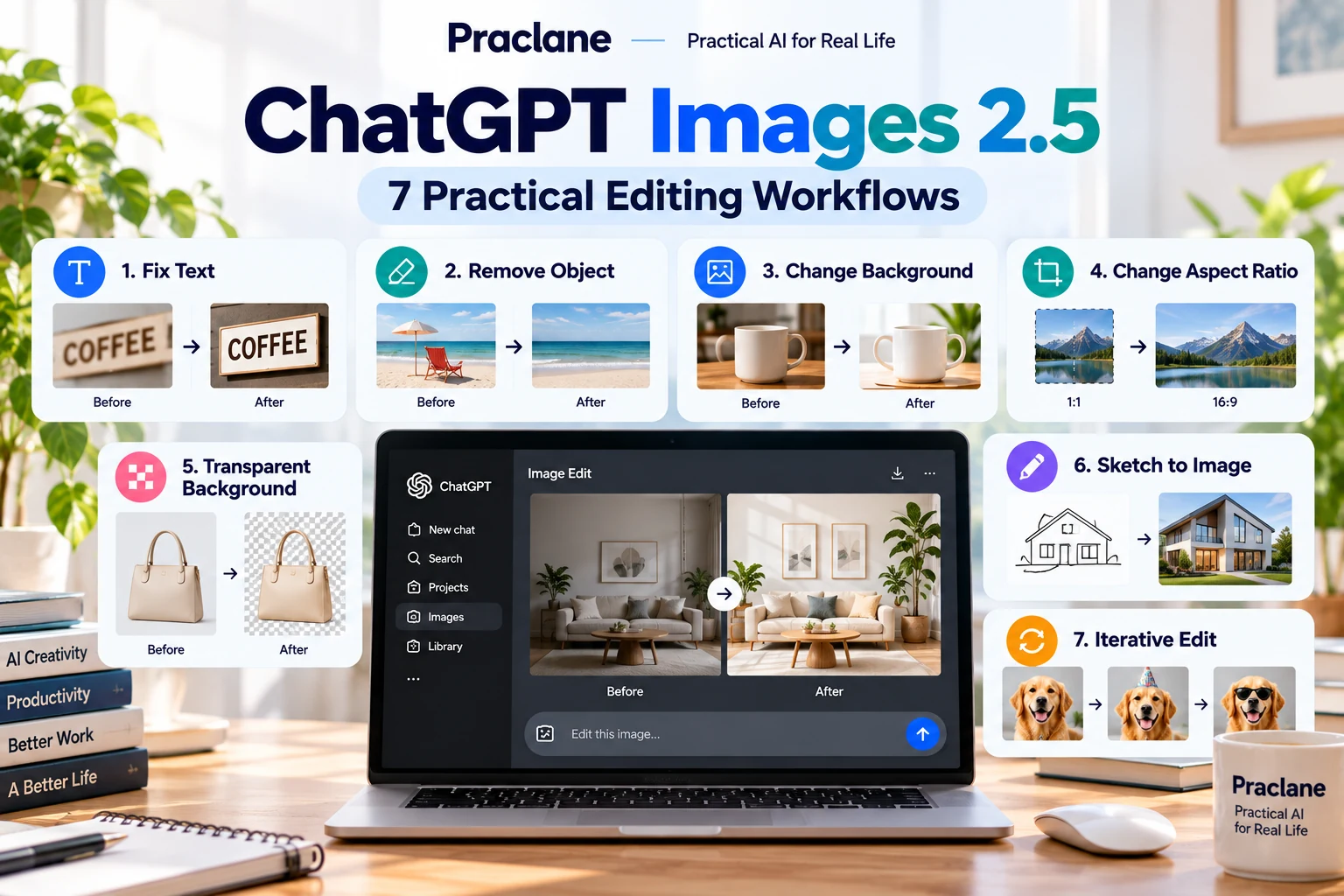
Image generation gets most of the attention, but the more practical skill is often editing an image you already have. ChatGPT Images can add or remove objects, change text, adjust backgrounds, regenerate in a different aspect ratio, work from sketches, and revise an image through conversation.
OpenAI’s current ChatGPT Images documentation describes Images 2.5 as faster and more precise, with sharper details and improved editing. This guide focuses on seven workflows that are useful after the first image already exists.
What ChatGPT Images 2.5 Can Do
| Edit Type | Example | Best Instruction |
|---|---|---|
| Text revision | Fix a poster headline | Quote the exact replacement text |
| Object removal | Remove a cable or sign | Name the object and location |
| Background change | Office → clean studio | Describe what must stay unchanged |
| Aspect ratio | Square → 16:9 hero | State crop priorities |
| Transparency | Product cutout | Request transparent background explicitly |
| Sketch-to-image | Turn rough sketch into finished visual | Describe subject, style, and intended use |
| Iterative refinement | Make layout less crowded | Change one variable at a time |
1. Fix Text Without Rebuilding the Whole Design
Poster and infographic text is one of the easiest places for small errors to ruin an otherwise good image. Instead of regenerating the full visual, specify the exact text that should change.
Replace the headline “Q3 Reprot” with exactly “Q3 Report.” Keep the font size, position, colors, background, icons, and all other text unchanged.
Why this prompt is stronger: it names the wrong text, the replacement, and the elements that must stay stable.
2. Remove One Distracting Object
Remove the black power cable on the lower-left side of the desk. Reconstruct the wood surface naturally. Do not change the laptop, mug, notebook, lighting, or camera angle.
You can use the selection tool to highlight the target area, but OpenAI notes that selections are not always perfectly precise and edits may extend beyond the highlighted region.
3. Change the Background but Preserve the Subject
Keep the product, shadows, perspective, and label exactly the same. Replace only the background with a clean light-gray studio backdrop. Preserve realistic edge detail around the product.
The phrase “replace only the background” is important. Without a preservation constraint, the model may reinterpret parts of the foreground as well.
4. Convert One Image Into a Different Aspect Ratio
ChatGPT Images supports different aspect ratios. You can use the aspect-ratio control or ask for the format in the prompt.
Regenerate this square image as a 16:9 website hero. Keep the main subject on the right third and extend the background naturally to the left so there is clean space for a headline.
This is stronger than simply saying “make it 16:9” because it explains how the extra space should be used.
5. Create a Transparent Background for Reuse
Remove the background and return the product on a transparent background. Keep the full product visible, preserve fine edge detail, and do not add a drop shadow.
Transparent backgrounds are useful for presentation slides, product mockups, blog graphics, and compositing the same subject into different layouts.
6. Turn a Rough Mobile Sketch Into a Finished Visual
On the ChatGPT mobile app, OpenAI now supports a Sketch input. You can draw a rough idea and combine it with written instructions.
Turn this sketch into a clean modern infographic. The large rectangle is a laptop, the three circles are workflow steps, and the arrow shows progression. Use a minimal blue-and-teal business style and leave room for a title at the top.
The sketch controls composition. The text prompt controls interpretation and style.
7. Improve an Image Through Controlled Iteration
One of the most common mistakes is asking for five major changes at once. If the first result is close, make one or two controlled edits at a time.
| Iteration | Prompt | Goal |
|---|---|---|
| 1 | Reduce the headline size by about 20% | Improve hierarchy |
| 2 | Increase spacing between the three cards | Reduce visual crowding |
| 3 | Change only the accent color from orange to teal | Match brand palette |
| 4 | Keep everything else unchanged | Protect the successful parts |
A Controlled Editing Prompt Formula
Change [specific target] from [current state] to [desired state]. Keep [important elements] unchanged. Preserve [composition/lighting/style/perspective/text]. Apply the edit only to [area or object].
This structure is useful because it separates what changes from what must remain stable.
When to Use the Selection Tool
- Use it when the target is small or spatially specific.
- Skip it when the edit affects the whole image.
- Still describe the target in text even after selecting it.
- Expect minor spillover outside the selection and review the result carefully.
Where Images 2.5 Is Available
OpenAI currently says ChatGPT Images is available on all tiers on web, iOS, and Android. Images with thinking is available on Plus, Pro, and Business, with Enterprise and Edu support planned. Image generation and editing are also available in Codex.
Templates provide starting points for designs such as posters or logos, although OpenAI notes that templates are not yet available in Work mode.
Common Editing Mistakes
- Asking for too many unrelated changes in one edit
- Not saying which successful elements must remain unchanged
- Using vague instructions such as “make it better”
- Forgetting to specify exact replacement text
- Assuming a selection boundary will be perfectly precise
- Not checking text, logos, labels, and small details after regeneration
If you use Canva for layout-heavy work, compare our ChatGPT + Canva guide. Canva is useful for structured design systems; ChatGPT Images is stronger when the main task is generating or directly editing the image itself.
Official Source
Images in ChatGPT — OpenAI Help Center
Final Thoughts
The best image-editing prompts are not long. They are controlled: define the target, define the change, and define what must stay unchanged.