ChatGPT Not Working? Fix Loading, Conversation, Download, and “Something Went Wrong” Errors
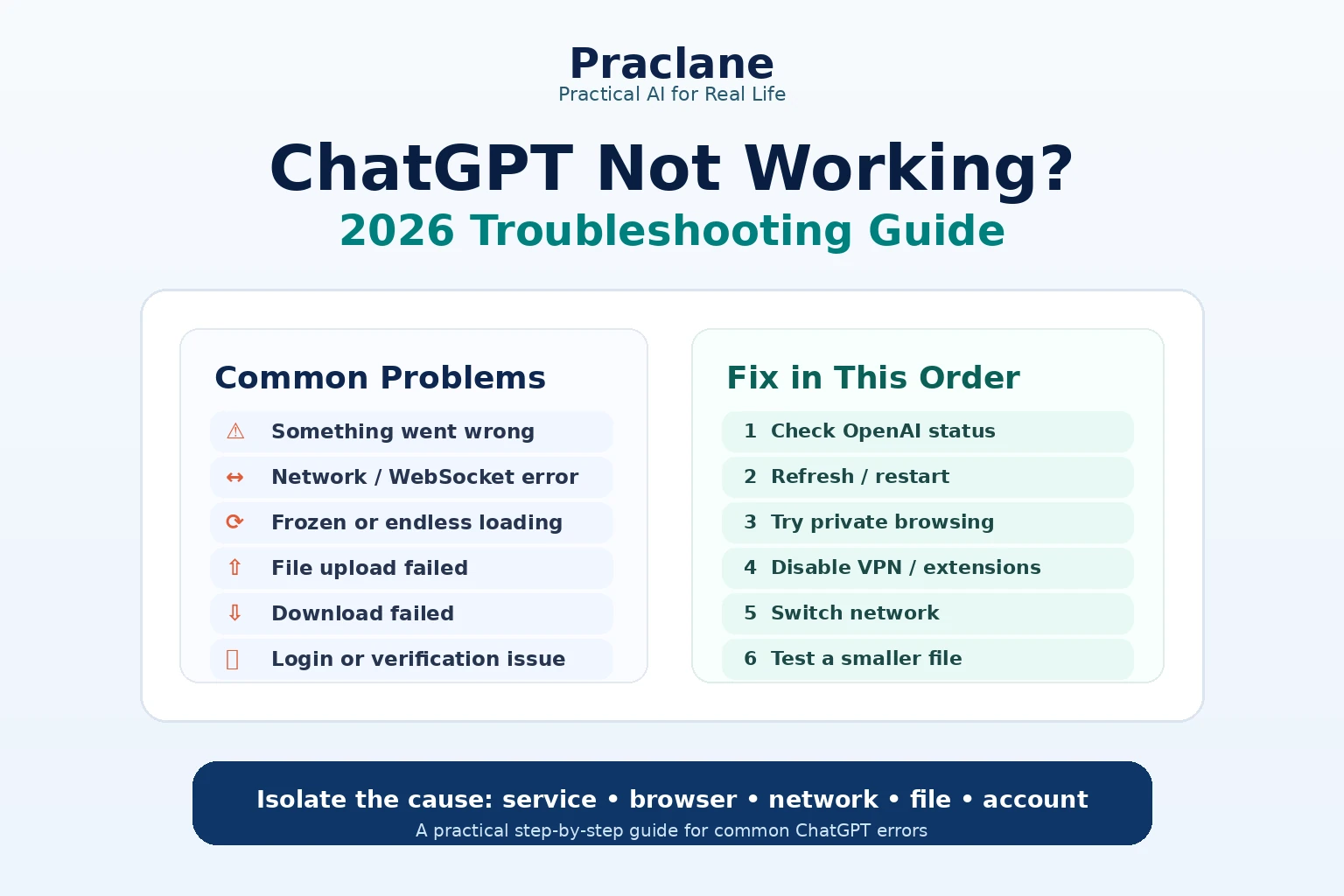
When ChatGPT stops working, the fastest fix is usually not reinstalling everything. Most failures fall into a few categories: an OpenAI service incident, a browser or app problem, a network or VPN issue, a file limitation, or an account/session problem.
This troubleshooting guide gives you a practical order of operations for fixing ChatGPT errors, failed uploads, login problems, blank screens, frozen responses, and download failures without wasting time repeating random steps.
Quick Fix by Error Message
| Error or Symptom | Try First | Next Step |
|---|---|---|
| Something Went Wrong | Check OpenAI status and refresh | Private window, VPN off, another network |
| Could Not Load Conversation | Open a new chat and reload | Sign out/in, clear site data, test another browser |
| ChatGPT keeps loading | Stop generation and hard refresh | Disable extensions and test another network |
| The file download failed | Regenerate the file and download immediately | Disable VPN/proxy and retry |
| ChatGPT web not working | Try private browsing | Compare Wi-Fi vs mobile data |
The 2-Minute Fix Order
- Check status.openai.com.
- Refresh the page or restart the app.
- Start a new chat and retry the same prompt once.
- Disable VPN, proxy, secure DNS, or aggressive browser extensions.
- Try an incognito/private window or a different browser.
- Try another network, such as mobile data or a hotspot.
- If the failure is file-specific, test a smaller or simpler file.
If the problem disappears after one of these steps, you have already narrowed the cause. Do not change multiple settings at once unless you need to.
1. “Something Went Wrong”
This is a generic error. OpenAI says it can come from a temporary server problem or your local setup.
- Refresh the page or start a new chat.
- Check the OpenAI status page.
- Clear browser cache and cookies if the error persists.
- Try private browsing with extensions disabled.
- Turn off VPN or secure DNS tools temporarily.
- Switch networks.
Useful clue: if the same error happens on two browsers and two networks, the problem is less likely to be a browser extension or home-network issue.
2. “A Network Error Occurred” or WebSocket Errors
Network errors often mean your device cannot maintain a reliable connection to OpenAI’s servers. Corporate firewalls, VPNs, proxies, content filters, or unstable Wi-Fi are common causes.
Test: open the same conversation on mobile data. If it works there but fails on company Wi-Fi, investigate the network rather than the ChatGPT account.
For managed networks, OpenAI publishes network recommendations and domain allowlisting guidance. Voice traffic can also be affected by firewall rules.
3. “Could Not Load Conversation”
If ChatGPT says it could not load the conversation, first confirm whether the problem affects only one chat or your entire chat history. Open a new conversation, reload the page, and try the original conversation again.
- Hard refresh the page.
- Sign out and back in.
- Clear ChatGPT site data if the problem persists.
- Try the conversation in a private/incognito window.
- Test another browser or device.
- If many chats fail at once, check the OpenAI status page.
If one old conversation continues to fail while new chats work normally, do not keep changing network settings. Save any available important content and continue in a new chat if necessary.
4. ChatGPT Freezes or Keeps Loading Forever
OpenAI’s official troubleshooting order is practical here: wait briefly, stop generation, regenerate, start a new chat, hard refresh, sign out and back in, then test private browsing and another network.
On the web, use Ctrl + Shift + R on Windows or Cmd + Shift + R on macOS for a hard refresh. In the desktop app, fully reload or restart the app.
5. Blank Screen or Unresponsive Page
- Hard refresh the page.
- Clear ChatGPT site data or cookies.
- Disable ad blockers, script blockers, privacy extensions, and security extensions temporarily.
- Try a clean browser profile.
- Turn off VPN/proxy/secure DNS.
- Try another device.
If a clean browser works immediately, re-enable extensions one at a time until the problem returns.
6. File Upload Failed
A failed upload can come from the file itself, your network, account limits, or a blocked file-delivery domain.
- Confirm the file type is supported.
- Try a smaller version of the file.
- Rename the file using simple letters and numbers.
- Remove password protection if appropriate.
- Switch networks or disable a VPN.
- On a company network, confirm that OpenAI file domains are not blocked.
ChatGPT supports common document, spreadsheet, presentation, and text formats including PDF, DOCX, XLSX, CSV, PPTX, and TXT. File availability and limits can vary by plan and workspace.
If you work with the same files repeatedly, our ChatGPT Library guide explains when reuse is more efficient than re-uploading.
7. A File Uploaded, but ChatGPT Missed Information
This is not always an upload failure. A file can upload successfully and still be too complex, image-heavy, poorly structured, or large for reliable full-document analysis.
- Ask ChatGPT to inspect a specific sheet, section, page range, or column.
- Split a very large file into smaller files.
- Use a spreadsheet instead of a screenshot when exact numeric values matter.
- Ask ChatGPT to show what rows, pages, or sections it actually used.
8. “The File Download Failed” or “File Not Found”
Generated file links can expire. OpenAI recommends downloading generated files soon after creation. VPNs, proxies, or file-size limits can also interfere.
If the file is important, ask ChatGPT to regenerate it in the same conversation and download the new version immediately.
9. Login Loops or Sign-In Problems
- Confirm you are using the same sign-in method you used when the account was created.
- Clear ChatGPT cookies and site data.
- Try a private window.
- Disable extensions that modify login pages or cookies.
- Try a different browser or network.
If the desktop app requests phone verification, follow the current in-app verification flow for a supported number or region.
10. ChatGPT Works on Mobile but Not on Wi-Fi
This is one of the strongest signs of a network-specific issue. Your ISP, router settings, company firewall, secure DNS provider, VPN, or content filter may be interrupting traffic.
Do not spend time reinstalling ChatGPT until you have compared at least two networks.
11. When to Contact Support
If the same issue persists across browsers, devices, and networks, collect evidence before contacting support. OpenAI recommends capturing timestamps, the model used, conversation URL or ID where relevant, browser console errors, and a HAR file for reproducible web/network issues.
| Symptom | First Test | Likely Direction |
|---|---|---|
| Something went wrong everywhere | Status page | Possible service incident |
| Works on mobile data, fails on office Wi-Fi | Switch network | Firewall/network |
| Works in private browsing | Disable extensions | Browser extension/site data |
| Only one file fails | Try smaller/simple file | File format/size/complexity |
| Generated download expired | Regenerate file | Temporary file link |
Official Sources
Final Thoughts
The most efficient troubleshooting strategy is isolation: service, browser, network, file, or account. Change one variable at a time, test again, and stop once you identify the layer that is failing.