ChatGPT Plugins in 2026: What They Are, How to Install Them, and When to Use Them

Plugins are becoming one of the most important ways to extend ChatGPT in 2026. Instead of building every repeated workflow as a custom GPT, OpenAI is moving toward plugins that can combine reusable instructions, connected apps, and workflow guidance in one package.
This guide explains what ChatGPT Plugins are, how they differ from connected apps and the retiring custom GPT system, how to install and use them, and when a plugin is actually the right tool for the job.
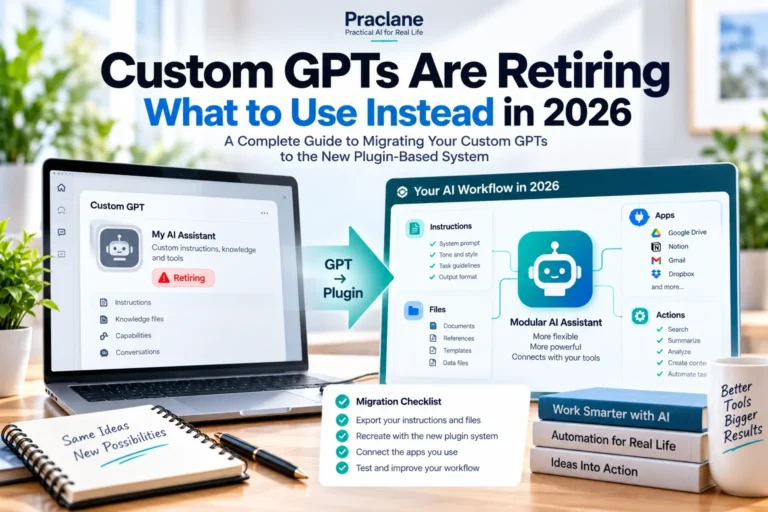
If you currently rely on a custom GPT, start with our Custom GPT retirement and migration guide. OpenAI currently plans to retire custom GPTs on December 11, 2026, with migration availability varying by account and workspace.
What Is a ChatGPT Plugin?
OpenAI’s current Plugins documentation describes plugins as reusable packages that can combine instructions, connected apps, and other capabilities. A plugin may contain skills that guide how a task should be done, apps that connect to outside services, or templates used by administrators.
| Component | What It Adds |
|---|---|
| Skills | Reusable instructions and workflow guidance |
| Connected apps | Access to approved external information and supported actions |
| App templates | Reusable admin configuration for supported workspace apps |
Plugins vs Apps vs Custom GPTs
| Option | Best Description | Best For |
|---|---|---|
| Plugin | A packaged workflow that can combine instructions and apps | Repeatable workflows that need both process and tools |
| Connected app | A connection to an external service or data source | Accessing Gmail, Drive, Slack, GitHub, and similar services |
| Custom GPT | A reusable configured assistant being retired | Legacy workflows that should be prepared for migration |
| Project | A workspace with chats, files, and project instructions | Ongoing work that benefits from persistent context |
| Prompt template | A reusable instruction you paste or save | Simple workflows with no special tools or data access |
The important distinction is that a plugin is not simply another name for an app. A plugin can use an app, but it can also include workflow guidance that tells ChatGPT how and when to use that app.
How to Install a Plugin
- Open ChatGPT and go to Plugins when that section is available for your account.
- Choose the plugin you want to review.
- Read its description, included skills, apps, permissions, and setup requirements.
- Select Install plugin when shown.
- If the plugin includes an app that requires authorization, select Connect and sign in to the intended provider account.
- Complete any provider or workspace approval required for the app.
Installing a plugin does not bypass the permissions of the services it connects to. If the underlying app cannot access a file, mailbox, channel, or account, the plugin cannot magically gain that access.
8 Practical Plugin Workflows
1. Package a Recurring Weekly Report
A plugin can contain the instructions for how a report should be structured and use connected apps to gather the source material.
Use the installed reporting plugin to prepare this week’s project update. Follow the plugin’s standard sections, use only approved connected sources, and flag missing data instead of inventing it.
For the reporting structure itself, see our recurring reports guide.
2. Combine Search Rules With a Connected App
Imagine a plugin that knows your preferred way to search project files and has access to Google Drive or SharePoint. The workflow guidance can tell ChatGPT to check the newest file first, compare dates, and cite the source.
Use the project research plugin. Find the newest approved plan, compare it with the previous version, and return only changes that affect schedule, budget, or responsibility.
3. Standardize a Team Review Process
A team can use a plugin to encode the same review checklist for everyone instead of asking each employee to remember the process manually.
Use the launch-review plugin on this material. Follow the standard checks for owner, deadline, dependency, risk, evidence, and approval status.
4. Replace a Simple Custom GPT
If your custom GPT mostly contained instructions, examples, and reference files, a plugin may be the closest replacement. OpenAI’s migration FAQ says migrated plugins should be tested with familiar prompts because they may not respond exactly like the original GPT.
5. Use Different Apps Under One Workflow
A plugin can be useful when a workflow spans several systems. For example, a launch review might need Slack messages, Drive files, and a project tracker rather than a single data source.
Use the launch-status plugin. Gather the approved sources it is allowed to use, then produce one summary with decisions, risks, open tasks, and next milestones.
6. Add Guardrails to a High-Impact Workflow
Reusable instructions can make a workflow safer by requiring a preview before a supported write action is used.
Follow the plugin’s approval rule: draft the proposed change, show the target system and affected item, and wait for confirmation before applying any write action.
7. Keep a Specialized Workflow Consistent Across ChatGPT and Codex
OpenAI documents plugins for both ChatGPT and Codex, although availability depends on the plugin and product surface. That makes plugins useful when the same workflow guidance should be available in more than one place.
8. Turn a Repeatable Process Into a Discoverable Tool
A well-described plugin can be easier to reuse than a long prompt stored in a notes app. When installed, supported surfaces may let you select it with an @ mention or through the + menu.
Decision Guide: Plugin, Project, or Prompt?
| Your Situation | Better Starting Point | Why |
|---|---|---|
| One-time writing or analysis task | Regular chat or prompt | Lowest setup cost |
| Ongoing work with the same files and context | Project | Keeps related chats, files, and instructions together |
| Repeatable workflow that needs apps and rules | Plugin | Packages process and tools together |
| Simple reusable wording | Prompt template | Easy to inspect and edit |
| Existing custom GPT you rely on | Prepare for plugin migration | Custom GPT retirement is scheduled for December 11, 2026 |
If you are deciding between Projects and ordinary chat for ongoing work, see our Projects vs regular chats comparison.
A Migration Test Checklist for Former Custom GPT Users
- Run three prompts you used often in the old GPT.
- Include at least one difficult edge case.
- Check whether the plugin selects the correct workflow or skill.
- Verify that important reference files are still available.
- Test every connected app separately.
- Check output format, completeness, and important constraints.
- Review sharing and access before asking other people to switch.
This matters because OpenAI explicitly warns that a migrated plugin may behave differently from the original GPT. A successful migration is not just “the plugin exists”; it is “the workflow still works under real tasks.”
Important Limits
- Availability varies. Plugin access can depend on plan, region, workspace, role, and supported product surface.
- Apps keep their own permissions. Installing a plugin does not expand access to provider data.
- Some plugins need admin setup. Managed workspaces may require approval or configuration.
- Plugins do not automatically run every time. Selection depends on the task and available capabilities.
- Migrated workflows need testing. Do not assume a migrated plugin will behave exactly like the original custom GPT.
FAQ
Are ChatGPT plugins the same as the old plugin system?
OpenAI now describes plugins as packaged workflows that can combine reusable instructions, skills, apps, and templates. The current plugin system should be evaluated using current documentation rather than older tutorials about legacy plugin behavior.
Can a plugin access my Gmail or Google Drive?
Only if the plugin includes or uses the relevant app and that app has been connected and authorized for the account and data you need.
Will plugins replace all custom GPT use cases?
OpenAI is positioning plugins as the migration path for custom GPT workflows, but the exact replacement can differ. Some simple GPTs may be easier to replace with a Project or reusable prompt, while tool-heavy workflows may benefit more from plugins.
Final Thoughts
The most useful way to think about plugins is not “another feature to install.” Think of them as a container for repeatable process: instructions, tools, data access, and guardrails working together.
Use a plugin when the workflow repeats and needs more than words. Use a Project when the main problem is persistent context. Use a prompt when the task is simple enough that extra infrastructure adds more friction than value.