ChatGPT Memory in 2026: What It Remembers, What It Doesn’t, and How to Control It

ChatGPT Memory has changed significantly. In 2026, “memory” can refer to more than one source of personalization: past chats, saved memories where available, custom instructions, files in Library, and even content from connected apps on eligible accounts.
That makes Memory more useful, but it also makes one old assumption less reliable: deleting one chat or changing one setting may not remove every place where the same information exists.
This guide explains ChatGPT Memory in 2026 in practical terms: what it can remember, what it does not guarantee, how to review the context influencing an answer, and what to do when Memory is wrong, outdated, or too personal.
What ChatGPT Memory Means in 2026
OpenAI’s current Memory documentation says that, when Memory is enabled, ChatGPT can use relevant preferences and details from chats and other available sources to personalize responses.
Depending on your plan, region, platform, and workspace, those sources can include:
- Past chats
- Saved memories, where that control is available
- Custom instructions
- Files in Library
- Connected apps such as Gmail, where eligible and enabled
Memory does not mean that ChatGPT stores and recalls every detail from every conversation. OpenAI says the system decides which available information is relevant to a response, and remembered context can change as your context changes.
Memory vs. Chat History vs. Custom Instructions
| Feature | Best way to think about it |
|---|---|
| Memory | Personal context ChatGPT may use across conversations |
| Reference chat history | Relevant information inferred from past conversations |
| Saved memories | Explicit or stored details that may exist separately from chat history on supported accounts |
| Custom instructions | Rules or preferences you deliberately set for how ChatGPT should respond |
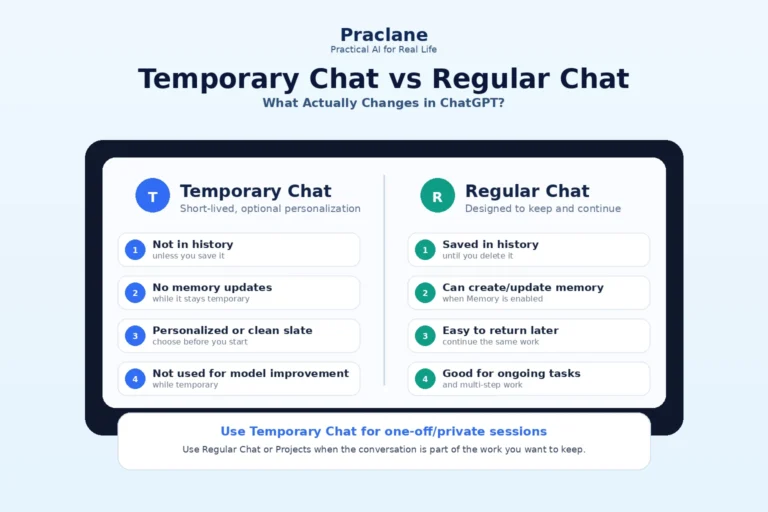
| Temporary Chat | A conversation that does not use or create memories for personalization |
The labels you see can vary. OpenAI currently notes that controls may include items such as Memory, Reference saved memories, Reference chat history, Memory summary, Manage, or Saved memories depending on the account experience.
What ChatGPT Can Remember
Useful remembered context tends to be information that improves future answers. Examples include:
- Your preferred writing style
- A recurring work project
- Your usual units, language, or formatting preferences
- Long-term goals you repeatedly discuss
- Relevant information from files or connected apps when those sources are available
That can reduce repetition. For example, instead of re-explaining your audience, tone, and project context every time, ChatGPT may already know enough to tailor the first answer.
What Memory Does Not Guarantee
- Perfect recall. ChatGPT does not retain or surface every detail from every conversation.
- Permanent accuracy. Old information can become outdated.
- Real-time facts. Memory is not a substitute for web search when information changes frequently.
- One-source deletion. The same fact can exist in more than one chat, file, memory source, or connected app.
- Identical behavior across accounts. Memory controls vary by plan, region, workspace, and platform.
7 Common Memory Problems and How to Fix Them
1. ChatGPT Keeps Using Outdated Information
First, correct the information directly in the conversation. Then review the Memory controls available under Settings → Personalization → Memory. If the old information also appears in earlier chats, files, or connected sources, update or remove those sources too.
The information you are using about [topic] is outdated. Use this instead: [new information]. Tell me which source or remembered context influenced your previous answer if that information is available.
2. ChatGPT Does Not Remember Something You Expected
Memory is selective. If something must reliably guide future responses, put the stable rule in the most deliberate place available to you—for example, Custom Instructions or a Project instruction—rather than assuming a casual mention will always be retrieved.
For ongoing work, see our Projects vs regular chats comparison.
3. Personalization Feels Too Strong
Ask ChatGPT what relevant personal context it used, then review the sources or Memory controls available to your account. If you do not want personalization for a specific conversation, use Temporary Chat.
Temporary Chat is useful when you want a clean context for a sensitive, unusual, or one-off topic.
4. You Want to Remove a Personal Detail Completely
Think in terms of sources, not one memory toggle. If the detail appears in the Memory summary, a saved memory, an old chat, an archived chat, a Library file, or a connected app, removing only one copy may not remove every possible source.
For full removal, review your Memory summary and available memory controls, delete the original chat and any other chat containing the information, and remove the detail from files or connected sources where it also appears. Changes can take time to propagate.
5. Turning Memory Off Did Not Delete Old Chats
That is expected. OpenAI says turning off Memory does not delete your past chats. Chat history and Memory are related but separate controls.
Likewise, turning Memory back on later can allow new remembered information to be created from chats that still remain in your history, depending on the controls available to your account.
6. Work and Personal Context Are Getting Mixed
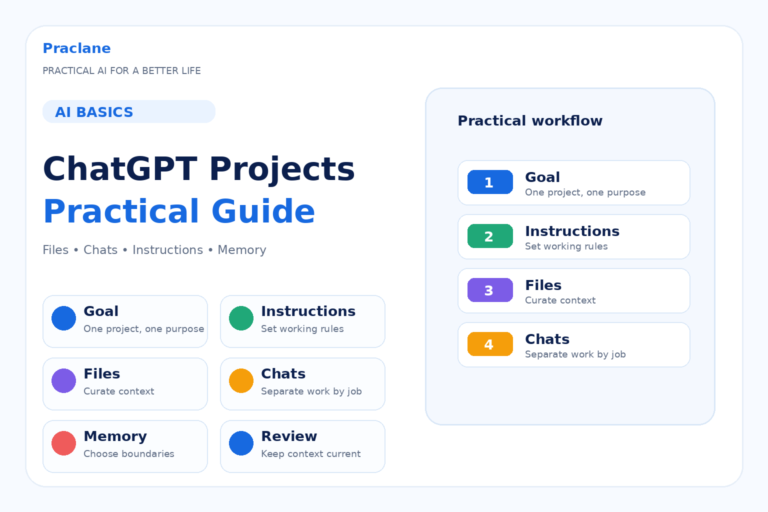
Use Projects or separate workspaces when possible. Put project-specific instructions and files inside the Project so the task context is explicit rather than depending on broad personalization.
Our ChatGPT Projects guide shows how to keep ongoing files, chats, and instructions together.
7. A Connected App Is Influencing an Answer
On eligible accounts, Memory can use relevant content from connected apps when the feature is enabled. Disconnecting an app stops future access through that connection, but it does not automatically erase content that already exists in previous conversations.
A Practical Memory Audit
- Ask what ChatGPT remembers about you.
- Open Settings → Personalization → Memory. Review the controls available to your account.
- Check your Memory summary if available. Look for outdated or overly broad statements.
- Review Custom Instructions. Make sure a permanent rule is not being mistaken for Memory.
- Review Projects. Move project-specific context into the relevant Project.
- Check connected apps and Library files. Remove sources you no longer want used.
- Use Temporary Chat for one-off sensitive topics.
Memory vs. Project Instructions: Which Should You Use?
| If the information is… | Better place |
|---|---|
| A general preference across many chats | Memory or Custom Instructions |
| A rule for one long-running project | Project instructions |
| A temporary fact for one conversation | Current chat |
| Sensitive and should not personalize later chats | Temporary Chat |
| A source document you want reused | Project or Library file |
Memory and Privacy: A Useful Rule
Do not treat Memory as a private notebook for secrets. Avoid intentionally storing passwords, recovery codes, government ID numbers, financial account credentials, or other information that does not need to be present for ChatGPT to help you.
If you want a conversation to avoid using or creating personalization context, Temporary Chat is the safer default.
FAQ
Does ChatGPT remember everything I say?
No. OpenAI explicitly says Memory does not retain every detail from every conversation. It uses relevant available information and may change what it considers useful over time.
Does turning off Memory delete my chats?
No. Turning off Memory does not delete chat history.
Can Memory use files or connected apps?
Depending on your plan, region, permissions, and settings, Memory can use relevant information from Library files and connected apps such as Gmail.
How do I stop Memory for one conversation?
Use Temporary Chat. OpenAI says Temporary Chat does not use or create memories for personalization.
If you want a conversation that does not behave like a normal saved chat, compare the differences in our Temporary Chat vs regular chat guide.
To decide whether a preference belongs in Memory, Custom Instructions, or a dedicated Project, see our Custom Instructions vs Memory vs Projects comparison.
Final Thoughts
The best way to manage ChatGPT Memory in 2026 is to stop thinking of it as one list. Think of it as a layer of personalization that can draw from several sources.
Keep stable preferences deliberate, keep project rules inside Projects, use Temporary Chat when personalization is unwanted, and review the source of outdated context instead of deleting one item and assuming the problem is gone.