ChatGPT + Dropbox: 12 Practical Workflows for Files, Folders, Document Review, and Team Knowledge
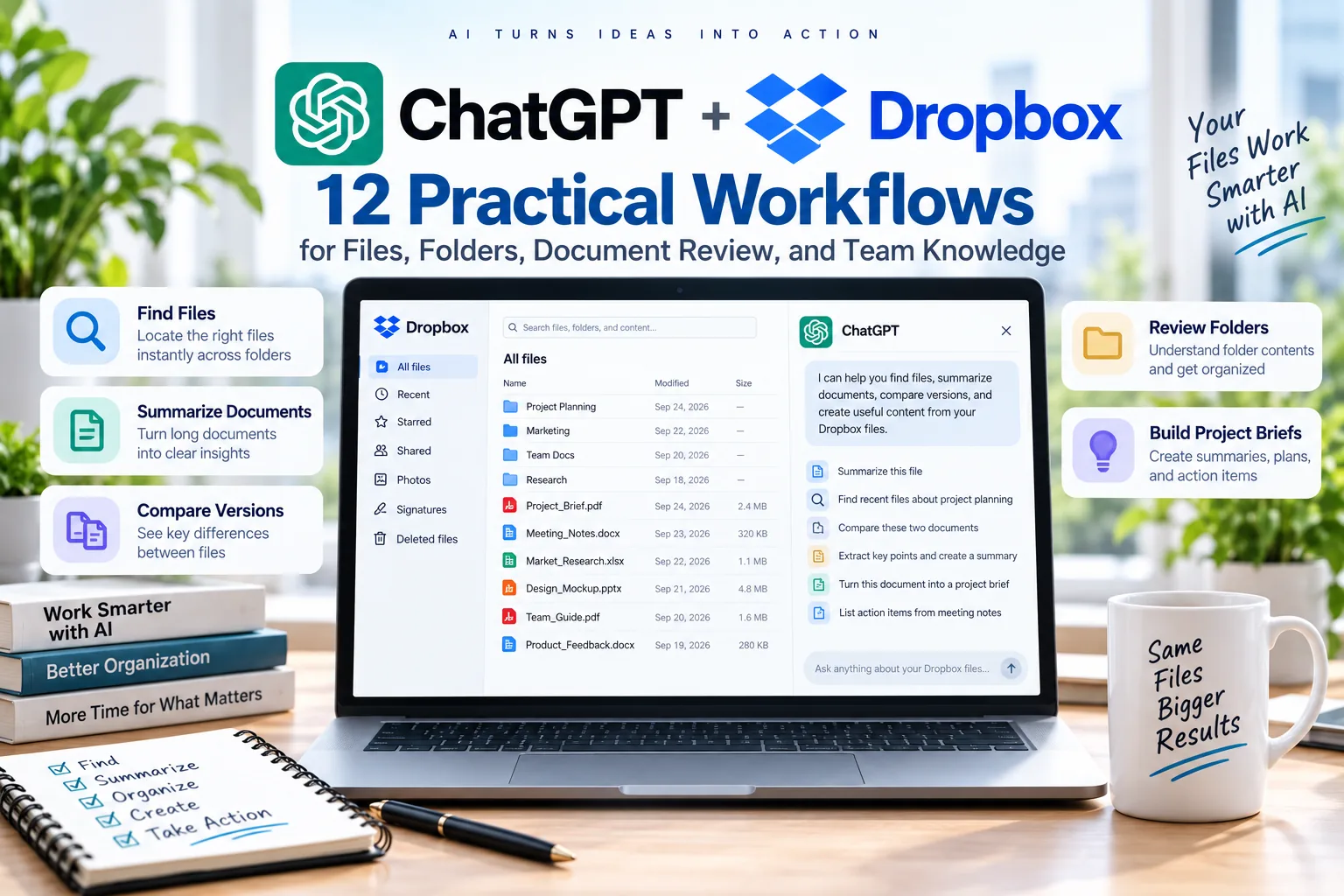
Dropbox is often where teams keep files that sit between “working document” and “source of truth”: proposals, project plans, PDFs, reports, presentations, research, meeting notes, and shared folders.
With ChatGPT + Dropbox, supported users can browse connected Dropbox files and folders in ChatGPT Library, bring files into conversations, ask questions about documents, and use available Dropbox actions when those actions are enabled for the account and workspace.
This guide focuses on practical file workflows: finding the right source, reviewing folders, comparing documents, building briefs, and reducing the copy-paste work that normally happens between Dropbox and ChatGPT.
What ChatGPT Can Do With Connected Dropbox
OpenAI’s current Library documentation says ChatGPT can show connected Dropbox files and folders when the required app permissions are available. OpenAI has also updated the Dropbox app with additional app actions, including write capabilities where supported.
| Capability | Practical Use |
|---|---|
| Browse files and folders | Find connected Dropbox content without manually downloading and re-uploading it |
| Use files in chat | Summarize, compare, extract, or analyze connected documents |
| Work across folders | Use a group of related files to build a brief, handoff, or project summary |
| Library access | Reuse connected Dropbox files from ChatGPT Library when available |
| Supported app actions | Use available Dropbox actions only when the app, provider permissions, workspace settings, and approvals allow them |
How to Connect Dropbox to ChatGPT
- Open ChatGPT and go to Apps or Plugins.
- Find Dropbox.
- Select Connect, or install the plugin if Dropbox is presented that way.
- Sign in to the Dropbox account that already has access to the files and folders you need.
- Review the requested Dropbox permissions.
- Complete authorization and return to ChatGPT.
If Dropbox already appears connected but new capabilities are missing, OpenAI recommends reconnecting updated apps when a new app experience or new scopes are introduced.
12 Practical ChatGPT + Dropbox Workflows
1. Find the Right File Without Guessing the Filename
Find the most recent project brief in Dropbox for Project Atlas. I do not remember the exact filename. Show the likely matches, modified date if available, folder location, and why each file appears relevant.
This is useful when teams have several similarly named files across old and current folders.
2. Summarize a Long PDF for a Specific Audience
Summarize this Dropbox PDF for an operations manager. Focus on responsibilities, deadlines, risks, approval requirements, and decisions that need attention. Keep the summary under 500 words.
3. Compare Two Versions of the Same Document
Compare these two proposal versions from Dropbox. Ignore formatting changes. List only changes that affect scope, pricing, dates, responsibilities, assumptions, or deliverables. Include the relevant section for each difference.
4. Turn a Folder Into a Project Brief
Use the files in this Dropbox project folder to create a one-page brief. Include Objective, Current Status, Deliverables, Owners, Deadlines, Risks, Open Questions, and Decisions Needed. If two files disagree, flag the conflict.
For a similar workflow in Google’s ecosystem, see our ChatGPT + Google Drive guide.
5. Find Conflicting Dates or Numbers Across Files
Check these Dropbox project files for conflicting launch dates, budget totals, owners, or milestone names. Create a table with the conflicting value, each source file, and the relevant section. Do not decide which value is correct unless one source clearly establishes authority.
6. Review Files Modified This Week
Review the project files in this Dropbox folder that changed this week. Summarize what changed, which files appear to need approval, what new risks were introduced, and what should be discussed at the next review.
7. Build a Team Handoff From a Shared Folder
Use this shared Dropbox folder to create a handoff for a teammate taking over tomorrow. Include Current State, Key Files, Completed, In Progress, Blocked, Owners, Deadlines, Risks, and the first three things they should check.
8. Audit Documentation for Stale Information
Review the onboarding documents in this Dropbox folder. Flag files that appear outdated because they contain old dates, retired product names, obsolete links, or instructions that conflict with newer documents. Create a review list only.
9. Prepare for a Client or Management Review
Use the latest project plan, status report, and risk document in Dropbox to prepare a review brief. Include what changed since the previous review, commitments, open issues, decisions needed, and five questions to discuss.
For meeting preparation and follow-up, continue with our ChatGPT for meetings guide.
10. Extract Action Items From a Document
Review this project update from Dropbox and extract every explicit action item. Create a table with Task, Owner, Deadline, Dependency, Status, and Source Section. Mark missing owners or deadlines as Missing instead of guessing.
11. Create a Weekly Folder Digest
Use the files in this project folder that changed this week. Create a weekly digest with Decisions, Completed, In Progress, Blocked, New Risks, Deadlines, and Follow-Ups. Include the source filename after every important fact.
This pairs well with our recurring ChatGPT reports.
12. Use Supported Dropbox Actions With an Approval Boundary
Dropbox actions can vary by account, workspace, and enabled capabilities. If the app exposes a write action, separate the proposed change from the actual action.
Review this project folder and propose a cleaner structure by project phase. Do not move, rename, upload, delete, or modify anything. Show the proposed structure first and wait for my approval before using any available Dropbox action.
A Better Prompt Formula for Dropbox
- Folder or project: where to search
- Source: filename, subject, date range, or file type
- Task: find, summarize, compare, audit, or extract
- Traceability: file name, section, owner, or date
- Action boundary: read only, propose, or use an explicitly approved app action
Use only the authorized files in the Project Atlas Dropbox folder. Find the current project plan and status report, summarize progress and risks, and cite the filename after every number and deadline. Do not modify, move, rename, upload, or delete anything.
Important Dropbox Limits
- Connected files follow Dropbox permissions. ChatGPT cannot use files the connected account cannot access.
- Library access requires the right app permissions. A managed workspace can also disable required public actions.
- Actions vary. A new write capability is not guaranteed for every account, workspace, or action.
- Reconnect after major app updates when required. New actions can require updated scopes.
- Important conclusions still need verification. Open the source file before relying on high-impact numbers, dates, or contractual wording.
FAQ
Can ChatGPT browse Dropbox files?
Yes, when the Dropbox app is available, connected, and authorized. Connected Dropbox files and folders can also appear in ChatGPT Library when the required permissions are enabled.
Can ChatGPT work across a Dropbox folder?
Where the folder and files are available through the connected app, ChatGPT can use related files together for summaries, comparisons, briefs, and reviews.
Can ChatGPT change Dropbox files?
Some Dropbox write actions may be available depending on the current app, provider permissions, workspace settings, and approvals. Check the action shown in your account before relying on a write workflow.
Why would I use Dropbox instead of uploading a file manually?
A connected app is most useful when the same files change over time, when you need to find the latest source, or when several related files live in a shared folder.
Final Thoughts
The strongest ChatGPT + Dropbox workflows reduce two common problems: finding the correct source and repeatedly moving files between tools.
Keep the folder scope precise, ask for source filenames, flag conflicting versions instead of guessing, and require confirmation before any supported action changes your Dropbox content.