ChatGPT + SharePoint: 12 Practical Workflows for Files, OneDrive, Libraries, and Team Knowledge
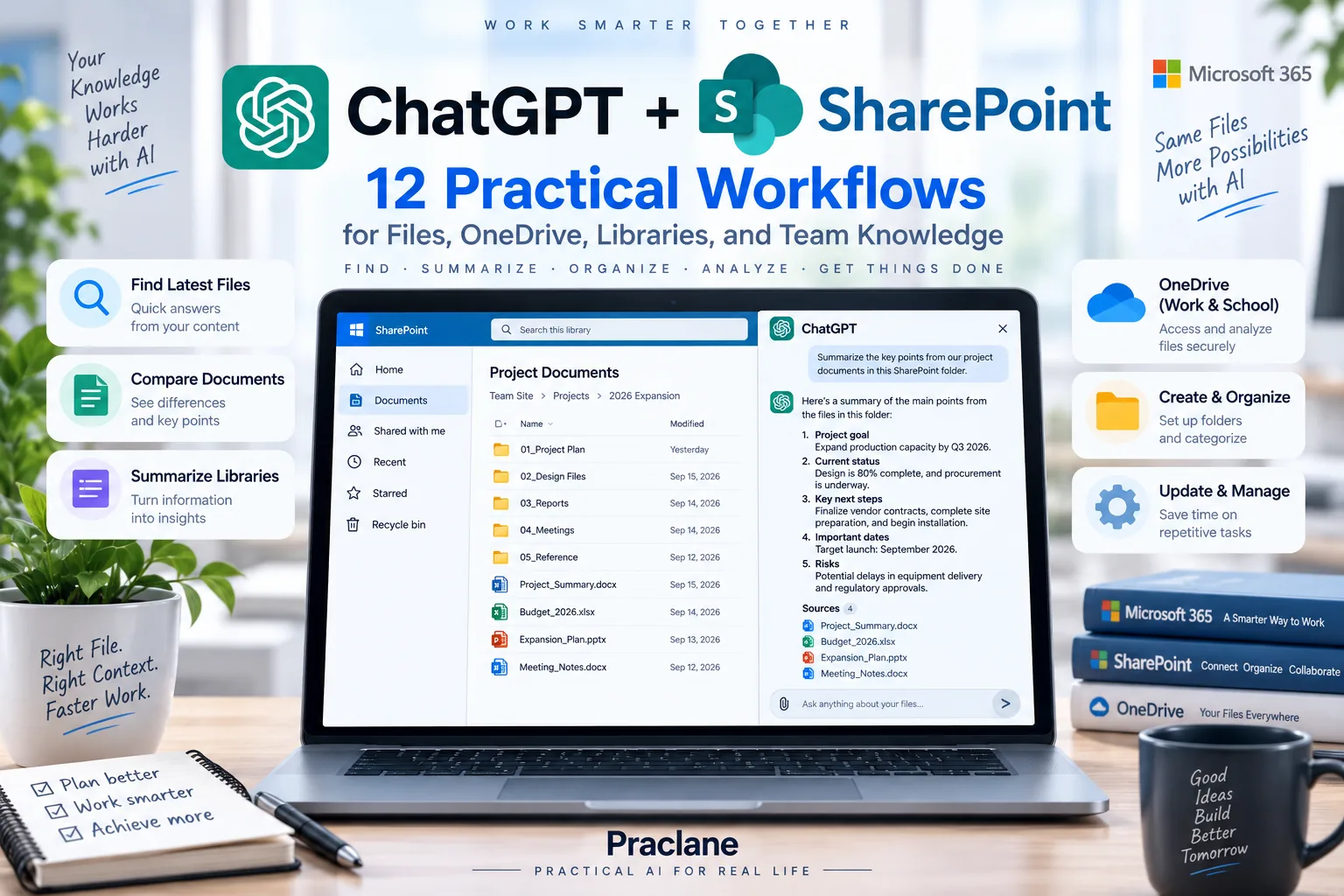
SharePoint often holds the files people actually need at work: project plans, policies, proposals, reports, templates, team libraries, and supported OneDrive for work or school content. The problem is that finding the right version can take longer than using the information.
With the ChatGPT + SharePoint app, supported users can search and reference content their Microsoft account already has permission to access. Depending on organizational settings, the live app can also support actions such as creating folders, uploading or updating files, managing sharing links, and working with supported SharePoint lists or pages.
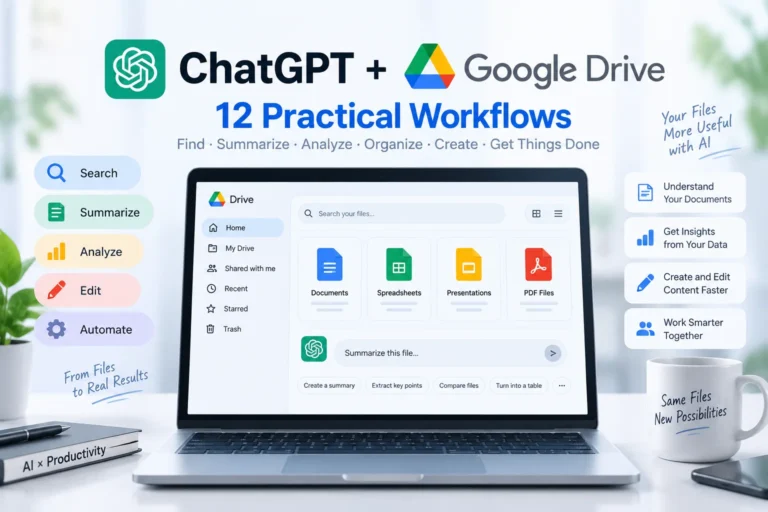
If your organization uses Google instead, see our ChatGPT + Google Drive guide. The two workflows are similar in purpose but differ in provider permissions, file systems, and admin controls.
What ChatGPT Can Access in SharePoint
OpenAI’s current SharePoint app documentation says ChatGPT can search and reference SharePoint plus supported OneDrive for work or school content that the connected Microsoft account can already access.
The SharePoint app does not support personal OneDrive accounts. A personal live connection also does not automatically create a private synced index. OpenAI separately offers administrator-managed SharePoint sync for eligible Enterprise and Edu workspaces.
| Capability | What It Means |
|---|---|
| Live search | Find permitted SharePoint and supported work/school OneDrive content on demand |
| File reference | Summarize, compare, extract, and draft from accessible files |
| Folder/file actions | Create folders and upload or update files when supported and enabled |
| Sharing actions | Manage supported sharing links where organization permissions allow |
| Admin-managed sync | Eligible Enterprise/Edu admins can index approved content for workspace use |
How to Connect SharePoint to ChatGPT
- Open ChatGPT and go to Settings.
- Open Apps or Plugins.
- Choose SharePoint or the Microsoft plugin that contains the SharePoint connection.
- Select Connect and sign in with your Microsoft work or school account.
- Review the requested Microsoft permissions and complete authorization.
- If a specific file or action is unavailable, confirm your access in Microsoft 365 and ask your ChatGPT workspace administrator whether the required SharePoint action is enabled.
For managed environments, Microsoft Entra administrators and ChatGPT workspace administrators may control different parts of the permission chain. A Microsoft permission grant does not automatically enable every action in ChatGPT.
12 Practical ChatGPT + SharePoint Workflows
1. Find the Latest Project Plan
Find the newest project plan in the Operations SharePoint site for Project Atlas. Show the file name, modified date, location, and the three most important changes compared with the previous version if both are available.
This reduces the risk of analyzing an outdated file simply because its name looked familiar.
2. Summarize a Policy for a Specific Role
Use the current travel policy in SharePoint. Summarize it for a new employee and focus on approval rules, spending limits, required documentation, exceptions, and what needs manager approval.
3. Compare Two Proposal Versions
Compare the two latest versions of the client proposal. Ignore formatting changes. List only changes that affect scope, price, delivery dates, responsibilities, or assumptions. Include the section where each change appears.
4. Build an Executive Brief From Several Files
Use the latest project plan, risk register, budget summary, and status report in this SharePoint library. Create a one-page executive brief with Status, Progress, Budget, Risks, Decisions Needed, and Next Milestone. Cite the source file after every important number or deadline.
For a similar Google-based workflow, compare our Google Drive workflows. If your organization stores enterprise files in Box, see our ChatGPT + Box workflows.
5. Search Supported OneDrive for Work or School
The SharePoint app can include supported OneDrive for work or school content. It does not cover personal OneDrive accounts.
Search the OneDrive for work content I can access for files related to the 2027 hiring plan. Show the five most relevant files with title, modified date, owner if available, and why each appears relevant.
6. Find Conflicting Dates or Numbers Across Files
Check the project files in this SharePoint library for conflicting launch dates, budget totals, owners, or milestone names. Create a table showing the conflicting value, each source file, and the relevant section. Do not decide which value is correct unless the source clearly establishes authority.
7. Create a New Project Folder
Where folder-creation actions are enabled, ChatGPT can help create supported SharePoint folders. Always identify the target site or library precisely.
In the approved Projects document library, create a folder named “Project Atlas — Q4 Review” with subfolders for Briefs, Data, Meetings, and Final Deliverables. Show the proposed structure first and wait for confirmation before creating it.
8. Update a File Without Rewriting Everything
Supported live SharePoint actions may allow file updates, subject to permissions and workspace settings.
Update the weekly status document with the approved action items from today’s review. Keep all existing sections unchanged. Add a new dated section with Task, Owner, Deadline, and Status. Show the proposed change before applying it.
9. Prepare a Review From a SharePoint Library
Review the files modified this week in this project library. Summarize what changed, which documents appear to need approval, what new risks were added, and what decisions should be discussed at the Friday review.
This can feed directly into the structure in our recurring reports guide. For conversation and Planner context around the same project, continue with our ChatGPT + Microsoft Teams workflows.
10. Manage a Sharing Link Carefully
Where supported sharing-link actions are enabled, treat access changes as high-impact actions. Confirm the intended file, audience, and permission level first.
For the final client brief in the approved SharePoint library, show me the current sharing status and propose the safest way to give the client view-only access. Do not create or change a sharing link until I confirm.
11. Work With a SharePoint List
Supported SharePoint actions can also include lists or pages, depending on organizational configuration.
Use the approved project-issues list. Summarize open items by severity, owner, and age. Flag anything with no owner, anything older than 14 days, and any critical issue without a next action.
12. Build a Team Knowledge Check
Use only the approved SharePoint policy and process libraries I can access. Answer this question: “What is the current onboarding process for a new contractor?” Cite the source document and section for every important step. If two documents conflict, show the conflict instead of choosing silently.
Live SharePoint Connection vs. Administrator-Managed Sync
These are different. A personal live connection lets ChatGPT access SharePoint content your Microsoft account can already access when you ask for it. It does not create a personal search index.
OpenAI separately supports administrator-managed SharePoint sync for eligible Enterprise and Edu workspaces. In that model, administrators select approved content for indexed workspace search. Members cannot create or remove the administrator-managed source themselves.
A Better Prompt Formula for SharePoint
- Site or library: where ChatGPT should search
- File scope: exact file, folder, date range, or project
- Task: find, summarize, compare, audit, draft, or update
- Traceability: file name, section, modified date, or owner
- Action boundary: recommend first or apply a specific enabled action
Use only files in the approved Operations SharePoint site modified in the last 30 days. Find the current project plan and risk register, then create a management brief. Cite the file name for every number, date, and decision. Do not update, move, share, or create anything.
Important SharePoint Limits
- Personal OneDrive is not supported by the SharePoint app. The supported OneDrive scope is work or school content.
- Live connection is not personal sync. Individually authorized app sync is no longer available.
- Admin-managed sync is limited. It is available only to eligible Enterprise and Edu workspaces in supported regions.
- Microsoft and ChatGPT permissions both matter. A granted Microsoft scope does not automatically enable the corresponding ChatGPT action.
- High-impact actions may require confirmation. File updates, sharing changes, or other writes should be reviewed before execution.
FAQ
Can ChatGPT search SharePoint?
Yes, when the SharePoint app is available and connected. ChatGPT can search and reference SharePoint content that the signed-in Microsoft account already has permission to access.
Can ChatGPT access OneDrive?
The SharePoint app supports eligible OneDrive for work or school content. It does not support personal OneDrive accounts.
Can ChatGPT upload or update SharePoint files?
Supported live SharePoint actions can include file uploads and updates where the required Microsoft permissions and ChatGPT workspace actions are enabled.
Does connecting SharePoint index my whole organization?
No. A personal live connection does not create a private synced index. Administrator-managed sync is a separate configuration available to eligible managed workspaces.
Final Thoughts
The strongest ChatGPT + SharePoint workflows reduce two common problems: finding the right source and keeping AI output traceable to that source.
Specify the site or library, prefer the newest authoritative file, ask for citations to file names and sections, and preview important file or sharing changes before applying them.