Write Image Alt Text with ChatGPT: Match the Page Context
Good ChatGPT alt text starts with a question about the page: what does this image help someone understand or do? Uploading a photo and asking for a description can produce a plausible inventory while missing its purpose. Give ChatGPT the surrounding content and the image’s role, then review its suggestion before editing your website.
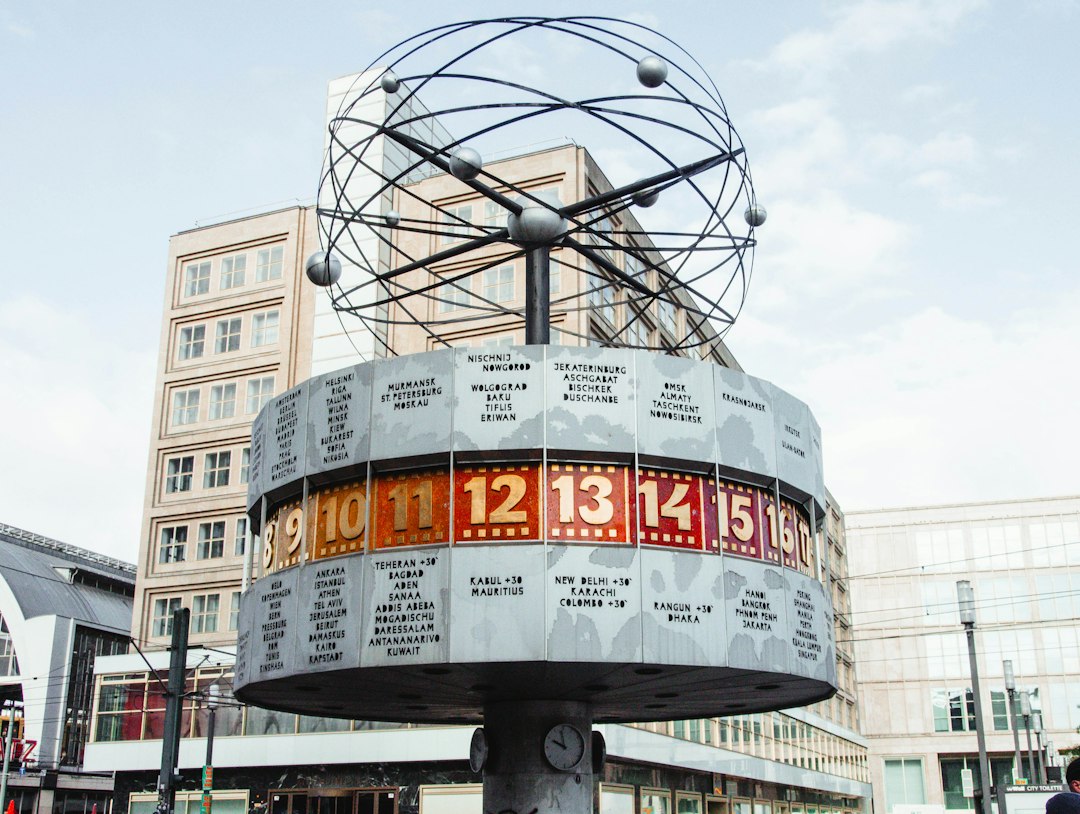
The world-clock photo used here illustrates the difference. It shows an outdoor public clock with city labels and numbered hour panels, with a metal globe above it. The three uses below are hypothetical editorial examples for the same photograph.
Decide what the image contributes
Use the W3C WAI alt decision tree before drafting. An informative image needs an alternative that conveys its relevant meaning. A decorative image contributes no additional information. An image that supplies a link or button’s name needs wording that explains the destination or action.
This judgment belongs to the author who knows why the image is there. A photograph is not automatically informative, and nearby text does not automatically make it decorative. In an October 14, 2025 University of Illinois accessibility discussion, participants debated this exact boundary and confusion around empty-alt warnings.
Attach the image with its page context
Attach the actual image rather than asking ChatGPT to guess from a filename. OpenAI’s image-input instructions explain attaching an image and specifying what to inspect and what result you want. Include the page’s purpose, audience, language, nearby text, and whether the image is linked or used as a button. For a link, provide its destination and any visible label in the same link.
Ask for a proposed role, a short reason, an exact alt attribute, and uncertainties. Check the image yourself: do not accept invented locations, dates, identities, or readings of tiny clock labels. Use the reusable ChatGPT alt text prompt to provide those inputs consistently.
Use the same photo in three different ways
1. Explain the clock’s physical layout
Suppose an article explains how the clock is arranged. Its city labels and numbered panels are relevant visual information. Following WAI’s informative-image guidance, a candidate alternative conveys that structure without guessing the city or current time:
alt="Public world clock with city labels and numbered hour panels"2. Add atmosphere to a meeting reminder
Suppose the same photo appears in a reminder whose supplied text contains the meeting information, while the photo adds only visual atmosphere and has no function. Under WAI’s decorative-image guidance, this use can have an empty alternative:
alt=""Keep the attribute, with nothing between the quotes—not a space. This decision follows the image’s purpose in this reminder, not a blanket rule about clock photos or adjacent text.
3. Make the photo the only link content
Now suppose the photo alone links to the international meeting time guide, with no visible label or other accessible name. Following WAI’s functional-image guidance, name the destination:
alt="Read the international meeting time guide"If equivalent visible text sits inside that same link, an empty image alternative can avoid repeating it while the link retains its name.
Check the image instance before finishing
Apply the reviewed alternative to this particular image instance. One media-library value may be reused across pages with different purposes. A blank CMS field also does not guarantee that the rendered page contains an empty alt attribute.
Inspect the rendered alt attribute and the link or button’s accessible name. Where available, check keyboard navigation and screen-reader output too. Keep wording brief enough for the purpose and leave out unrelated search keywords. Simple photographs are the focus here; essential text or complex chart information may need an equivalent text passage or longer explanation as well. A useful draft still needs human review of the final HTML and page context.
Photo: feinschliff / Unsplash.