
How to Use ChatGPT for Beginners: A Practical Step-by-Step Guide
ChatGPT looks surprisingly simple when you first open it.
If you are learning how to use ChatGPT for beginners, the most important thing to understand is that getting an answer and getting a genuinely useful answer are two different things.
This practical guide will show you how to explain what you want, provide useful context, improve weak responses, use ChatGPT’s key tools, and verify important information.
You do not need coding skills, technical knowledge, or complicated prompts to get started.
What Is ChatGPT?
ChatGPT is an AI assistant developed by OpenAI.
You can communicate with it using normal language, much like sending a message to another person.
It can help with tasks such as:
- answering questions
- explaining difficult concepts
- writing and rewriting text
- summarizing information
- brainstorming ideas
- translating languages
- planning tasks
- analyzing documents and spreadsheets
- working with images
- researching current information on the web
ChatGPT also supports tools such as web search, file uploads, image-related tasks, and Projects. Exact features, limits, and available tools may vary depending on your plan, account, region, and product updates.
The most important thing to understand is this:
ChatGPT is not just a search box.
It works best when you treat it like an assistant that you can instruct, question, correct, and refine.
Step 1: Open ChatGPT
Open ChatGPT in your web browser or use the official mobile app.
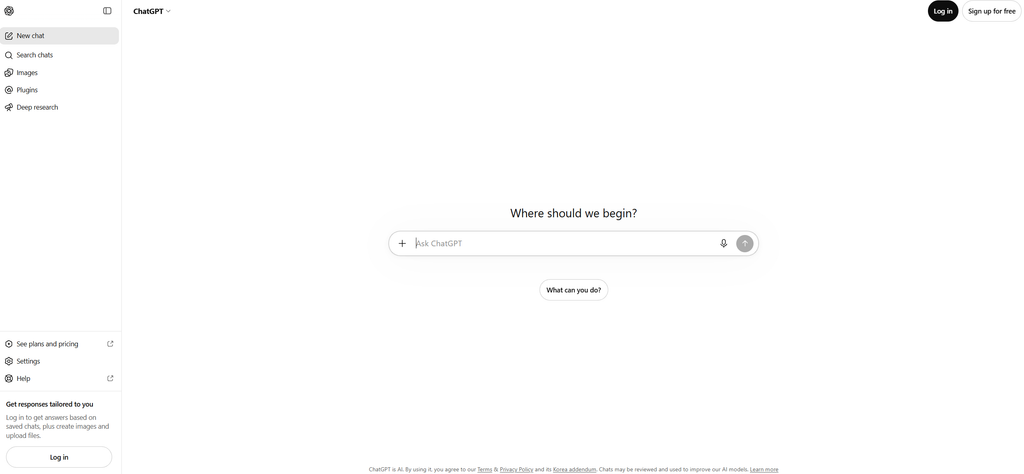
When the home screen appears, you will see a message box where you can start a conversation.
You can simply type what you want ChatGPT to help you with.
In supported regions, you can try ChatGPT without creating an account. Signing in gives you access to saved conversations and other account-based features.
The text or instruction you give ChatGPT is commonly called a prompt.
A prompt can be a simple question, a detailed instruction, text, an image, a file, or a combination of these.
Step 2: Start With a Simple Prompt
Your first prompt does not need to be complicated.
For example:
Explain compound interest in simple language.
Or:
Help me write a polite email asking my manager for Friday afternoon off.
Or:
Create a 20-minute study plan for learning basic Spanish vocabulary.
ChatGPT will generate a response based on your request.
One of the biggest beginner mistakes is assuming that you need to write the perfect prompt before you start.
You do not.
Start with what you want, read the response, and improve it from there.
Step 3: Give ChatGPT More Context
Compare these two prompts.
Weak Prompt
Write an email.
ChatGPT knows that you want an email, but almost nothing else.
Now compare it with this:
Better Prompt
Write a short professional email to my manager explaining that I will be 30 minutes late because of a train delay. Keep it polite and under 100 words.
The second prompt provides several useful pieces of information:
- Task: Write an email
- Audience: My manager
- Context: Train delay
- Style: Professional and polite
- Length: Under 100 words
A simple beginner formula is:
Task + Context + Requirements + Format
For example:
Explain photosynthesis to me. I am a high school student preparing for an exam. Use simple language and finish with five quiz questions.
You do not need to follow this formula every time.
But when ChatGPT gives you vague or unhelpful responses, adding these details often makes a major difference.
Step 4: Ask Follow-Up Questions
You do not need to start a completely new conversation every time the first response is not perfect.
Instead, continue the conversation.
For example:
Make it shorter.
Then:
Make the tone friendlier.
Then:
Give me three different versions.
Then:
I like version two. Make it slightly more professional.
This is one of the most important habits for new ChatGPT users.
Do not think of ChatGPT as:
Question → Answer → Finished
Think of it as:
Request → Response → Feedback → Better response
The ability to refine an answer through conversation is one of the biggest advantages of using an AI assistant.
Step 5: Tell ChatGPT What a Good Answer Looks Like
If ChatGPT keeps giving you the wrong type of answer, explain what you want the final result to look like.
Instead of:
Give me ideas for saving money.
Try:
Give me 10 realistic ways a full-time employee can reduce monthly expenses. Put them in a table with estimated difficulty, possible monthly savings, and the first step to take.
The second prompt gives ChatGPT a much clearer target.
Useful instructions include:
- Explain it for a complete beginner.
- Give me a step-by-step checklist.
- Put the information in a table.
- Give me three options.
- Keep the answer under 300 words.
- Show me a realistic example.
- Ask me questions before making a recommendation.
Small instructions like these can dramatically improve the usefulness of a response.
Step 6: Use ChatGPT for Real Tasks
Many beginners only use ChatGPT to ask random questions.
It becomes far more useful when you give it an actual task to complete.
Writing
Rewrite the following message so it sounds polite and natural while keeping my original meaning:
[Paste your message]
Learning
Teach me the basics of Excel formulas. Assume I am a complete beginner. Give me one short lesson at a time and quiz me after each lesson.
Work
Turn these meeting notes into a clear action list. Separate each task by owner, deadline, and priority.
Everyday Life
I have chicken, rice, eggs, onions, and potatoes. Suggest three simple dinners I can make without buying many additional ingredients.
Decision-Making
Compare these two options. Create a pros-and-cons table and explain which factors I should consider before deciding.
Brainstorming
Give me 15 birthday gift ideas for someone who likes cooking, hiking, and coffee. Keep each idea under $50.
The goal is not just to ask:
“What does ChatGPT know?”
A better question is:
“What can ChatGPT help me accomplish?”
Step 7: Use Files Instead of Copying Everything Manually
ChatGPT can work with supported documents, spreadsheets, presentations, and other files uploaded into a conversation.
File uploads are available on both Free and paid ChatGPT plans, although usage limits and account settings vary.
Commonly supported formats include PDFs, Word documents, spreadsheets, presentations, CSV files, and text files.
This can save a significant amount of time.
For example, you can upload a document and ask:
Summarize this document in five key points.
Or:
Read this document and explain the sections that a beginner is most likely to misunderstand.
With a spreadsheet, you might ask:
Analyze this spreadsheet and identify the biggest changes in monthly expenses.
You can also compare information from multiple files.
Compare these two documents and show me the major differences in a table.
This is often much easier than manually copying and pasting large sections of text.
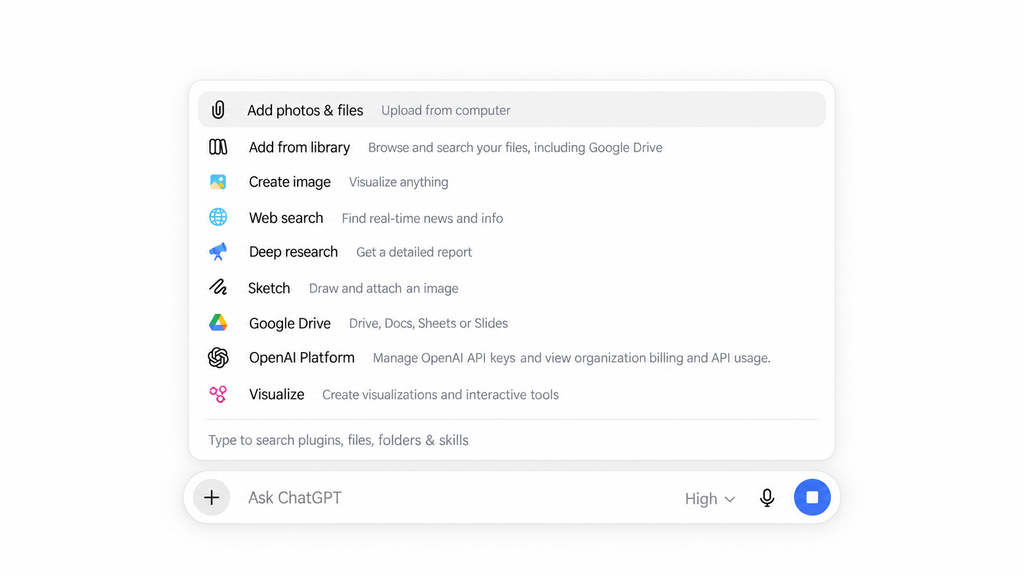
The exact options visible in the tools menu may change over time depending on your account, plan, region, and product updates.
That is normal.
You do not need to learn every tool immediately.
Start with the ones that solve problems you actually have.
Step 8: Use Web Search When Information Needs to Be Current
Some questions can be answered from general knowledge.
Others require information that may have changed recently.
ChatGPT can search the web and provide source-backed answers when current information is needed.
Web search is available across Free and paid ChatGPT plans, and it can also be available without signing in.
This is useful for questions such as:
- What are the current ChatGPT plans?
- What happened in today’s technology news?
- Compare the current features of ChatGPT and Claude.
- Find the latest official requirements for this software.
For information that changes frequently, you can explicitly ask ChatGPT to verify it.
Search the web for the latest information about this topic. Prioritize official sources and show me the sources you used.
Even when ChatGPT provides sources, it is still worth opening important sources yourself when accuracy matters.
Step 9: Use Images and Screenshots
Sometimes describing a problem in words is difficult.
In those situations, showing ChatGPT an image or screenshot can be much easier.
For example:
- Look at this screenshot and explain what this error message means.
- Analyze this chart and summarize the three most important trends.
- Translate the text visible in this image.
- Explain what I should click next on this screen.
Screenshots are particularly useful for:
- software problems
- website settings
- error messages
- charts
- forms
- interfaces you do not understand
Instead of spending several paragraphs describing what you see, you can often simply show the screen.
Step 10: Use Projects for Longer-Term Work
When you repeatedly work on the same topic, ChatGPT Projects can help keep related chats, files, and instructions together.
Projects are designed to organize ongoing work in one place. They are available across Free and paid ChatGPT plans, but you need to be signed in to a ChatGPT account to use them.
For example, you might create a Project for:
- learning a language
- planning a trip
- writing a business plan
- researching a topic
- creating content
- managing an ongoing work project
A Project can be useful when you want related work to stay organized instead of being spread across many unrelated chats.
You do not need Projects on your first day.
But they can become valuable once you begin using ChatGPT regularly.
Five Prompts Every Beginner Should Try
If you are still not sure where to begin, copy one of these prompts and adapt it to your situation.
1. Find Useful Ways to Use ChatGPT
I am a [job / student / parent / business owner / etc.]. Give me 10 practical ways I could use ChatGPT to save time or make everyday tasks easier. Include an example prompt for each one.
2. Learn Something New
Teach me [topic] from the beginning. Assume I know almost nothing about it. Break it into small lessons and check my understanding after each lesson.
3. Improve Your Writing
Improve the following text for clarity and grammar while keeping my original meaning and tone:
[Paste text]
4. Create a Plan
Help me create a realistic plan to achieve [goal] in [time period]. Break it into weekly steps and tell me what to prioritize first.
5. Compare Two Options
Compare [option A] and [option B] for someone who cares most about [priority]. Give me a table showing advantages, disadvantages, cost, difficulty, and who each option is best for.
Save prompts that work well for you.
Then adjust them for different tasks instead of starting from zero every time.
What to Do When ChatGPT Gives You a Bad Answer
Sometimes ChatGPT will give you an answer that is:
- too vague
- too long
- too technical
- incomplete
- incorrect
- simply not useful
Do not immediately give up.
Tell ChatGPT what is wrong.
For example:
- This is too general. Give me concrete examples.
- That explanation is too technical. Explain it for a complete beginner.
- You misunderstood my goal. I need X, not Y.
- Review your previous answer and identify anything that may be incorrect.
- Show me reliable sources supporting the important claims.
Good ChatGPT users do not necessarily write perfect prompts on the first attempt.
They get better results by refining the conversation.
Important: ChatGPT Can Be Wrong
ChatGPT is useful, but it is not always correct.
It can sometimes produce incorrect or outdated information while sounding confident.
This means you should treat ChatGPT as an assistant, not as an unquestionable authority.
Be particularly careful when dealing with:
- medical information
- legal questions
- financial decisions
- laws and regulations
- current prices
- important dates
- statistics
- product specifications
- academic references
For important information, ask for sources and verify the original source yourself.
A useful prompt is:
Verify the important factual claims in your previous answer using reliable and current sources. Clearly identify anything you are uncertain about.
This simple habit can prevent many problems.
Be Careful With Sensitive Information
Before uploading a document or entering personal information, ask yourself whether ChatGPT actually needs that information.
Avoid unnecessarily sharing information such as:
- passwords
- credit card numbers
- authentication codes
- confidential company information
- private customer information
- highly sensitive personal documents
If possible, remove or anonymize sensitive details before uploading a file.
For example, if you want ChatGPT to analyze a customer document, you may be able to remove the customer’s real name, account number, or other identifying information first.
Do You Need a Paid ChatGPT Plan?
Not necessarily.
A beginner can learn the basic ChatGPT workflow without immediately paying for a subscription.
ChatGPT offers a Free plan as well as paid plans with different usage limits and capabilities. Exact features and limits can change over time.
Start by learning how to:
- ask clear questions
- provide useful context
- request a specific type of output
- refine weak responses
- verify important information
Once you understand how often you use ChatGPT and which features matter to you, you can decide whether a paid plan makes sense.
We will cover the differences between ChatGPT plans in a separate Praclane guide.
How to Use ChatGPT for Beginners: A Simple Workflow
You can reduce almost everything in this guide to five steps:
- Tell ChatGPT what you want.
- Add enough context for it to understand the task.
- Describe the result you want.
- Review the answer and give feedback.
- Verify anything important.
That is enough to start using ChatGPT effectively.
You do not need hundreds of complicated prompts.
You need a clear goal and a willingness to improve the result through conversation.
Frequently Asked Questions
Is ChatGPT Free?
Yes. ChatGPT has a Free plan, along with paid plans that provide different usage limits and capabilities. Plan features can change over time.
Do I Need to Know How to Code?
No. Most everyday ChatGPT tasks require no programming knowledge.
You can simply describe what you want using normal language.
What Is a ChatGPT Prompt?
A prompt is the input you give ChatGPT.
It can include:
- a question
- an instruction
- text
- an image
- a file
- additional context
The purpose of the prompt is simply to tell ChatGPT what you want it to do.
Can ChatGPT Search the Internet?
Yes. ChatGPT can search the web and provide source-backed answers when current information is needed.
Can ChatGPT Read PDFs and Other Files?
Yes. ChatGPT can work with supported documents, spreadsheets, presentations, and other uploaded files.
Exactly what it can extract or analyze can depend on the file type, account, plan, and feature being used.
Should I Trust Every ChatGPT Answer?
No.
Use ChatGPT as an assistant, not as the final authority.
Important facts should always be verified using reliable sources.
Explore more beginner-friendly AI guides in our AI Basics section.
Final Thoughts
Learning how to use ChatGPT is not about memorizing complicated prompts.
It is about learning how to communicate what you need.
Start with a real task.
Explain what you want.
Add useful context.
Tell ChatGPT what the final result should look like.
Then keep improving the answer with follow-up questions.
Once you are comfortable with that basic workflow, features such as web search, file uploads, images, and Projects can make ChatGPT much more useful.
The best way to learn ChatGPT is not to read hundreds of prompts.
It is to use ChatGPT to solve one real problem you have today.
Sources and Further Reading
- OpenAI Help Center — What is ChatGPT: FAQ
- OpenAI Help Center — ChatGPT Search
- OpenAI Help Center — File Uploads FAQ
- OpenAI Help Center — Projects in ChatGPT
- OpenAI Help Center — ChatGPT Free Tier FAQ
One Comment